Quick Answer
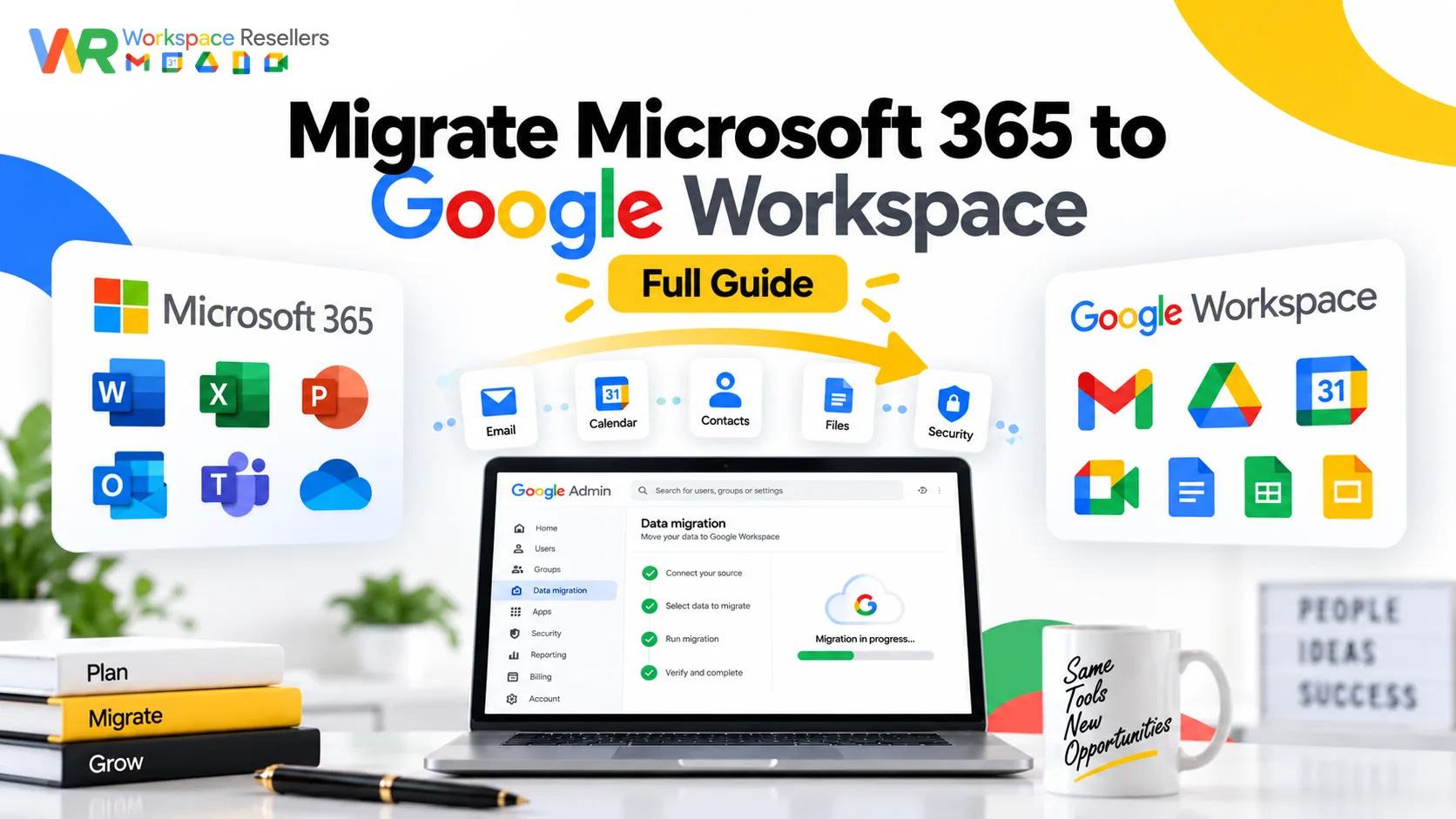
Migrating from Microsoft 365 to Google Workspace has two main paths, and picking the right one matters more than most guides let on. For most organizations, Google’s built-in Data Migration Service is the way to go: an admin-driven, bulk process that pulls mail, calendar, and contacts directly from Exchange Online, no downloads, no service account setup. The second option, GWMMO (Google Workspace Migration for Microsoft Outlook), is a separate, free tool each user runs on their own machine, useful specifically for PST files or Outlook data that isn’t cleanly reachable through Exchange Online itself.
This guide walks through both, plus the setup steps, requirements, and mistakes that turn a simple migration into a multi-day headache.
Two Tools, Two Different Jobs
Before touching either tool, it’s worth being clear on what each one is actually built for, since picking wrong is where most migration confusion starts.
The Data Migration Service lives inside the Google Admin console. An admin connects directly to your organization’s Exchange Online tenant and pulls mail, calendar, and contacts in bulk, for as many users as you specify at once. This is the right tool for a standard organization-wide move off Microsoft 365.
GWMMO (Google Workspace Migration for Microsoft Outlook) is a separate, downloadable Windows tool. Instead of an admin pulling everyone’s data centrally, each user runs GWMMO on their own computer to import their own mail, calendar, and contacts from either a live Exchange connection or a local PST file. It’s the right tool when you’re dealing with PST files specifically, or a smaller migration where a self-service, per-person approach makes more sense than a centralized bulk pull.
Neither tool migrates your files. If you also need to move data out of OneDrive or SharePoint into Google Drive, that’s a separate migration path entirely, not something either of these tools touches.
Before You Start: Prerequisites
- Google Workspace accounts already created for everyone you’re migrating. Neither tool creates users for you.
- Super admin access in Google Workspace.
- Global admin access in Microsoft 365, needed for the Data Migration Service path.
- Your domain already verified in Google Workspace. If you haven’t done this yet, our domain verification guide covers the exact steps.
- A decision on which tool fits your situation, bulk Exchange Online migration versus individual PST imports, before you start rather than partway through.
Method 1: The Data Migration Service (Recommended for Most Organizations)
This is Google’s modern, built-in tool, and for a standard Microsoft 365 to Google Workspace move, it’s the path most organizations should start with.
Step 1: Enable IMAP Access (If Migrating to Gmail Accounts)
Before running any migration, confirm IMAP access is enabled on your destination Google Workspace accounts. This is a quick toggle in the Admin console under Gmail settings, and skipping it is a common reason migrations fail before they even begin.
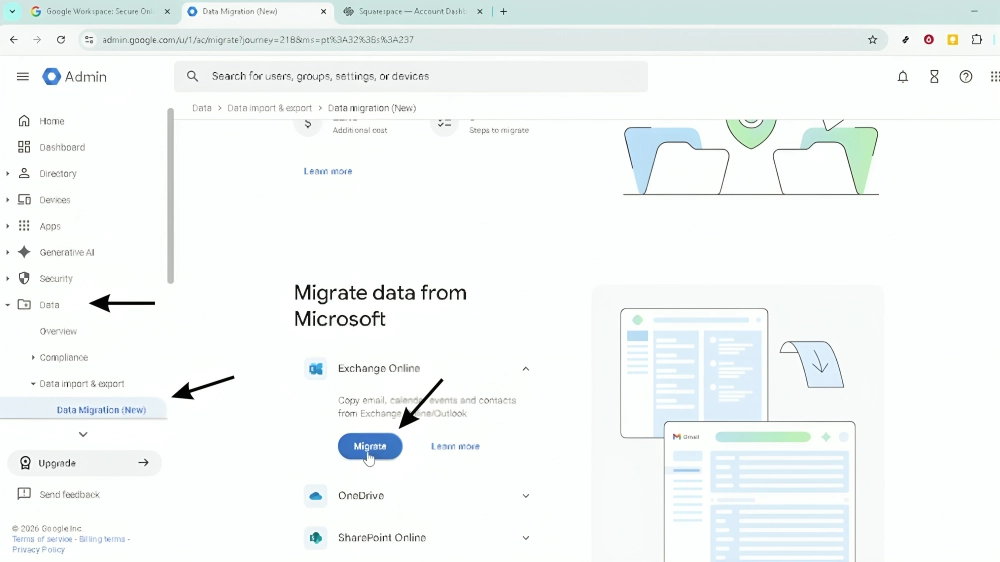
Step 2: Start the Migration in the Admin Console
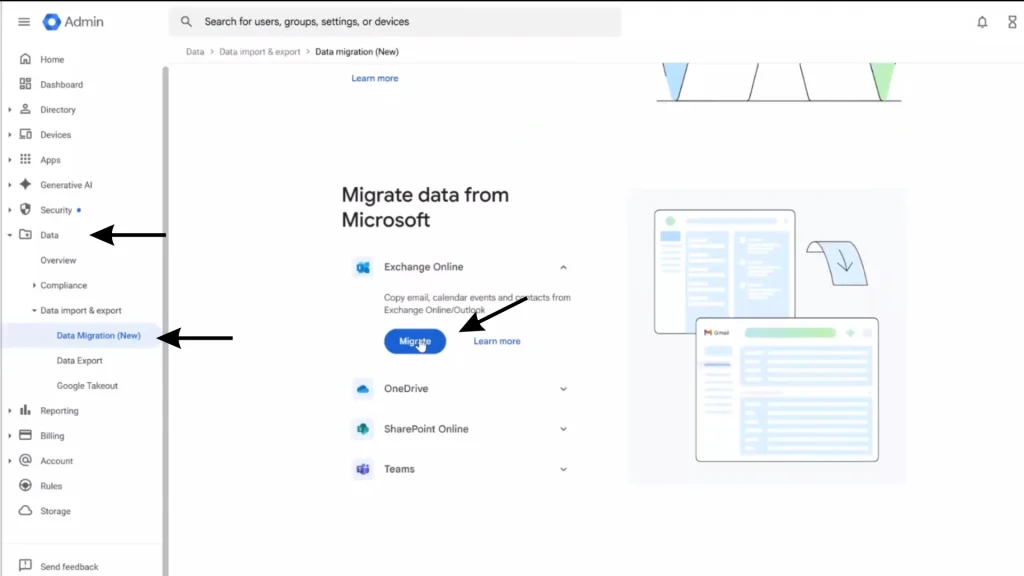
- Go to Menu, then Data Migration.
- Select Email as the migration type.
- Choose Microsoft Exchange Online (or Microsoft Exchange Server if you’re on an on-premises setup rather than the cloud version) as your migration source.
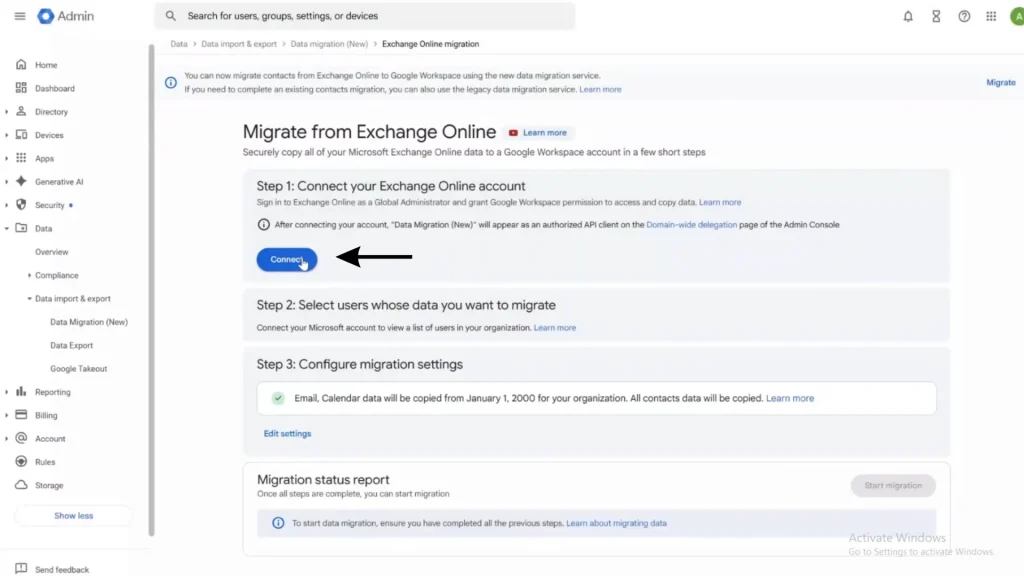
Step 3: Connect to Your Exchange Online Account
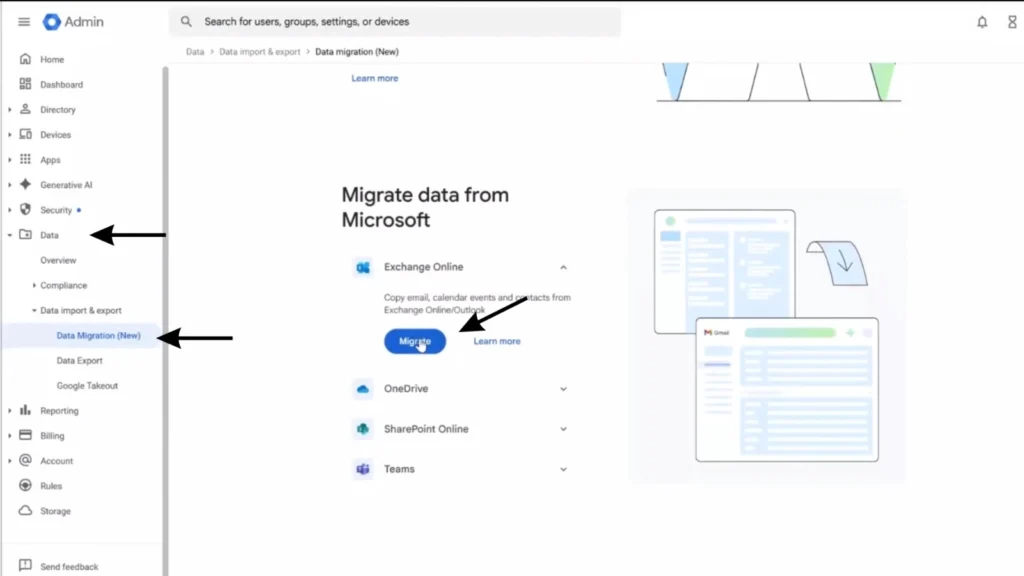
You’ll be prompted to authorize the connection to your Microsoft 365 tenant. Sign in with your Microsoft 365 global admin credentials when asked. This is the modern replacement for the older service-account-and-secret-key process some third-party tools still require, you’re authorizing directly through a login prompt, not generating and uploading a credentials file.
Step 4: Select Users to Migrate
Choose which mailboxes to migrate, either individually or by uploading a CSV mapping source addresses to destination Google Workspace addresses. For a large organization, staging users in batches rather than migrating everyone simultaneously makes it easier to catch problems early.
Step 5: Configure Import Settings
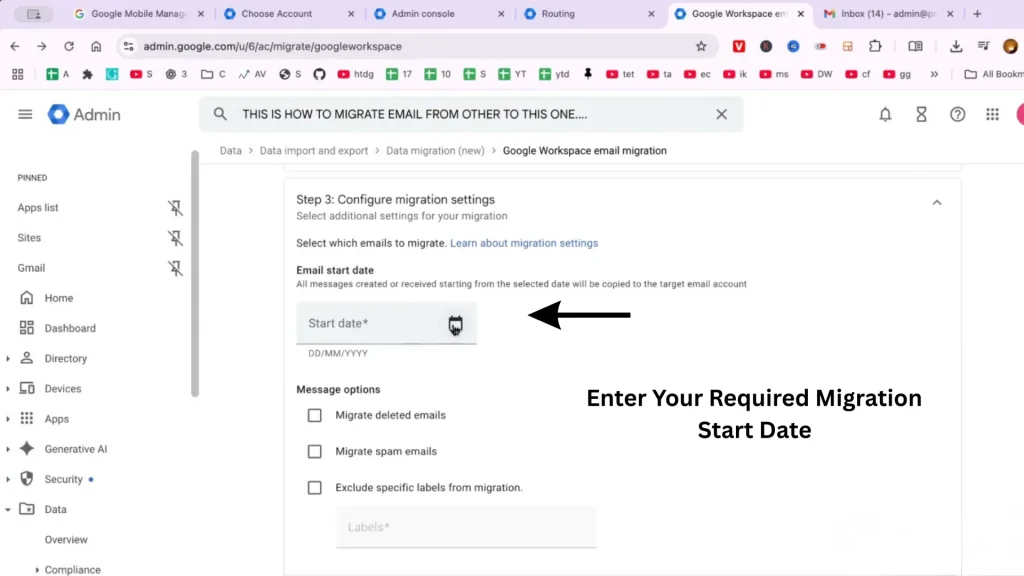
Set your migration start date if you don’t need every historical email, this speeds up the process meaningfully if your mailboxes go back years. You can also choose whether to include deleted items and junk mail, and exclude specific folders you don’t want carried over.
Step 6: Start and Monitor the Migration
Once started, the migration runs on Google’s servers, not your local machine, so you can close your laptop and it keeps going. Progress shows as a percentage once Google finishes estimating the total item count. Larger mailboxes can reasonably take overnight or longer.
Step 7: Run a Delta Migration Before Final Cutover
After the initial migration completes, run a delta migration, a follow-up sync that catches anything new that arrived after your first pass started. This is the step that lets you switch your MX records with minimal risk of missing recent mail.
Method 2: GWMMO (For PST Files and Per-User Imports)
If your situation calls for GWMMO instead, whether that’s because you’re dealing with local PST archives or want a self-service option for a smaller team, here’s how it works.
For Admins: Setting Up GWMMO
- Ensure every user who’ll be migrating already has a Google Workspace account created.
- Download the recommended MSI file from the official GWMMO download page, choosing the correct 32-bit or 64-bit edition to match your organization’s installed version of Outlook.
- Deploy the MSI to users’ machines using your organization’s standard software deployment method.
- Optionally, sync your organization’s shared contacts using Google Cloud Directory Sync (GCDS) beforehand, so users have your full address list available immediately after migrating.
For Users: Running the Migration
- Launch GWMMO on your Windows machine.
- Sign in with your Google Workspace account credentials when prompted, then grant the requested permissions.
- Choose your data source: a live Exchange account, or a local PST file.
- Select whether to import mail, calendar, contacts, or all three, either together or in separate stages.
- Start the migration and monitor progress on screen.
A few real constraints worth knowing before deploying this at scale: Google recommends running only one instance of GWMMO per user, keeping the migration to periods when the machine isn’t in heavy active use (Google specifically suggests something like lunchtime), and importing one account at a time rather than queuing several simultaneously. The tool can be resource-intensive, and it’s generally best suited to smaller migrations, individual users or a few dozen people, rather than a large enterprise-wide rollout, which is exactly where the Data Migration Service is the better fit instead.
What About Google Workspace to Google Workspace Migrations?
If you’re actually consolidating two separate Google Workspace accounts rather than moving off Microsoft 365, that’s a different scenario the Data Migration Service also handles, just select Google Workspace (or the correct account type) as your source instead of Exchange Online. One documented, easy-to-hit mistake here: if you’re actually migrating from a personal Gmail account rather than a full Workspace account, select Gmail as the source type, not Google Workspace. Choosing the wrong one produces a confusing IMAP login error even when your account settings are entirely correct.
Migrating Google Drive Content Separately
Neither the Data Migration Service nor GWMMO moves file storage. If your organization also needs to move OneDrive or SharePoint content into Google Drive, that requires a separate migration tool or process, worth planning as its own project phase rather than assuming it’s bundled into your mail migration.
How to Avoid an Email Outage During Migration
You don’t have to choose between migrating and staying reachable by email. Start your migration first, whichever tool you’re using, and leave your existing Microsoft 365 MX records active while data syncs in the background. Once the initial migration and a delta sync are both complete, switch your MX records to point to Google. New mail keeps arriving the entire time, since your old system keeps receiving until the literal moment you flip the DNS switch.
Migrating the Other Direction
If you’re actually looking to go from Google Workspace to Microsoft 365 instead, that’s a different, more involved process using Microsoft’s Exchange admin center rather than Google’s tools. Our guide on migrating from Google Workspace to Office 365 covers that direction in full, including a documented 2024-and-later Google Cloud restriction that blocks the process at a specific step until you fix it.
Common Mistakes During Migration
Using GWMMO for a large organization-wide migration. It’s built for individual, self-service imports. For dozens or hundreds of mailboxes, the admin-driven Data Migration Service is the more reliable, scalable choice.
Forgetting to enable IMAP before starting. This blocks the Data Migration Service from connecting at all, and it’s an easy step to overlook since it’s configured separately from the migration tool itself.
Switching MX records before running a delta migration. Doing this risks missing mail that arrived between your initial migration and the actual cutover.
Assuming file storage migrates automatically. Mail, calendar, and contacts move with these tools. OneDrive and SharePoint content need their own separate migration plan.
Running multiple GWMMO instances simultaneously for one user. Google explicitly recommends against this, it risks duplicate or incomplete imports.
When to Get Help Instead of Doing This Yourself
Choosing the right tool, staging users in sensible batches, and timing your MX cutover correctly is genuinely more planning than a first-time migration usually accounts for. A rushed migration risks duplicate mail, missing recent messages, or a confusing outage window your team feels immediately.
LGoogle Workspace Resellers manages Microsoft 365 to Google Workspace migrations directly as part of onboarding, so a real person handles tool selection, batching, and cutover timing rather than leaving you to learn it under deadline pressure.
Google Workspace Pricing, If You’re Switching for the First Time
If this migration is part of a first-time move to Google Workspace, it’s worth checking pricing before committing to Google’s official rate:
| Plan | Google Direct (flexible) | Reseller Price |
|---|---|---|
| Business Starter, below 300 users | $8.40/user/mo | $3/user/mo |
| Business Starter, 300+ users | $8.40/user/mo | $2.50/user/mo |
| Business Standard | $16.80/user/mo | $13/user/mo |
| Business Plus | $26.40/user/mo | $20/user/mo |
Same Gmail, same Drive, same migration tools, at a meaningfully lower price. See the full Google Workspace pricing breakdown for every tier.
Honest Limitation
This guide reflects Google’s current documented migration tools, but every organization’s mailbox sizes, Exchange configuration, and PST file history are different. A migration involving unusually large mailboxes, corrupted PST files, or non-standard Exchange setups may behave differently than the standard process described here. Testing with a small batch of users before committing your entire organization is the safer approach regardless of which tool you choose.
FAQs
How do I migrate from Microsoft 365 to Google Workspace?
Using Google’s Data Migration Service for a standard bulk migration (connect to Exchange Online, select users, and sync mail, calendar, and contacts), or GWMMO for individual, self-service imports from Outlook or a local PST file. Neither requires the older secret-key or service-account setup that some third-party tools still use.
What’s the difference between the Data Migration Service and GWMMO?
The Data Migration Service is admin-driven and pulls data in bulk for many users at once, ideal for a full organization migration. GWMMO is a downloadable tool each user runs individually on their own Windows machine, better suited to PST files or smaller, self-service migrations.
Do I need a secret key to migrate Microsoft 365 to Google Workspace?
No, not for the standard Data Migration Service path. You authorize the connection to Exchange Online directly through a login prompt. The secret key and service account setup applies to different, more manual migration scenarios.
Can I migrate without losing email during the switch?
Yes. Start the migration and run a delta sync while your Microsoft 365 MX records stay active, then switch MX records to Google only once syncing is complete. New mail keeps arriving throughout the process.
Does migrating email also migrate my Google Drive files?
No. Both migration tools handle mail, calendar, and contacts only. Moving OneDrive or SharePoint content into Google Drive requires a separate migration process.
Is GWMMO suitable for a large company migration?
Not ideally. Google recommends GWMMO for individual users or smaller teams, since it’s resource-intensive and runs per-person rather than in bulk. A larger organization is generally better served by the Data Migration Service instead.
Conclusion
Migrating from Microsoft 365 to Google Workspace comes down to picking the right tool for your situation: the Data Migration Service for a standard, admin-driven organization-wide move, or GWMMO for PST files and smaller, self-service imports. Neither requires the more technical secret-key setup some outdated guides still describe, and both let you avoid an email outage entirely if you sequence the MX record switch correctly.
Get the tool choice right from the start, since running GWMMO across a large organization or the Data Migration Service for a single PST file both work against the grain of what each tool was actually built for. And if the planning feels like more than your team wants to own solo, an authorized Google Workspace reseller can run the whole migration for you, correctly, the first time.