Quick Answer
Migrating from one Google Workspace account to another, whether you’re merging businesses, splitting off a division, or just changing domains, isn’t a one-click process. It’s a genuine project: set up the new account, migrate mail, Drive files, contacts, and calendar, then point mail delivery to the new destination.
You have two real paths: Google Workspace Migrate, Google’s free native tool built specifically for this kind of tenant-to-tenant transfer, or a paid third-party tool that trades cost for simpler setup and dedicated support. One current wrinkle worth knowing upfront: Google is winding down parts of Google Workspace Migrate for certain source systems in 2026, though its core Workspace-to-Workspace use case appears unaffected as of this writing.
What Actually Needs to Move (and What Doesn’t)
A Workspace-to-Workspace migration covers user content: emails, Drive files, contacts, and calendar events. That’s the part every migration tool, free or paid, is built to handle.
What doesn’t transfer with either approach: admin console settings, security policies, SSO configuration, domain-wide delegation, and Google Vault data. These live at the organization level, not the user level, and have to be manually rebuilt in your new account. If your current setup has any meaningful security configuration, budget real time for recreating it, not just for moving mail.
Are You Changing Domains, or Keeping the Same One?
This decision shapes your entire approach, so settle it before doing anything else.
Changing domains is the more straightforward path. Set up your new Google Workspace account on the new domain, migrate content over, then simply update your MX records to point to the new account when you’re ready to cut over.
Keeping the same domain requires a specific workaround, since Google Workspace won’t let two active accounts claim the same primary domain at once. You’ll add your existing domain to the new account as a secondary domain temporarily, migrate everything, then switch it to become the new account’s primary domain, removing it from the old account in the process. If you haven’t done a primary domain change before, our guide on changing your Google Workspace primary domain walks through that specific mechanic in detail, and our multiple domains guide covers exactly how secondary domains work if you need the background first.
Pre-Migration Checklist
Work through these before starting either migration method:
- Verify your new domain in the destination account. Our domain verification guide covers this step by step.
- Set up a super admin account in the new Workspace, with account recovery options and email alerts enabled.
- Configure SPF, DKIM, and DMARC on the new account before migrating, not after.
- Check storage space on every destination account, migrations fail or stall when there isn’t enough room for incoming content.
- Check contact counts. Gmail allows a maximum of 25,000 contacts per account. If any user is near or over that limit, plan around it before migration, not after it fails partway through.
- Don’t activate Gmail on the new account yet if you’re keeping the same domain. New mail will start arriving there instead of your old account the moment Gmail activates, before your migration is actually complete.
- Back up critical data independently of the migration tool, even though migration tools generally don’t remove anything from the source, a backup costs little and protects against surprises.
- Plan for weekends or low-activity periods. Migrating during quieter hours minimizes disruption, and larger organizations should expect this to take considerably longer than a single weekend.
The Google Workspace Migrate Sunset: What’s Actually Changing
Here’s the detail most current guides on this topic are missing or getting wrong. Google Workspace Migrate, the free native tool historically used for tenant-to-tenant transfers, Exchange Online migrations, and SharePoint/OneDrive imports, is being wound down for some of those use cases specifically:
- SharePoint Online and OneDrive migration support stopped receiving updates and bug fixes as of September 15, 2026.
- Exchange Online migration through Google Workspace Migrate stops entirely in October 2026. Google is directing Microsoft-source migrations toward its newer “Data import” tool instead, a cloud-native option launched in April 2026 aimed at enterprise-scale migrations from Microsoft 365.
Neither of those sunset notices mentions Google-to-Google (Workspace-to-Workspace) migration. As of this writing, Google Workspace Migrate still appears to be the intended tool for exactly the scenario this article covers. That said, given how recently the Exchange and SharePoint sunsets were announced, it’s worth double-checking Google’s current Workspace Migrate documentation before committing to it for a large migration, since this is an area actively in flux.
Method 1: Google Workspace Migrate (Free, Native)
This is Google’s purpose-built tool for moving user content between two Workspace accounts.
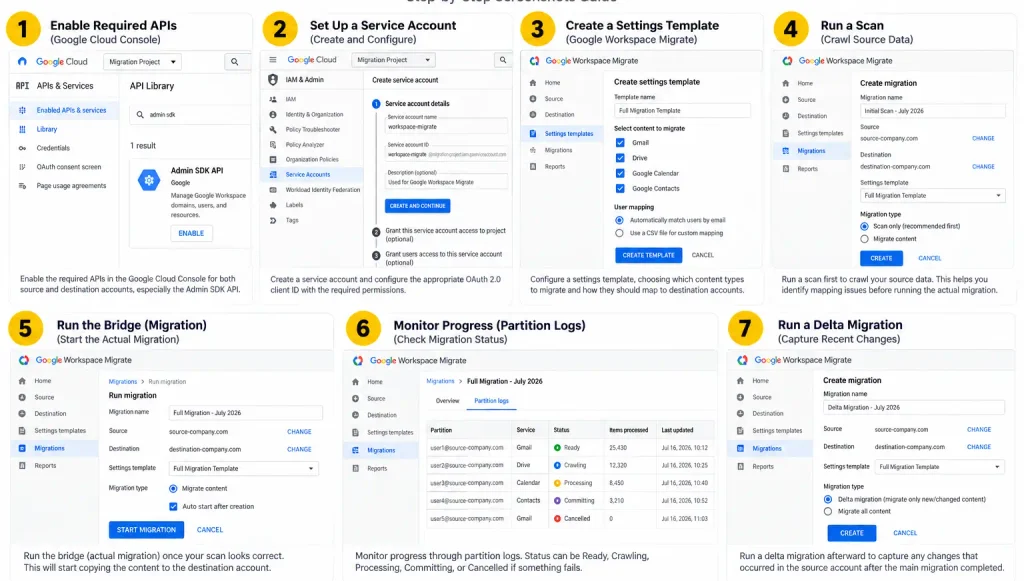
- Enable the required APIs in the Google Cloud Console for both the source and destination accounts, particularly the Admin SDK.
- Set up a service account with the appropriate OAuth 2.0 client ID, used for authorization rather than the service account’s own client ID directly.
- Configure a settings template in Google Workspace Migrate, defining what content types to migrate and how they should map to destination accounts.
- Run a scan first to crawl your source data before actually writing anything to the destination, this lets you catch mapping issues before they become real migration errors.
- Run the bridge (the actual migration) once your scan looks correct, and monitor progress through partition logs, which show status as Ready, Crawling, Processing, Committing, or Cancelled if something fails.
- Run a delta migration afterward to catch anything that changed in the source account after your main migration completed.
This tool is genuinely built for IT administrators, not a simple drag-and-drop experience. Expect real setup time, and expect to consult Google’s own troubleshooting documentation if a partition gets stuck or fails, common causes include API quota limits, disabled third-party Drive app permissions, or a source account that’s been suspended or renamed since the scan.
Method 2: Paid Third-Party Migration Tools
If the setup above sounds like more technical overhead than your team wants to take on, paid tools trade cost for simplicity and support. The general workflow across most third-party options looks similar: connect your source Workspace account (ideally through domain-wide authorization for a full organizational migration), connect your destination account the same way, map source users to destination users, select what content to migrate, and start the transfer with progress tracking and a completion report.
The honest tradeoff, worth weighing deliberately rather than defaulting to either extreme: Google’s native tool costs nothing but demands real technical setup and offers no dedicated support beyond documentation and community forums. Paid tools cost money but generally offer simpler setup, faster support when something goes wrong, and features like automatic delta migrations within a set window after the main transfer completes. For a small migration with a technically comfortable admin, free is often perfectly adequate. For a larger, time-sensitive migration where downtime has a real cost, the paid option’s support and reliability can easily justify the price.
Pointing Mail to the New Account Without Downtime
Regardless of which method you use, the same principle applies: don’t switch mail delivery until your content migration is actually finished.
If you’re changing domains, this means updating your MX records to the new account only after migration completes. If you’re keeping the same domain, this means not activating Gmail on the new account, and not switching the domain from secondary to primary, until you’ve confirmed your data has fully transferred. Switch too early in either scenario, and new incoming mail starts landing in the new account while your migration is still running against a moving target.
A Quick Note on Personal Google Account Transfers
If you searched for this topic hoping to move data between two personal Google accounts, on an iPhone or Android device, that’s a different, much simpler process than what this guide covers. Personal account data transfer (contacts, photos, and similar content) is handled through your device’s account settings or Google’s own data export tools, not through Google Workspace Migrate or any admin-level migration tool. This guide is specifically about business Workspace accounts and the admin tools built for that scenario.
Common Mistakes During This Migration
Activating Gmail on the new account too early. If you’re keeping the same domain, this causes new mail to split between old and new accounts before migration is complete.
Not checking the 25,000-contact limit beforehand. A user near that ceiling can hit a wall mid-migration that’s much easier to plan around in advance than to troubleshoot after the fact.
Assuming admin settings migrate automatically. Security policies, SSO, and Vault configuration all need manual recreation in the new account, no migration tool moves these.
Underestimating timeline for larger organizations. A couple of accounts can move over a weekend. Dozens or hundreds of users, especially with large mailboxes, typically need considerably more time, and migration speed is also subject to Google’s own throttling to balance system load.
When to Get Help Instead of Doing This Yourself
A Workspace-to-Workspace migration touches domain configuration, API permissions, and user data all at once, and getting any piece wrong risks lost mail or a confusing partial migration that’s harder to untangle than starting cleanly would have been.
Both major resellers on this site offer direct help here, not just Workspace subscriptions. Google Workspace Resellers provides Google Workspace email setup and migration services as part of what they do, handling the domain swap, API setup, and content transfer directly rather than leaving you to configure Google Workspace Migrate solo.
Google Workspace Pricing, If You’re Consolidating Accounts
If this migration is part of consolidating licenses or moving to a new account structure, it’s worth checking pricing before recommitting to Google’s official rate:
| Plan | Google Direct (flexible) | Reseller Price |
|---|---|---|
| Business Starter, below 300 users | $8.40/user/mo | $3/user/mo |
| Business Starter, 300+ users | $8.40/user/mo | $2.50/user/mo |
| Business Standard | $16.80/user/mo | $13/user/mo |
| Business Plus | $26.40/user/mo | $20/user/mo |
Same Gmail, same Drive, same migration support, at a meaningfully lower price. See the full Google Workspace pricing breakdown for every tier.
Honest Limitation
Google Workspace Migrate’s status is genuinely shifting in 2026, with confirmed sunsets for Exchange Online and SharePoint/OneDrive support but no equivalent announcement yet for Workspace-to-Workspace transfers specifically. Given how recently these changes were announced, it’s worth confirming the tool’s current status directly in Google’s admin documentation before committing to it for a migration of any real size, rather than relying solely on this guide’s snapshot of a situation that may continue to evolve.
FAQs
How do I migrate from one Google Workspace account to another?
Set up and verify your new Workspace account, decide whether you’re keeping or changing your domain, then migrate mail, Drive files, contacts, and calendar using either Google Workspace Migrate (free, native) or a paid third-party tool, before finally pointing mail delivery to the new account.
Is Google Workspace Migrate still available for Workspace-to-Workspace migrations?
As of this writing, yes. Google has announced sunsets for Google Workspace Migrate’s Exchange Online support (ending October 2026) and SharePoint/OneDrive support (updates stopped September 2026), but Google-to-Google migration hasn’t been included in either announcement.
Can I keep my domain when migrating to a new Google Workspace account?
Yes, by temporarily adding your existing domain as a secondary domain on the new account, migrating your content, then switching it to primary and removing it from the old account.
What doesn’t migrate when moving between Google Workspace accounts?
Admin console settings, security policies, SSO configuration, domain-wide delegation, and Google Vault data all need to be manually rebuilt in the new account. Only user content, mail, Drive files, contacts, and calendar, transfers with standard migration tools.
How many contacts can a Google Workspace account have?
Gmail caps each account at a maximum of 25,000 contacts. Check this limit for every user before starting a migration, since exceeding it can cause a migration to fail partway through.
Should I use Google’s free tool or a paid migration service?
It depends on your technical comfort and timeline. Google Workspace Migrate is free but requires real setup work and offers no dedicated support. Paid tools cost more but typically offer simpler setup, faster support, and features like automatic delta migrations.
Conclusion
Migrating from one Google Workspace account to another is a real project, not a setting you flip, but it’s manageable once you’ve settled the domain question, checked the practical limits like the 25,000-contact cap, and picked the right tool for your technical comfort and timeline. Keep an eye on Google Workspace Migrate’s evolving status through 2026, and don’t switch mail delivery until your content migration is genuinely finished.