Quick Answer
The Gmail onboarding and support process covers everything needed to get a new employee working in Google Workspace on day one: creating their account and assigning it to the right organizational unit, adding them to the correct groups for email lists and shared drives, selecting and provisioning their hardware, and pointing them to Google’s own help resources for ongoing support. Most of this can be done manually through the Google Admin console for a small team, or automated through Google’s Admin API and third-party tools once new hire volume grows.
Setting up a new employee’s Gmail account takes a few minutes. Doing it consistently, correctly, and with the right hardware, access, and follow-up support ready on day one is a different task entirely, and it’s the part most businesses figure out the hard way after the first few onboarding experiences go sideways. If you’re weighing whether your team should even be centred on Gmail and Workspace versus another setup, our Gmail vs Google Workspace comparison covers that starting point. This guide walks through the full onboarding process end to end, assuming Workspace is already the platform your organization is standardizing on.
What Does “Gmail Onboarding” Actually Involve?
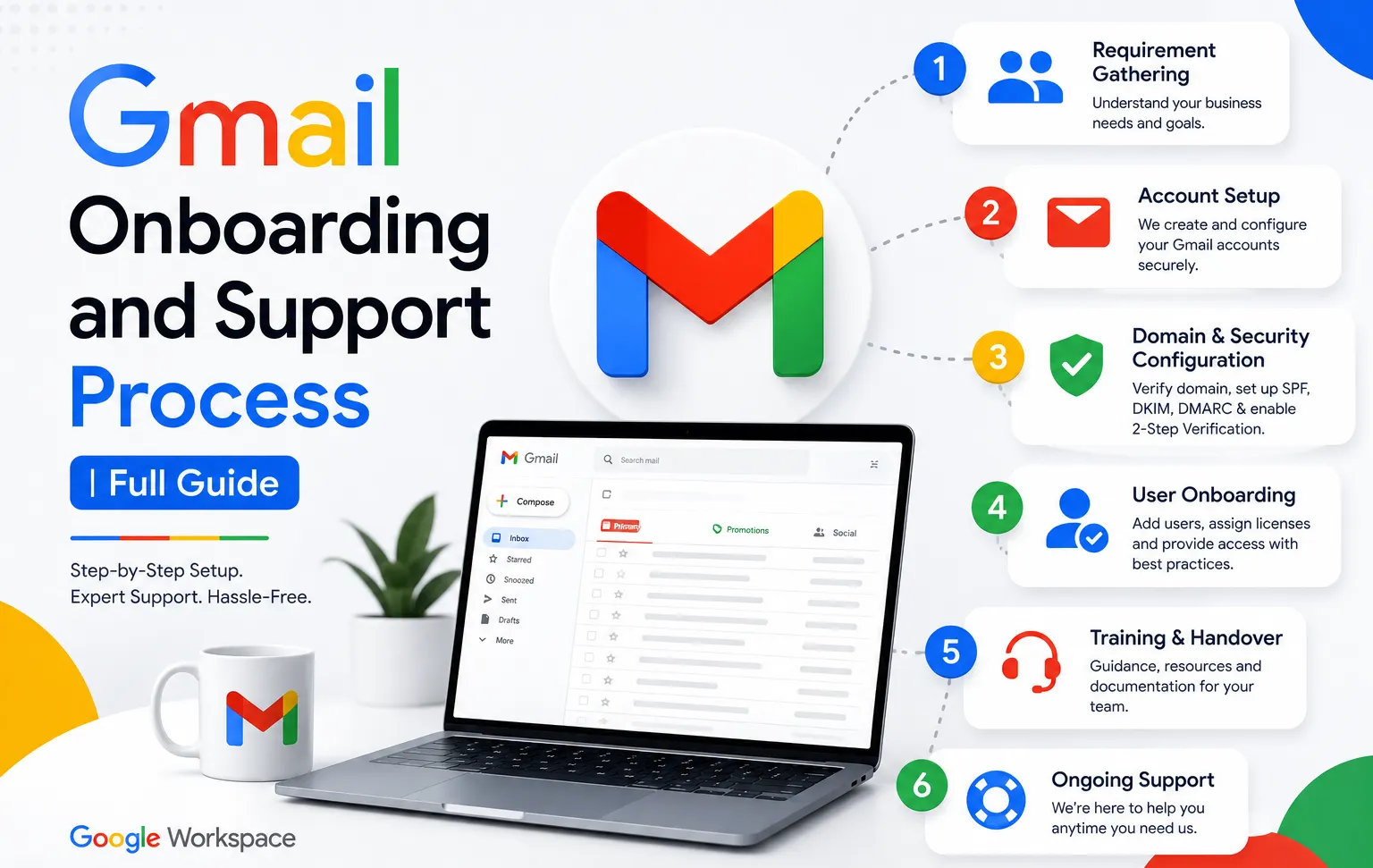
Gmail onboarding isn’t just account creation. A complete process covers five distinct pieces: creating the account itself in the right organizational unit, assigning the new hire to the groups that grant them email lists, shared drive access, and calendar visibility, provisioning the hardware they’ll actually work from, pointing them to support resources for when something doesn’t work, and, ideally, some basic training on how your specific organization uses Gmail and the rest of Google Workspace day to day. Skipping any one of these pieces tends to show up as a support ticket in the first week.
The Core Onboarding Process, Step by Step
- Create the account in the Admin console. Under Users, add the new hire with their name and assigned email address. Choose whether to set a temporary password or let Google generate one, and assign the correct organizational unit if your Workspace setup uses OUs to separate departments or access levels.
- Assign the correct Google Workspace license. Not every role needs the same tier. A new hire who only needs email and basic Docs access might be fine on Business Starter, while a role requiring more storage or advanced Meet features needs a higher tier. Check the full Google Workspace pricing breakdown to confirm which tier fits the role before assigning it, and see Google Workspace license combination options if different teams need different tiers under one organization.
- Add the user to the correct groups. Rather than manually sharing every relevant Drive folder, calendar, and mailing list individually, add the new hire to pre-built groups (department, team, all-staff) so access is granted automatically and consistently.
- Set up email aliases or delegated access if the role requires it. Some roles need a shared or role-based address (like support@ or sales@) in addition to their personal one; decide whether that’s handled through a Google Group, an alias, or delegated access before day one, since each option behaves slightly differently.
- Provision hardware. Confirm what device the new hire will use, whether that’s a company-issued Chromebook, laptop, or a personal device under a BYOD policy, and make sure it’s ready and configured before they start.
- Send a welcome message with login details and first-week resources. Include their login credentials, a link to your internal onboarding documentation, and pointers to where they can get help if something doesn’t work.
- Schedule a short walkthrough of your specific Google Workspace setup. Even a 15-minute session covering how your organization uses Gmail, Drive, and Meet day to day saves confusion later, since Google Workspace’s flexibility means every organization uses it slightly differently.
What to Include in a Gmail Onboarding PDF Checklist
A lot of admins search for a ready-made “Gmail onboarding and support process PDF” hoping to find a universal template. The honest answer is that a generic PDF only gets you partway there, since your groups, OUs, and hardware policy are specific to your organization. What’s worth building yourself, as a simple one-page PDF or shared doc, is a checklist covering: account creation and OU assignment, license tier selection, group memberships to add, any aliases or shared addresses needed, hardware to provision and who’s responsible for it, security steps (2FA enrollment, device policies), and who the new hire should contact for IT support in their first week. Building this once and reusing it for every hire is what turns onboarding into a repeatable process instead of a fresh decision tree each time.
Choosing Hardware for New Hires
Google onboarding hardware selection is a separate decision from the software setup, and it’s worth deciding on a standard policy rather than choosing per hire. Chromebooks are a common choice specifically for Google Workspace-heavy teams, since they’re built around a browser-first workflow that matches Workspace’s own design, tend to be less expensive than traditional laptops, and have simpler device management through Google’s own admin tools. A traditional Windows or Mac laptop makes more sense for roles needing software outside Google’s ecosystem, specialized design tools, certain accounting software, or applications that don’t run well in a browser. A BYOD (bring your own device) policy avoids hardware cost entirely but adds complexity around device security and support, since IT has less control over an employee’s personal machine. Whichever path you choose, document it as part of your onboarding checklist so hardware decisions aren’t made ad hoc for each new hire.
Using Google’s Own Help and Support Resources
Google maintains its own help resources worth pointing new hires toward directly rather than routing every question through IT. The Google Workspace Learning Center covers how-to guides for every app in the suite, organized by task rather than by product, which is often more useful for a new employee than generic documentation. Google’s support site (support.google.com) covers troubleshooting for specific issues. For admin-level questions, the Admin console’s own Help feature links directly to documentation relevant to whatever screen you’re on. Pointing new hires to these resources for basic “how do I” questions, while reserving direct IT support for actual account or access problems, reduces the volume of simple tickets your support team fields during a busy onboarding period.
Is There a Google Onboarding Dashboard?
Google doesn’t offer a dedicated “onboarding dashboard” as a standalone product, but the Admin console’s Reports section provides visibility into account status, login activity, and app usage that functions similarly for tracking whether a new hire’s account is set up and being used correctly. For organizations onboarding many people at once, this reporting view is where you’d check that accounts were created correctly, licenses were assigned, and new hires are actually logging in and using the tools, rather than relying on individual manual confirmation for each person.
Manual Setup vs Automating the Onboarding Process
For a business hiring occasionally, a few new employees a month or less, the manual process above through the Admin console is entirely manageable and doesn’t need additional tooling. If you’re setting up Workspace for the first time specifically to build out this process, a free trial is a reasonable way to test your group and OU structure with a couple of test accounts before rolling it out to real new hires. For an organization hiring more frequently, or one that wants a guaranteed, consistent process regardless of who at the company is handling setup that week, automating account creation, group assignment, and welcome emails through Google’s Admin API (either custom-built or through a third-party workflow tool) removes the risk of a step being forgotten or done inconsistently between hires. The right choice depends entirely on hiring volume: automation investment that makes sense for a company onboarding 50 people a month is unnecessary overhead for one onboarding five people a year.
What People Ask About Google Onboarding on Reddit
Searches for Google onboarding discussions on Reddit tend to surface a consistent set of recurring questions: whether Google Workspace’s native tools are “enough” for onboarding without a third-party add-on, how to handle the specific pain point of Google Groups behaving unexpectedly when nested or updated in bulk, and general troubleshooting when a new hire can’t access a shared drive despite being added to the right group (usually a permission propagation delay rather than a real error). Community discussion is a reasonable place to see what other admins have run into, but it’s worth treating as anecdotal troubleshooting rather than official guidance, since Google’s own documentation and support channels are the authoritative source for how features are actually supposed to work.
A Broader Google Cloud Onboarding Checklist
Beyond the Gmail-specific steps above, a few items belong on a broader onboarding checklist if your organization uses Google Workspace as its core identity provider for other tools: confirming SSO access to any third-party apps tied to the new hire’s Google account, enrolling the account in two-factor authentication before their first login rather than after, verifying the account’s data region or compliance settings match organizational policy if you operate under specific regulatory requirements, and confirming the new hire’s manager has been notified that provisioning is complete. These steps sit slightly outside pure Gmail setup but are commonly bundled into the same onboarding checklist in practice.
Common Mistakes in the Onboarding Process
Creating the account without assigning the right groups first. A new hire technically has an active account but can’t see the shared drives, calendars, or mailing lists they need, generating support tickets that a properly configured group structure would have prevented.
Treating hardware provisioning as a separate team’s problem with no shared timeline. When IT sets up the Google account on one schedule and a separate team orders hardware on another, new hires sometimes arrive to a working login and no device to use it on.
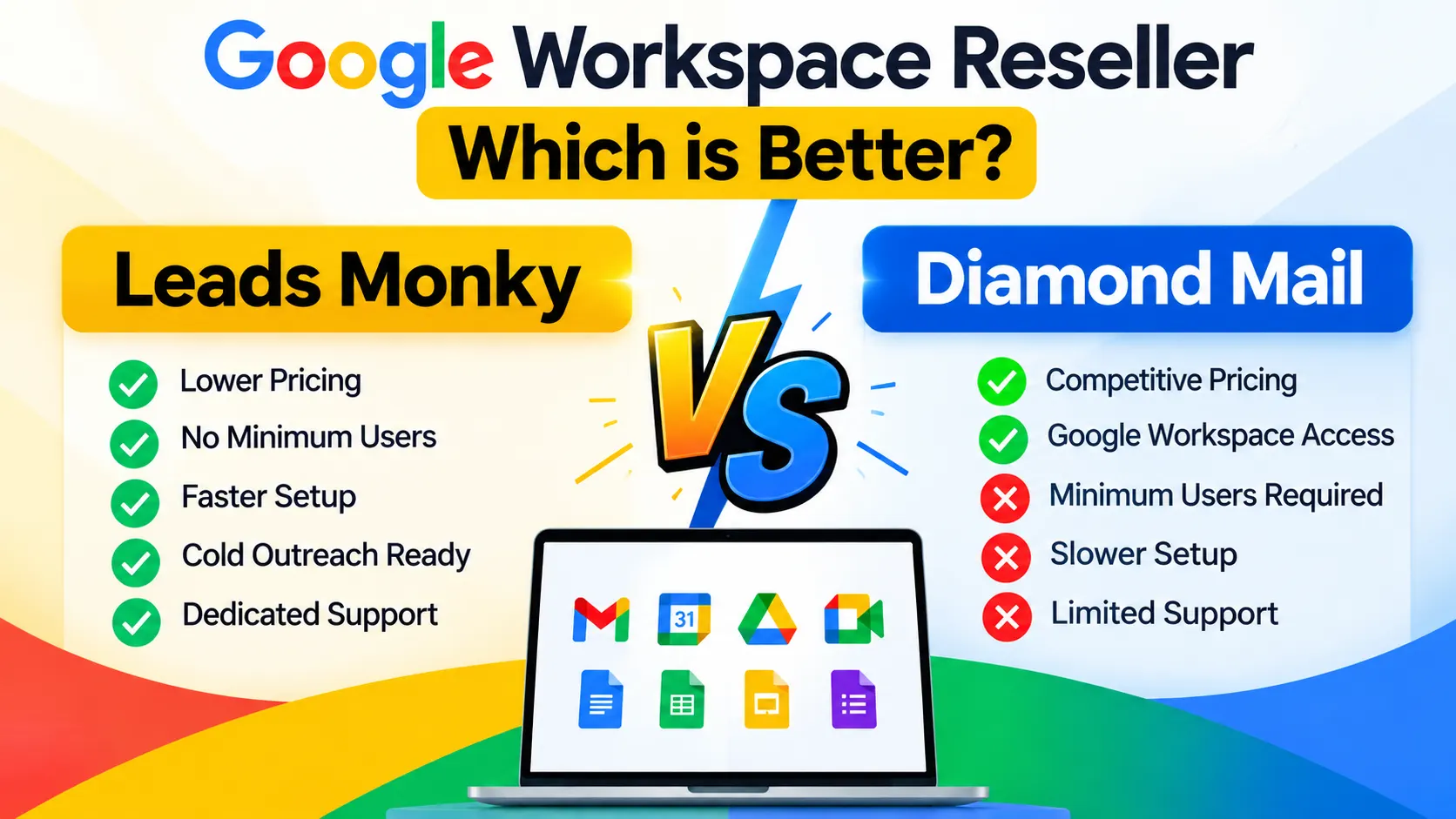
Buying Google Workspace Direct vs Through a Reseller for Onboarding Support
The onboarding process itself doesn’t change based on how you bought your Google Workspace licenses, but the support available while you’re building it out sometimes does. Buying direct from Google means relying on Google’s own support tiers and public documentation to work through onboarding questions. Buying through an authorized reseller often means a dedicated support contact who can help set up your initial group structure, OU design, and licensing strategy, particularly useful for a business setting up its onboarding process for the first time rather than refining an existing one. Neither path changes the underlying Google Workspace product; the difference is in how much hands-on help is available while you build your process.
Honest Limitation
This guide covers the general onboarding process, but every organization’s actual group structure, OU design, and hardware policy is specific to how that business operates. There’s no universal template that fits every company’s org chart, and treating a generic checklist as a finished process, without adapting it to your specific teams, tools, and security requirements, tends to produce a checklist that looks complete but misses the details that actually matter for your organization.
Conclusion
A solid Gmail onboarding and support process comes down to five consistent pieces: account creation with the right license and organizational unit, group-based access instead of manual individual sharing, hardware provisioned on a documented policy, a clear path to Google’s own help resources, and enough basic training that a new hire isn’t left guessing how your organization actually uses its tools. Building this once as a repeatable checklist, rather than reinventing it for every new hire, is what separates a smooth first day from a week of avoidable support tickets.
FAQs
What is the Gmail onboarding and support process?
It covers creating a new hire’s Google Workspace account in the correct organizational unit, assigning the right license and group memberships, provisioning hardware, and pointing them to support resources for ongoing help. Most steps are done through the Google Admin console.
Is there an official Google onboarding kit?
Google doesn’t sell a packaged “onboarding kit,” but its Workspace Learning Center and Admin console documentation together cover most of what a new hire or admin needs. Organizations typically build their own onboarding checklist or kit tailored to their specific group structure and hardware policy.
Where is Google’s onboarding help site?
The Google Workspace Learning Center and Google’s general support site (support.google.com) are the primary official resources for onboarding-related how-to guidance, organized by task and app rather than as a single dedicated onboarding portal.
Does Google have an onboarding dashboard?
Not as a standalone named product. The Admin console’s Reports section provides account status, login activity, and app usage visibility that functions as a practical dashboard for tracking new hire onboarding progress.
How do I choose hardware for new hire onboarding?
Match the device to the role: Chromebooks suit browser-first, Google Workspace-heavy roles and are simpler to manage through Google’s admin tools; traditional laptops suit roles needing software outside Google’s ecosystem; a BYOD policy avoids hardware cost but adds device management complexity. Document your standard policy rather than deciding fresh for each hire.
Should I automate my Google Workspace onboarding process?
It depends on hiring volume. A business onboarding a handful of employees a year can manage the process manually through the Admin console without issue. An organization hiring frequently benefits from automating account creation and group assignment to ensure consistency and reduce the risk of a step being missed.