Quick Answer
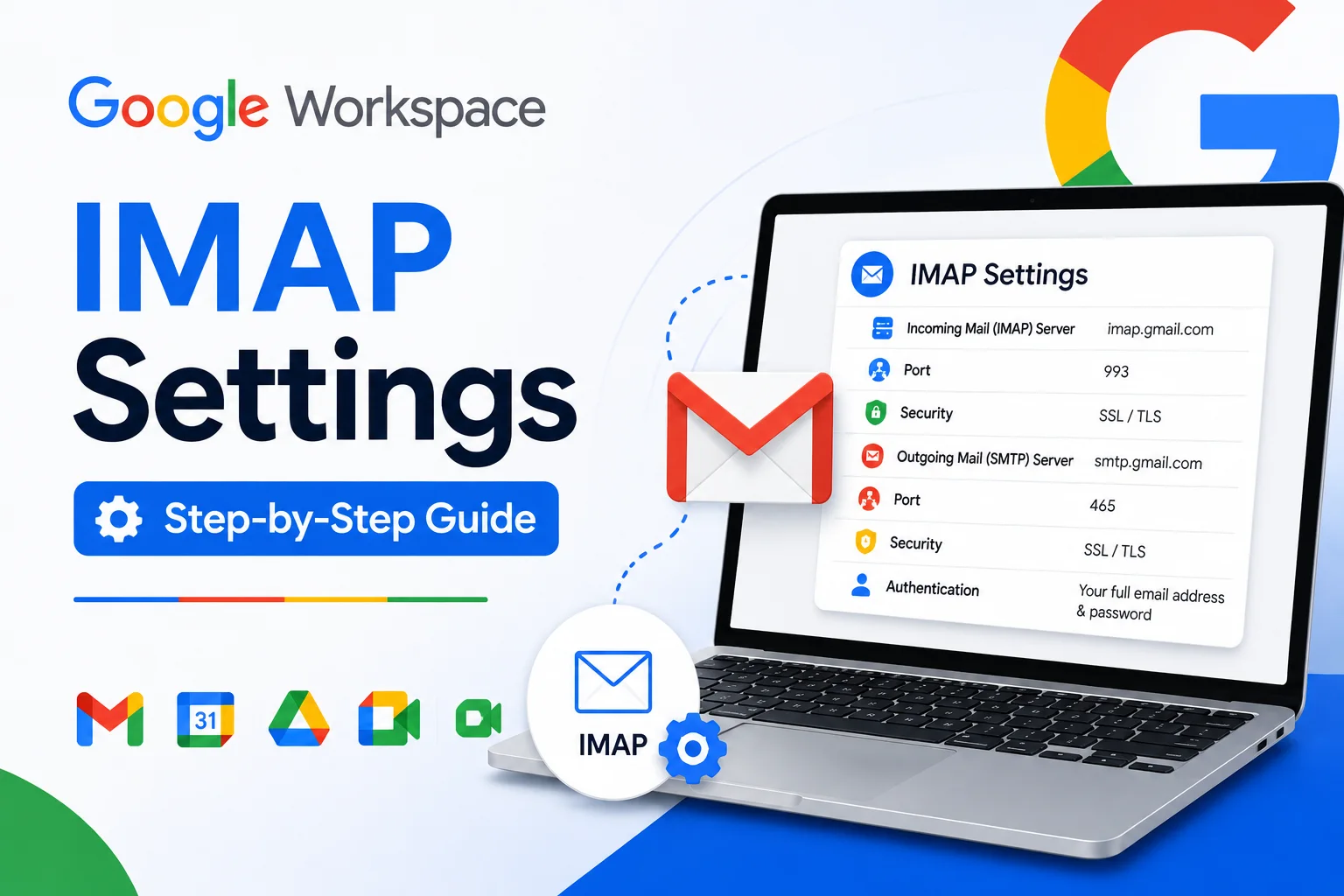
Google Workspace’s IMAP server is imap.gmail.com (port 993, SSL), the SMTP server is smtp.gmail.com (port 587 with TLS, or port 465 with SSL), and POP is pop.gmail.com (port 995, SSL). The most important thing to know before using these settings: since May 1, 2025, Google Workspace no longer allows signing into third-party email apps with just your email and password. Modern clients like current Outlook, Apple Mail, and Thunderbird need to connect using OAuth (a secure sign-in through Google directly) instead of manually typing these server settings. The manual settings below still apply, but only for older clients that don’t support OAuth, and those require an App Password rather than your regular account password.
A lot of guides for Google Workspace IMAP settings are quietly out of date, since Google changed how third-party email clients connect back in 2025. If you’re following instructions that only mention a server address, a port number, and your regular password, you’re looking at an outdated process that won’t actually work for most current clients. This guide covers both the modern, recommended way to connect and the manual settings for cases where you genuinely still need them.
Before You Start: An Admin Has to Enable IMAP First
Before any individual user can connect a third-party client, a Google Workspace admin needs to turn IMAP access on at the organization level. This is done in the Admin console under Apps, Google Workspace, Gmail, End User Access, then POP and IMAP access, where an admin enables IMAP access for all users (or for a specific organizational unit). Changes here can take up to 24 hours to fully apply, though they typically happen faster. If you’re a regular user and IMAP setup isn’t working no matter what you try, this is the first thing to confirm with your admin, since no correct client-side settings will work if IMAP is switched off organization-wide.
The Most Important Thing to Know: OAuth Is Now Required
Since May 1, 2025, Google Workspace accounts no longer support signing into third-party apps with just a username and password, what Google calls “less secure apps.” This affects Microsoft Outlook and the built-in Mail apps on iOS and macOS directly. Instead, these apps need to connect using OAuth, a secure sign-in method where you authenticate through Google’s own login screen rather than typing your password directly into the third-party app. In practice, this means setup for most current clients is actually simpler than the old manual process: you select “Google” as the account type, get redirected to sign in with Google, and the app connects automatically without you ever entering a server address or port number.
Google Workspace IMAP, SMTP, and POP Server Settings
For reference, or for the legacy clients that still require manual entry, here are the current official settings:
| Setting | Value |
|---|---|
| Incoming mail server (IMAP) | imap.gmail.com |
| IMAP port | 993 |
| IMAP encryption | SSL |
| Outgoing mail server (SMTP) | smtp.gmail.com |
| SMTP port | 587 (or 465) |
| SMTP encryption | TLS (587) or SSL (465) |
| Incoming mail server (POP) | pop.gmail.com |
| POP port | 995 |
| POP encryption | SSL |
| Username | Your full Google Workspace email address |
| Password | Your account password (OAuth clients) or an App Password (legacy, non-OAuth clients) |
Setting Up Google Workspace Email in Outlook
Outlook from Microsoft 365 (desktop), Outlook 2019, and Outlook 2016 all support OAuth. For these versions, don’t use manual IMAP setup. Instead, add your account normally in Outlook, select Google as the provider when prompted, and sign in through the Google window that opens. You may see a “new sign-in detected” security notification in your inbox afterward; that’s expected and not a sign of a problem. Outlook 2016’s volume-licensed MSI version is a notable exception that doesn’t support OAuth, and older versions (before 2016) don’t either.
For genuinely unsupported, older Outlook versions: manual setup is still possible using an App Password (covered below) with these values: Account type IMAP, incoming server imap.gmail.com, outgoing server (SMTP) smtp.gmail.com, then under advanced settings, incoming port 993 with SSL, and outgoing port 587 with TLS (or 465 with SSL if you prefer that encryption type instead).
Google Workspace IMAP Settings for iOS
On a current iPhone or iPad, don’t manually enter IMAP settings either. Go to Settings, Mail, Accounts, Add Account, and select Google specifically when choosing your email provider. This routes you through Google’s OAuth sign-in automatically, the same secure method used on desktop clients, and the Mail app connects without you touching a server address or port field.
Google Workspace IMAP Settings for Thunderbird
Modern versions of Thunderbird support OAuth for Google accounts as well. When adding a new account, enter your Google Workspace email address and choose the option to sign in via Google; Thunderbird will open a Google sign-in window rather than asking for manual server details. If you’re on an older Thunderbird version without OAuth support, the same manual settings and App Password requirement described above apply.
Are Google Workspace, Gmail, and G Suite IMAP Settings Different?
No. Google Workspace was previously called G Suite before Google’s 2020 rebrand, and the underlying Gmail infrastructure, including the IMAP, SMTP, and POP server addresses, hasn’t changed with the name. If you’re following an older guide that references “G Suite IMAP settings,” the values (imap.gmail.com, smtp.gmail.com, pop.gmail.com) are identical to what a current Google Workspace guide would tell you. Personal Gmail accounts use the exact same server settings too; there’s no difference in the connection details between a personal Gmail address and a business Google Workspace address.
What Are App Passwords, and When Do You Actually Need One?
An App Password is a 16-character code Google generates specifically for signing into an app that doesn’t support OAuth, used in place of your normal account password. You only need one if you’re using 2-Step Verification (which you should be) and connecting through an older, non-OAuth email client. Modern OAuth-capable apps never ask for an App Password, since the OAuth sign-in flow handles authentication securely without one. If an app is asking you to type your regular Google account password directly into a manual IMAP setup screen, and it’s not one of the known legacy exceptions, that’s worth double-checking, since it may mean the app doesn’t support OAuth and you’ll need to generate an App Password rather than using your normal password directly.
Common Mistakes and Troubleshooting
Assuming IMAP settings alone will fix a connection issue. If your admin hasn’t enabled IMAP access at the organization level, no combination of correct server settings, ports, or passwords will let a third-party client connect. Confirm this first before troubleshooting anything else.
Trying to use your regular password with a modern, OAuth-capable client. Current versions of Outlook, Apple Mail, and Thunderbird expect you to sign in through Google’s OAuth window, not type your password into a manual settings screen. If you’re being prompted for manual server details on a recent client, double-check you’re actually selecting Google or Gmail as the account type rather than a generic IMAP setup path.
Using your normal password instead of an App Password on a legacy client. For older, non-OAuth clients, your regular account password won’t work if 2-Step Verification is enabled; you need to generate a dedicated App Password instead.
A Quick Note on Google Workspace Login
Separately from IMAP client setup, signing into Google Workspace itself for everyday use (checking email in a browser, not a third-party app) is done at mail.google.com or gmail.com using your Workspace email address and password, plus any two-step verification your organization requires. This is a different process from the IMAP/OAuth client setup covered above; it’s the standard web login you’d use day to day.
Honest Limitation
This guide covers the standard setup paths for the most typical clients, but every email client’s exact menu wording and steps differ slightly, and older or less common third-party apps may have their own quirks not covered here. If you hit a client-specific error after confirming IMAP is enabled, and you’re using the correct OAuth or App Password method, checking that specific app’s own documentation is often faster than troubleshooting blind against generic instructions.
Conclusion
The technical settings for Google Workspace IMAP, imap.gmail.com on port 993, smtp.gmail.com on port 587 or 465, and pop.gmail.com on port 995, haven’t changed in years and are identical to what worked under the old G Suite name. What has changed, and what trips up most people following outdated guides, is that these settings alone aren’t enough anymore: modern clients need to connect through OAuth rather than a typed-in password, and an admin needs to have IMAP access turned on at the organization level before any of it works at all. Get those two pieces right first, and the actual server settings become a formality most current email clients handle automatically.
FAQs
What are the IMAP settings for Google Workspace?
The IMAP server is imap.gmail.com on port 993 with SSL encryption. However, most current email clients (recent Outlook, Apple Mail, Thunderbird) don’t need these entered manually, since they connect through OAuth sign-in instead.
What are the SMTP settings for Google Workspace?
The SMTP server is smtp.gmail.com, using port 587 with TLS encryption, or port 465 with SSL encryption as an alternative. These are only needed for manual setup on clients that don’t support OAuth.
What are the POP settings for Google Workspace?
The POP server is pop.gmail.com on port 995 with SSL encryption, used only if you specifically choose POP instead of IMAP, and only relevant for manual, non-OAuth client setup.
Do I need to enter IMAP settings manually for Outlook?
Not for current versions. Outlook from Microsoft 365, Outlook 2019, and Outlook 2016 all support OAuth, so you simply select Google as the provider and sign in, without entering any server addresses or ports. Manual entry is only needed for older, unsupported Outlook versions.
Why can’t I sign into my email client with just my Google Workspace password anymore?
Since May 1, 2025, Google Workspace no longer supports signing into third-party apps with just a username and password. Modern clients need to use OAuth instead, and older clients that don’t support OAuth require a generated App Password rather than your regular account password.
Are Google Workspace and G Suite IMAP settings different?
No. G Suite is the previous name for Google Workspace, and the underlying IMAP, SMTP, and POP server settings are identical regardless of which name your account or documentation refers to.
Who needs to turn on IMAP access, me or my admin?
Your Google Workspace admin needs to enable IMAP access for your organization (or your specific team) in the Admin console before any user can connect a third-party client, regardless of whether that user is using OAuth or manual settings.