Quick Answer
A Google Sheets project management template is free and works well for small teams tracking a handful of projects manually, while Monday.com is a paid, purpose-built platform with automation, dependencies, and dashboards that a spreadsheet can’t replicate natively. Google’s own template gallery includes a built-in project tracker template, and Monday.com’s paid plans start at $9 per seat per month with a 3-seat minimum, so the actual cost comparison depends heavily on team size and the level of automation you need.
Monday.com’s real minimum cost is higher than the per-seat price suggests.
Every paid plan requires at least 3 seats, so a solo user or two-person team still pays for three, and monthly billing costs meaningfully more than annual.
Google Sheets has a genuine built-in project tracker template, not just third-party downloads.
Google’s own template gallery inside Sheets includes a project tracker layout at no cost, separate from templates offered by outside sites.
A spreadsheet template can’t do task dependencies or automation on its own.
Getting dependency logic or automated status updates out of Google Sheets requires Apps Script or a connected tool like Zapier, not something a template alone provides.
AI credits are now billed alongside seats on Monday.com’s Standard and Pro plans.
This is a real cost variable worth checking, since it’s billed usage on top of the base per-seat price rather than a flat inclusion.
Team size and project complexity should drive the decision, not brand preference.
A template that works fine for two or three simple projects usually breaks down once dependencies, multiple owners, and automation become necessary.
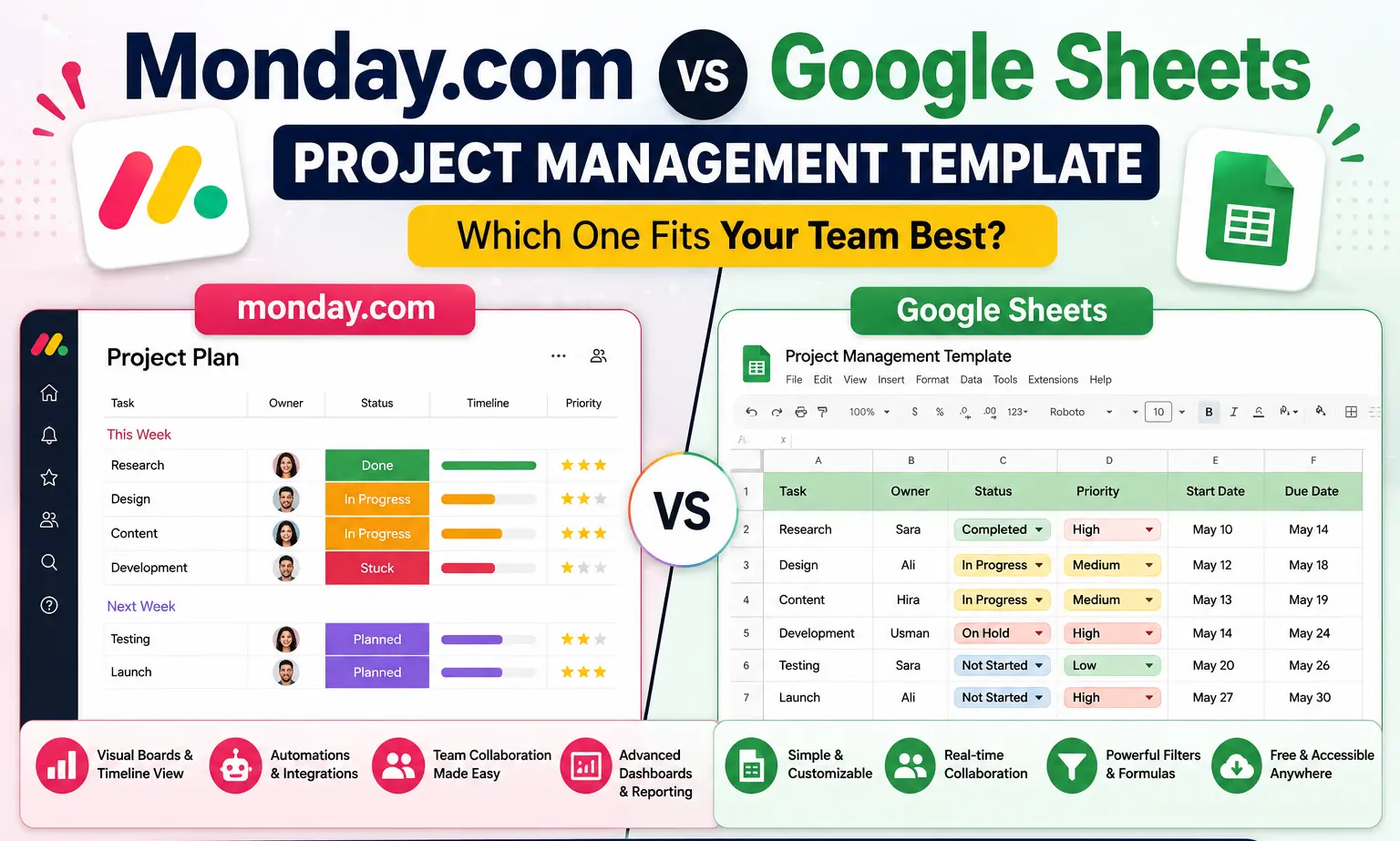
Monday.com vs Google Sheets project management template is really a question about when a free, flexible spreadsheet stops being enough and a purpose-built tool starts paying for itself. A Google Sheets template costs nothing and can be customized freely, but it depends entirely on manual updates and formulas to do anything beyond basic tracking. Monday.com costs money starting from a 3-seat minimum but adds automation, dependency tracking, and visual boards a spreadsheet can’t natively replicate. This guide covers what a Sheets template actually offers, Monday.com’s current real pricing including the details often left out of comparisons, and how to tell which approach fits your team.
What a Google Sheets Project Management Template Actually Offers
A Google Sheets project management template is a pre-built spreadsheet layout, typically with columns for tasks, owners, status, and deadlines, that you customize directly rather than starting from a blank sheet. Google’s own template gallery, accessible from Sheets under File, then New, then From template gallery, includes a built-in project tracker template at no cost, separate from the many third-party templates available from sites like Smartsheet, Vertex42, or open-source versions shared on GitHub.
These templates typically include conditional formatting for status colours, basic formulas for tracking percent complete, and sometimes a simple Gantt-style chart built from stacked bar formatting. What they don’t include natively is task dependency logic, since Sheets has no built-in concept of one task blocking another, automated notifications when a status changes, or a Kanban board view, since a spreadsheet is fundamentally a grid, not a board.
What Monday.com Actually Costs Right Now
Monday.com’s current pricing, as of this writing, runs as follows on annual billing: Free for up to 2 seats with limited features, Basic at $9 per seat per month, Standard at $12 per seat per month, and Pro at $19 per seat per month, with Enterprise priced by custom quote. Monthly billing instead of annual adds roughly 18 to 33% depending on the tier.
The detail most comparisons skip: every paid plan requires a minimum of 3 seats, regardless of how many people actually use the account. A solo user or two-person team on the Basic plan pays for three seats at $9 each, $27 per month, not the $9 the headline price implies. Standard and Pro plans also now bill AI credits alongside seats, a usage-based cost layered on top of the base per-seat price rather than included flatly, which is worth checking directly if AI features are part of why you’re considering Monday.com specifically.
Side-by-Side Comparison
| Factor | Google Sheets Template | Monday.com |
|---|---|---|
| Cost | Free | $9 to $19+/seat/month, 3-seat minimum |
| Setup | Instant, customize a template directly | Account setup plus board configuration |
| Task dependencies | Not built in | Included on paid plans |
| Automation | Requires Apps Script or a connected tool | Built in, with usage-based AI credits on higher tiers |
| Views | Grid only, manual Gantt-style formatting | Kanban, Gantt, Calendar, Timeline views built in |
| Best for | Small teams, simple or few concurrent projects | Multiple concurrent projects needing automation and visibility |
When a Sheets Template Is Genuinely Enough
Honest limitation: for a small team tracking one or two straightforward projects with a handful of tasks each, a Google Sheets template is often genuinely sufficient, and paying for a dedicated tool at that scale mostly buys features you won’t use yet. If your projects don’t have complex dependencies, and one person can reasonably keep the sheet updated, the free option holds up fine.
The tradeoff becomes real once you’re managing several projects at once, need more than one person updating status without conflicts, or find yourself manually re-typing the same status update across multiple tabs. That manual overhead is the actual cost of a free template past a certain scale, even though no invoice reflects it.
When Monday.com’s Cost Becomes Worth It
Once dependency tracking matters- meaning task B genuinely can’t start until task A finishes and you need the tool to enforce or at least visualize that- a spreadsheet stops being a good fit regardless of how creative the formulas get. The same applies to automation: “when status changes to Done, notify the assignee and create the next task” is native functionality in Monday.com and requires custom Apps Script development in Sheets, a real technical lift most teams aren’t equipped to maintain long-term.
Team size compounds this. A template that one person maintains for a small team works differently than the same template with five or six people editing simultaneously, where version conflicts and inconsistent updates become a real, recurring problem a purpose-built tool with proper multi-user status tracking is built to prevent.
Migrating From a Sheets Template to Monday.com
If you outgrow a spreadsheet template, most of the underlying structure, task names, owners, deadlines, and status categories map reasonably well onto a Monday.com board, since both are fundamentally organizing the same kind of information differently. Monday.com supports importing directly from a spreadsheet file, which handles the bulk data transfer, though board structure, automation rules, and view configuration still need to be set up manually afterward rather than transferring automatically.
Where to Find Google Sheets Project Templates
Beyond Google’s built-in gallery, several other sources offer free project-tracking templates specifically for Sheets, each with a slightly different focus.
Google’s built-in template gallery offers a general-purpose project tracker with status, owner, and timeline columns, the fastest option since it opens directly inside Sheets with no download or file conversion needed.
Vertex42 publishes a range of more specialized spreadsheet templates, including Gantt chart layouts and project timeline trackers, generally offered as downloadable files compatible with both Sheets and Excel.
Smartsheet, itself a paid project management platform, offers a library of free downloadable templates, including project trackers and backlog templates, as a way to demonstrate its own product, though the free templates work independently in Sheets without requiring a Smartsheet account.
Open source templates on GitHub exist for more technically inclined teams, often built with more advanced formulas or Apps Script automation already included, though these require more comfort reading and modifying someone else’s spreadsheet logic than a straightforward downloaded template.
For construction-specific project tracking specifically, a recurring search behind this general topic, dedicated construction project management templates typically add columns for permits, inspections, and subcontractor tracking that a general-purpose project tracker template doesn’t include by default, worth searching for specifically rather than adapting a generic template if construction is your actual use case.
Using Both Together Instead of Choosing One
For some teams, the real answer isn’t Monday.com or a Sheets template; it’s both, used for different purposes rather than as competing options. A common pattern: a Sheets template handles simple, low-stakes internal tracking for a small side project or a single department, while Monday.com handles the organization’s primary, cross-department project work where dependencies and automation genuinely matter.
This isn’t a compromise so much as matching tool complexity to task complexity on a case-by-case basis. Forcing every project, regardless of size, into the same tool, whether that’s an overcomplicated Monday.com board for a two-task project or a strained spreadsheet trying to track a 40-person cross-functional launch, tends to create more friction than picking the right tool per situation.
Building a Simple Tracker From Scratch Instead of Using a Template
For a genuinely small project, sometimes a downloaded template adds more structure than actually needed, and a simple sheet built from scratch works just as well. A minimal version needs only a handful of columns: task name, owner, status (a simple dropdown using Data Validation works better than free text, since it keeps status values consistent), due date, and a notes column for anything that doesn’t fit elsewhere.
Adding conditional formatting so overdue items turn a different colour, and a simple formula counting how many tasks are marked complete versus the total, covers most of what a small team actually needs without importing a template built for a more complex use case than the one you actually have. This approach also avoids the common problem of inheriting unused columns and confusing formulas from a template built for a different kind of project than yours.
Common Mistakes When Choosing Between Them
Comparing the sticker prices without accounting for Monday.com’s 3-seat minimum. A true cost comparison for a 2-person team needs to use the 3-seat price, not the advertised per-seat rate, or the comparison understates Monday.com’s actual cost.
Assuming a Sheets template will scale indefinitely because it’s free. Free doesn’t mean the ongoing manual maintenance cost stays low as project count and team size grow; that hidden labour cost is real even without a line item for it.
Not checking AI credit costs before assuming a Monday.com plan tier covers everything. Since AI credits bill separately from the base seat price on Standard and Pro, confirm expected usage before assuming the advertised per-seat number is the full cost.
Conclusion
Monday.com vs Google Sheets project management template comes down to matching the tool to your actual project complexity and team size, not picking whichever is free or whichever looks more professional. A Sheets template genuinely works well for small, simple project tracking with minimal ongoing cost, whether that’s Google’s own built-in gallery template, a third-party download, or a minimal tracker built from scratch in twenty minutes. Monday.com’s real cost, accounting for the 3-seat minimum and AI credit billing that headline pricing tends to leave out, becomes worthwhile once dependencies, automation, and multi-person coordination are actual daily needs rather than nice-to-haves you might grow into eventually. Whichever tool you land on, both work fine inside a standard Google Workspace setup, since Monday.com integrates with Google Drive and Calendar rather than replacing them, and switching later, if your needs change, is a real but manageable migration rather than starting over from nothing.
FAQs
Is there a free Google Sheets project management template?
Yes. Google’s own template gallery inside Sheets includes a built-in project tracker template at no cost, and numerous third-party sites offer free downloadable alternatives with different layouts.
How much does Monday.com actually cost per month?
Paid plans start at $9 per seat per month for Basic on annual billing, but every paid plan requires a minimum of 3 seats, so the real minimum cost is $27 per month even for a smaller team. Standard and Pro also bill AI credits separately.
Can Google Sheets do task dependencies like Monday.com?
Not natively. Sheets has no built-in concept of one task depending on another finishing first. Replicating this requires custom formulas or Apps Script, while Monday.com includes dependency tracking as a standard feature on paid plans.
Is Google Sheets or Monday.com better for a small team?
For a small team with few, simple projects, a Google Sheets template is usually sufficient and free. Once dependencies, automation, or several people updating status simultaneously become regular needs, Monday.com’s dedicated features typically justify the cost.
Can I import a Google Sheets project tracker into Monday.com?
Yes. Monday.com supports importing data directly from a spreadsheet file, which transfers the underlying task data, though board structure, views, and automation rules need to be configured separately afterward.
Does Monday.com replace Google Sheets and Google Workspace entirely?
No. Monday.com is a project management platform, not an email, document, or storage suite. It integrates with Google Drive and Calendar rather than replacing Google Workspace, so most teams use both together rather than choosing one over the other.