Quick Answer
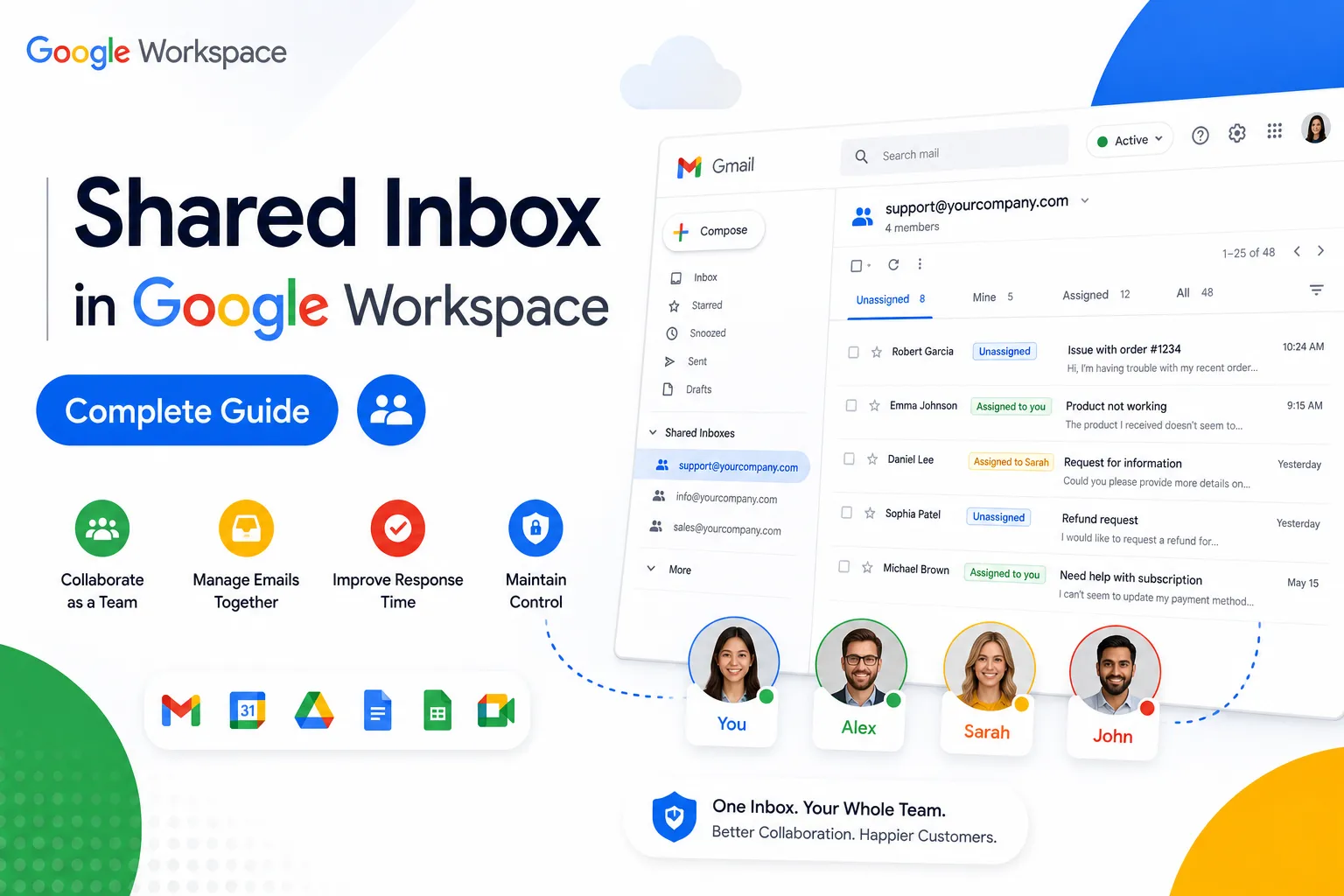
As of 2026, Google Workspace has a native shared inbox that an admin sets up directly from the Admin console, included on Business Starter, Standard, and at no extra cost; it finally shows which team member sent each reply. Before this rollout, the only built-in options were Google Groups Collaborative Inbox (a shared address with assignment and status tracking, but no sending from the shared address) and Gmail delegation (full send access to another inbox, best for small teams). All three remain free and included in your existing subscription; third-party tools add analytics and automation on top for a per-user fee.
For years, “does Google Workspace have a shared mailbox” had an honest but slightly deflating answer: not really, but here are two workarounds. That’s changed. Google rolled out a genuine native shared inbox in 2026, and it’s worth understanding both the new option and the older ones it’s built alongside, since not every organization has access to the native feature yet.
What Is a Shared Inbox in Google Workspace?
A shared inbox is a single email address, like support@yourcompany.com, that more than one person can access, read, and respond to as a team, rather than mail going to one individual’s personal inbox. In Google Workspace, this can be built three different ways: the new native shared inbox, a Google Groups Collaborative Inbox, or Gmail delegation. All three accomplish the same basic goal, letting a team manage one address together, but they work differently and fit different team sizes.
Google’s New Native Shared Inbox (2026)
This is the newest and most significant change to how shared inboxes work in Google Workspace. An administrator sets it up centrally from the Admin console, rather than asking individual users to configure delegation themselves, and it’s included on Business Starter, Standard, and Plus with no separate add-on cost. The standout improvement over the older options is a “sent by” field: when a team member replies from the shared address, other delegates can actually see who sent it, closing the long-standing blind spot where nobody could tell if a message had already been answered. It’s rolling out in phases, so not every organization sees it in their Admin console yet; if you don’t, the fallback is still Google Groups Collaborative Inbox or Gmail delegation, both of which remain fully supported.
Google Groups Collaborative Inbox, Explained
A Collaborative Inbox turns a Google Group into a shared workspace for managing conversations as a team. Group members with the right permissions can take a conversation, assign it to a colleague, mark it complete, duplicate, or no action needed, and search by resolution status. It’s created through Google Groups, requires turning on conversation history, and works well for teams of five or more handling a moderate volume of shared correspondence. The trade-off: members can’t send replies from the shared address itself within Gmail, replies go out from each person’s personal account, and there’s no unified sent folder showing what colleagues have already responded to.
Gmail Delegation, Explained
Delegation grants one person full access to another person’s Gmail inbox, including the ability to read, send, and delete on their behalf, without ever knowing their password. Google supports up to 1,000 delegates per account, though it recommends keeping simultaneous active delegates closer to 40 for performance reasons. This is the simpler, faster-to-set-up option, and it’s generally the better fit for small teams of one to five people or an executive assistant relationship, rather than a larger customer-facing team needing assignment and status tracking.
Collaborative Inbox vs Shared Inbox vs Delegation: How They Compare
| Feature | Native Shared Inbox (2026) | Collaborative Inbox | Gmail Delegation |
|---|---|---|---|
| Who sets it up | Admin, centrally | Group owner/manager | Each user individually |
| Send from shared address | Yes | No (replies from personal account) | Yes |
| See who replied | Yes (“sent by” field) | No | Yes (within delegate group) |
| Assignment and status tracking | Limited, developing | Yes | No |
| Best team size | Any, especially customer-facing teams | 5+ people | 1 to 5 people |
| Extra cost | None (included in Business plans) | None | None |
| Requires a license per delegate | Yes, standard Workspace seat | Yes, standard Workspace seat | Yes, standard Workspace seat |
Google Workspace Shared Inbox vs Group: What’s the Difference?
A standard Google Group without Collaborative Inbox enabled functions as a simple distribution list: mail sent to the group address forwards to every member’s individual inbox, with no shared management features. Turning Collaborative Inbox on adds the assignment and status-tracking layer described above. A shared inbox (whether native or built through delegation) is a different structure again, a single address that behaves like its own mailbox rather than a list that fans mail out to separate inboxes. If your team just needs everyone to see incoming mail, a basic group works. If your team needs to actually manage and divide up who’s responding to what, Collaborative Inbox or a proper shared inbox setup is the better fit.
How to Set Up a Shared Inbox in Google Workspace
For the native shared inbox (if available in your Admin console): Sign in to the Admin console, look for the shared email address setup option under Apps or Gmail settings, create the shared address, and add the team members who should have delegate access.
For Google Groups Collaborative Inbox: Go to groups.google.com, create a new group, set the group email address, and under Group settings, enable Collaborative Inbox under additional Google Groups features (this requires conversation history to be turned on first). Then assign permissions, specifically “who can moderate metadata,” to the members who should be able to take, assign, and resolve conversations.
For Gmail delegation: Open Gmail, click the gear icon, go to See all settings, then the Accounts and Import tab. Under “Grant access to your account,” click Add another account, enter the delegate’s email, and send the access request. The delegate must accept the invitation, and it can take up to 24 hours for access to activate.
Does a Shared Inbox Need Its Own License?
Creating a Google Group, with or without Collaborative Inbox enabled, doesn’t require a separate license. Gmail delegation also doesn’t require an additional license beyond what the delegate already has. Where licensing does come in: every person you add as a delegate or group member needs to already be a licensed user on your Google Workspace plan, whether that’s Business Starter or a higher tier. The shared inbox feature itself is free; the people using it still need standard Workspace seats.
Google Workspace Shared Inbox Cost and Pricing
All three native options, the new shared inbox, Collaborative Inbox, and Gmail delegation, are included in every paid Google Workspace plan at no additional cost. There’s no separate “shared inbox add-on” to purchase from Google. The cost consideration that does apply is your underlying Workspace plan pricing: official rates run $8/user/month for Business Starter up to $28/user/month for Business Plus, or considerably less through an authorized reseller. If you want analytics, response time tracking, collision detection, or automated assignment beyond what Google’s native tools offer, that’s where third-party shared inbox tools come in at their own separate per-user pricing, generally starting somewhere in the $10 to $20/user/month range depending on the provider.
What People Ask on Reddit About Shared Inboxes
Discussions of Google Workspace shared inboxes on Reddit tend to circle around the same handful of frustrations and questions: whether the native shared inbox has reached their organization yet (since the rollout is phased, not universal), workarounds people have used for the missing unified sent folder before the native feature existed, and general “is this worth paying for a third-party tool” debates once a team’s email volume grows past what Collaborative Inbox comfortably handles. As with most community discussion, it’s useful for seeing what other admins have run into, but Google’s own documentation is the authoritative source for exactly how a given feature behaves in your specific Workspace setup.
Common Mistakes When Setting Up a Shared Inbox
Assuming Collaborative Inbox lets you send from the shared address. It doesn’t. Replies go out from each member’s personal Gmail account, which surprises teams expecting a true “from support@” reply experience.
Adding a new person purely for shared inbox access without accounting for the license cost. Delegate and group access require the person to already have a Workspace seat, so scaling up a support team’s shared inbox access means scaling up licensed users too.
When You Might Need a Third-Party Tool Instead
For a team handling low to moderate volume, Google’s native options (especially the new 2026 shared inbox) are generally sufficient. Teams handling high volume, 200 or more emails a day, or that need collision detection (preventing two people from replying to the same thread simultaneously), internal notes on threads, automated routing rules, or response-time analytics, tend to outgrow what Google’s built-in tools offer regardless of which native option they’re using. That’s a reasonable point to evaluate a dedicated shared inbox tool as an addition on top of Google Workspace, not a replacement for it.
Buying Google Workspace Direct vs Through a Reseller
Setting up any of these shared inbox options works identically regardless of how you bought your Google Workspace licenses, since it’s a standard feature of the plan itself. Where buying through an authorized reseller can help is in the underlying plan setup and any broader admin console configuration, group structure, OU design, that your shared inbox setup depends on, particularly useful if you’re setting up Workspace for the first time rather than adding a shared inbox to an already-configured account. Reseller pricing on the underlying plan (from $2.50 to $3/user/month on Business Starter versus Google’s $8 official rate) is also worth factoring in if you’re scaling up licensed seats to support a growing support or sales team’s shared inbox access.
Honest Limitation
None of Google’s native shared inbox options, not the new 2026 feature, not Collaborative Inbox, not delegation, include built-in analytics. If your team needs to actually measure response times, track SLA compliance, or see workload distribution across team members, that visibility gap is real and won’t be solved by any configuration change within Google Workspace itself. A third-party analytics layer or shared inbox tool is the only way to close that gap today.
Conclusion
Google Workspace’s shared inbox options finally caught up to what teams have been asking for: a real, admin-managed shared inbox with visibility into who replied, included in every Business plan at no extra cost. If your organization already has the 2026 native feature, it’s the best starting point for most teams. If it hasn’t rolled out to you yet, Google Groups Collaborative Inbox and Gmail delegation remain solid, free fallbacks, matched to team size: delegation for small teams, Collaborative Inbox for larger ones. Whichever option fits, none of them include analytics natively, so a team that needs to measure response times or workload will still want a dedicated tool layered on top.
FAQs
Does Google Workspace have a shared inbox?
Yes. As of 2026, Google Workspace has a native shared inbox that admins set up directly from the Admin console, included on Business Starter, Standard, and Plus with no extra cost. It’s rolling out in phases, so some organizations may still need to rely on Google Groups Collaborative Inbox or Gmail delegation in the meantime.
What’s the difference between Google Collaborative Inbox and a shared inbox?
Collaborative Inbox is built on Google Groups and adds assignment and status tracking, but members can’t send from the shared address itself within Gmail. A true shared inbox, whether Google’s new native feature or set up through delegation, allows sending from the shared address with visibility into who replied.
How do I set up a shared inbox in Google Workspace?
For the native option, an admin configures it from the Admin console if it’s available for your organization. For Collaborative Inbox, create a Google Group at groups.google.com, enable conversation history, then turn on Collaborative Inbox under group settings. For delegation, grant access through Gmail’s Accounts and Import settings.
Does a Google Workspace shared inbox require its own license?
The shared inbox feature itself doesn’t require a separate license. However, every person who has delegate or group member access needs to already be a licensed user on your Google Workspace plan.
How much does a shared inbox cost in Google Workspace?
Nothing extra. The native shared inbox, Collaborative Inbox, and Gmail delegation are all included in every paid Google Workspace plan at no additional cost, official pricing starts at $8/user/month for Business Starter. Third-party tools that add analytics or automation on top carry their own separate pricing.
How many emails can you send with Google Workspace?
Sending limits vary by plan and account age, but Business Starter and Standard accounts commonly have a daily sending limit in the range of 2,000 recipients per day for regular Gmail sending, with newly created accounts sometimes starting lower until the account builds sending history. Check your specific plan’s current limits in the Admin console, since these figures are adjusted by Google periodically.