Quick Answer
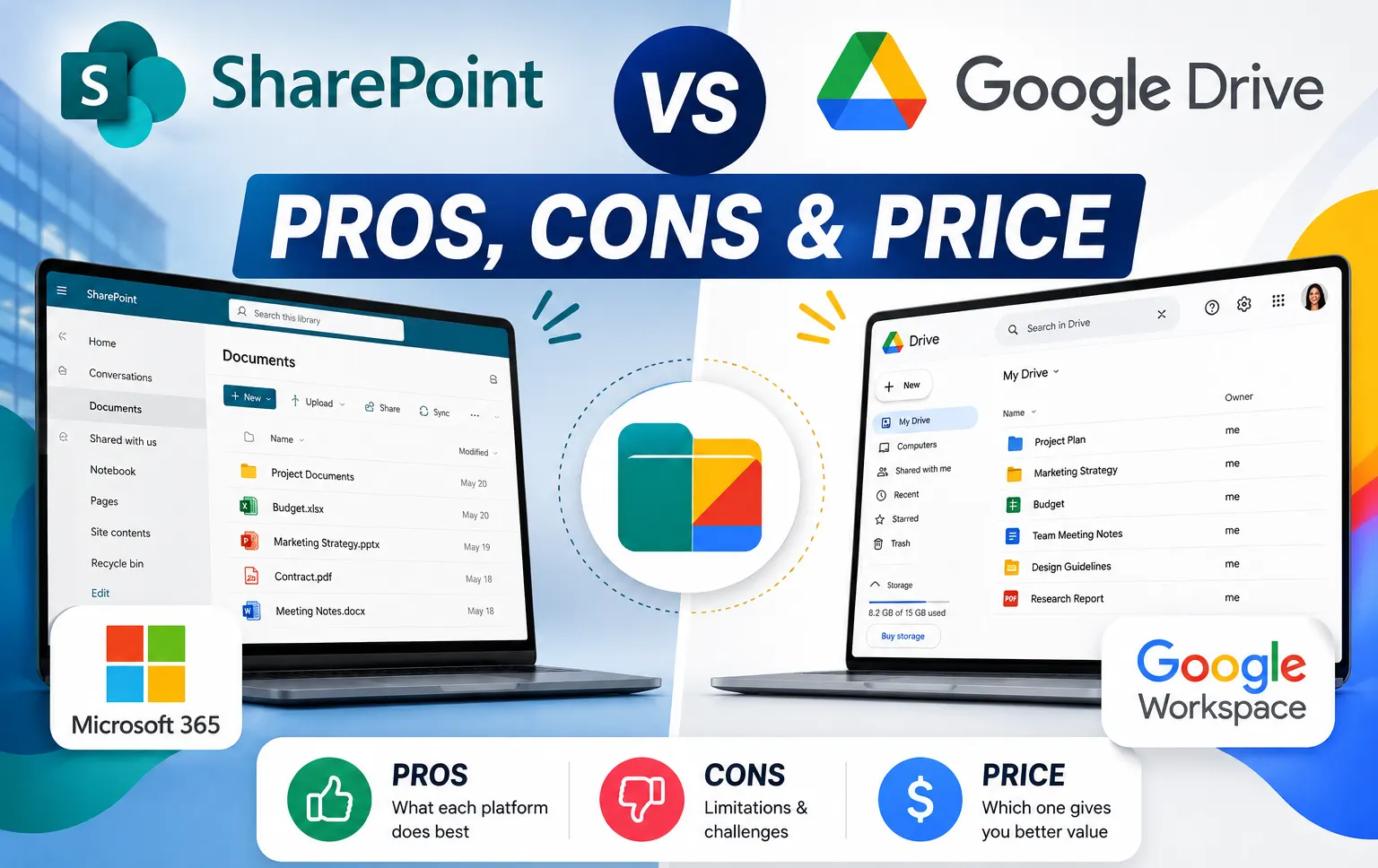
SharePoint and Google Drive solve different problems. SharePoint is Microsoft’s enterprise document management and intranet platform, built for structured permissions, workflows, and governance, included with Microsoft 365 Business Standard at roughly $12.50 per user per month. Google Drive is a simpler cloud storage service with real-time co-editing, part of Google Workspace, starting at $7 per user per month for Business Starter. There’s no single Google product that matches SharePoint feature for feature; the closest combination is Google Drive’s shared drives plus Google Sites, though it lacks SharePoint’s granular item-level permissions and deep workflow automation. Small teams under roughly 20 to 30 people are usually better served by Google Drive’s simplicity; organizations over 50 users with governance or compliance needs typically need what SharePoint provides.
What Is SharePoint?
SharePoint is Microsoft’s enterprise platform for document management, internal portals, and business process automation, built into Microsoft 365. It functions as far more than file storage: document libraries with version control and metadata, team sites, list-based data structures with custom fields, and Power Automate workflows for approvals and notifications, all integrated with Outlook, Teams, and the rest of Microsoft 365.
What Is Google Drive?
Google Drive is Google’s cloud storage and collaboration service, part of Google Workspace. It’s built around simplicity: store any file type, share it with a link, and co-edit Docs, Sheets, and Slides in real time from any device, with minimal admin setup required to get started.
SharePoint vs Google Drive: Feature Comparison
| SharePoint | Google Drive | |
|---|---|---|
| Primary purpose | Enterprise document management, intranet, workflows | Cloud storage and real-time collaboration |
| Permissions | Site, library, folder, and item-level, AD-integrated | Folder and file-level view, comment, edit |
| Workflow automation | Power Automate with prebuilt connectors and approvals | Apps Script and Workspace Studio |
| Storage (business entry tier) | 1 TB OneDrive plus pooled SharePoint storage | 30 GB to 5 TB depending on Workspace plan |
| Search and metadata | Custom columns, content types, full-text search | Full-text search, limited metadata |
| Compliance and security | DLP, retention, eDiscovery, sensitivity labels | DLP and Vault on higher Workspace tiers |
| Entry pricing | ~$12.50/user/mo (Microsoft 365 Business Standard) | $7/user/mo (Google Workspace Business Starter) |
| Best for | Mid-size and enterprise orgs with governance needs | Individuals, freelancers, and small teams |
Is There a Google Equivalent of SharePoint?
No single Google product matches SharePoint feature for feature. The closest combination is Google Drive’s shared drives, Google Workspace, and Google Sites, but each piece only covers part of what SharePoint does.
| SharePoint capability | Closest Google equivalent | What’s missing |
|---|---|---|
| Document libraries | Google Drive shared drives | Metadata columns, content types, custom views |
| Team sites | Google Sites | Document library integration, lists, granular permissions |
| Lists with custom fields | Google Sheets / AppSheet | Native UI, formal workflows, structured data |
| Power Automate workflows | Apps Script / Workspace Studio | Prebuilt connectors, approval flows, business-user UI |
| Granular permissions | Shared drive permissions | Item-level controls, role-based access, AD integration |
| Intranet portal | Google Sites | Native portal depth, formal governance features |
For a small team that values speed over structure, Google Drive plus Workspace is a genuinely valid lightweight alternative. For any organization with compliance requirements, formal approval workflows, or more than roughly 50 users, no combination of Google products fully replaces what SharePoint provides.
SharePoint vs Google Workspace: The Fair Comparison
When people search “SharePoint vs Google Workspace,” the more accurate comparison is Microsoft 365 versus Google Workspace as a whole, since SharePoint is one component inside Microsoft 365, not a standalone competitor to the entire Workspace suite.
| Layer | Microsoft 365 (incl. SharePoint) | Google Workspace |
|---|---|---|
| Mail and calendar | Outlook + Exchange Online | Gmail + Google Calendar |
| Productivity apps | Word, Excel, PowerPoint | Docs, Sheets, Slides |
| Meetings | Microsoft Teams | Google Meet |
| File storage | OneDrive + SharePoint document libraries | Google Drive shared drives |
| Intranet / sites | SharePoint sites and hubs | Google Sites |
| Workflow automation | Power Automate (deeper) | Apps Script / Workspace Studio (lighter) |
| Admin and compliance | Microsoft Purview, sensitivity labels, DLP | Google Vault, DLP on higher tiers |
Google Workspace is generally lighter and faster to adopt; Microsoft 365, with SharePoint at its core, goes deeper on governance, automation, and enterprise IT controls.
OneDrive vs SharePoint vs Google Drive
This is where Microsoft’s and Google’s storage models genuinely diverge in structure, not just features. Microsoft splits personal and team storage into two separate products: OneDrive holds an individual’s personal files, while SharePoint document libraries hold team-owned, organizationally governed content. Google Drive handles both roles within a single product: My Drive is personal storage, and shared drives are team-owned storage with no single owner, so files remain accessible even after someone leaves.
Neither approach is objectively better. Microsoft’s split gives IT more formal control over where governed content lives versus personal files. Google’s single-product approach is simpler to explain to end users but relies on shared drives being set up correctly from the start to get the same team-ownership benefit SharePoint provides by default.
Google Shared Drive vs SharePoint Document Library
A Google shared drive and a SharePoint document library solve the same core problem: team-owned files that don’t disappear when an individual leaves, but SharePoint’s version goes further. SharePoint document libraries support custom metadata columns, content types, and versioning with detailed audit trails. Google shared drives cover file storage and permissions well but don’t offer the same depth of metadata or structured content typing without add-on tools.
SharePoint vs Google Drive vs Dropbox
Dropbox is a third option worth a brief mention, since it comes up alongside this comparison often. Unlike SharePoint or Google Drive, Dropbox isn’t bundled into a broader productivity suite; it’s a specialized file sync and storage service, well regarded for its sync reliability and simple interface, but without the native document co-editing, email, or calendar integration that come built into Microsoft 365 or Google Workspace. For a business already committed to either Microsoft or Google’s ecosystem, Dropbox typically doesn’t offer enough of an advantage to justify a third, separate subscription. It remains a reasonable choice specifically for teams that want dedicated file sync and storage without adopting either company’s full suite.
SharePoint vs Google Drive: Security
Both platforms take data protection seriously, and neither is a clearly weaker choice on security fundamentals. SharePoint’s security integrates with Azure Active Directory, offering conditional access, detailed audit logs, and compliance tools like Microsoft Purview and sensitivity labels, features that go deep for regulated industries. Google Drive’s security is backed by the same infrastructure as the rest of Google Workspace, with Data Loss Prevention and Vault available on higher-tier plans, but the depth and granularity of controls at equivalent price points generally favour SharePoint for organizations with strict compliance mandates.
For most small businesses without formal regulatory requirements, Google Drive’s security is genuinely sufficient. For healthcare, finance, legal, or government organizations, SharePoint’s deeper compliance tooling is usually the more defensible choice.
Pros and Cons
SharePoint pros
- Granular, Active Directory-integrated permissions at site, library, folder, and item level
- Centralized document management with versioning and detailed audit trails
- Native integration with Teams, Outlook, and the rest of Microsoft 365
- Power Automate workflows for approvals, notifications, and business processes
SharePoint cons
- Steeper learning curve and longer onboarding than Google Drive
- Default file upload experience is clunkier than Drive’s drag-and-drop
- Higher total cost of ownership for advanced scenarios
- No native Kanban or visual project view out of the box
Google Drive pros
- Extremely simple to adopt, minimal training required
- Best-in-class real-time co-editing in Docs, Sheets, and Slides
- Frictionless external sharing via links
- Lower entry cost, especially for small teams
Google Drive cons
- Simpler permission model, no item-level or role-based controls
- No native business process automation comparable to Power Automate
- Limited metadata and structured content types
- Offline access depends on browser extensions and sync state
When to Choose SharePoint vs Google Drive
Choose Google Drive when you’re an individual, freelancer, or team under roughly 20 to 30 people, speed and zero-setup collaboration matter more than formal governance, most work happens in Docs, Sheets, and Slides, and external link-based sharing is a frequent need.
Choose SharePoint when you have 50 or more users or multiple departments needing structured permissions, compliance and eDiscovery are real requirements, your organization already runs on Microsoft 365, or you need formal approval workflows and an intranet.
Migrating Between SharePoint and Google Drive
Migration is possible in either direction, but it’s never a one-to-one move, since the two platforms have fundamentally different architectures.
What to expect
SharePoint sites, libraries, and lists flatten into folders and files when moved into Google Drive, losing their structured metadata along the way. Permissions don’t map directly either; SharePoint’s granular, item-level controls collapse into Drive’s simpler view, comment, and edit roles. Integration links to Teams, Power Automate flows, or Office-specific artifacts generally break after a move to Google Workspace.
Migration recommendations
- Audit content first; identify what genuinely needs to migrate versus what can be archived.
- Choose the right tool; manual moves work for small jobs; specialized migration tools handle enterprise-scale moves better.
- Run a pilot on a limited dataset before migrating the whole organization.
- Communicate clearly with users about what’s changing.
- Provide post-migration support to catch missing permissions or broken links.
Common Mistakes to Avoid
- Comparing SharePoint’s full price against only Google Drive’s storage cost, rather than the fair like-for-like comparison of Microsoft 365 Business Standard against Google Workspace Business Standard.
- Assuming a Google product combination fully replaces SharePoint for organizations with real compliance or governance needs.
- Expecting a clean, one-to-one migration between the two platforms.
- Underestimating SharePoint’s learning curve when rolling it out to a team used to Google Drive’s simplicity.
- Choosing Dropbox as a third option without checking whether it actually adds value over the suite you’ve already committed to.
The Bottom Line
SharePoint and Google Drive aren’t really competing for the same job. SharePoint is the deeper, more governed choice for organizations with 50 or more users, compliance requirements, or an existing Microsoft 365 investment. Google Drive is the faster, simpler choice for individuals and small teams that value real-time collaboration over formal structure. There’s no single Google product that fully replaces SharePoint, so the right call comes down to matching your organization’s actual scale and governance needs to the platform built for it.
FAQ
Is SharePoint like Google Drive?
Both store and share files in the cloud, but SharePoint is an enterprise platform for document governance, workflows, and granular permissions, while Google Drive focuses on simple storage and real-time co-editing.
Does Google have a SharePoint equivalent?
No, there’s no single Google product that matches SharePoint. The closest combination is Google Drive’s shared drives plus Google Sites, but it lacks SharePoint’s structured workflows and item-level permissions.
Which is better, SharePoint or Google Drive?
It depends on scale. Google Drive suits individuals and small teams needing quick collaboration without setup. SharePoint suits organizations with 50 or more users that need document governance, structured workflows, or Microsoft 365 integration.
Is SharePoint more secure than Google Drive?
Both offer strong security, but SharePoint’s Active Directory integration, sensitivity labels, and compliance tooling generally go deeper than Google Drive’s equivalent tools at comparable price points, making it the more common choice for regulated industries.
What’s the difference between OneDrive and SharePoint compared to Google Drive?
Microsoft splits personal storage (OneDrive) and team storage (SharePoint) into two separate products. Google Drive handles both roles in one product, with My Drive for personal files and shared drives for team-owned content.
Can I migrate from SharePoint to Google Drive or the reverse?
Yes, but it’s never a one-to-one move. SharePoint sites and lists flatten into folders in Drive, and granular permissions collapse into Drive’s simpler view, comment, and edit roles.
Is Dropbox better than SharePoint or Google Drive?
Not typically, for a business already using Microsoft 365 or Google Workspace. Dropbox is a specialized sync and storage tool without the document co-editing or suite integration either platform offers natively.