Quick Answer
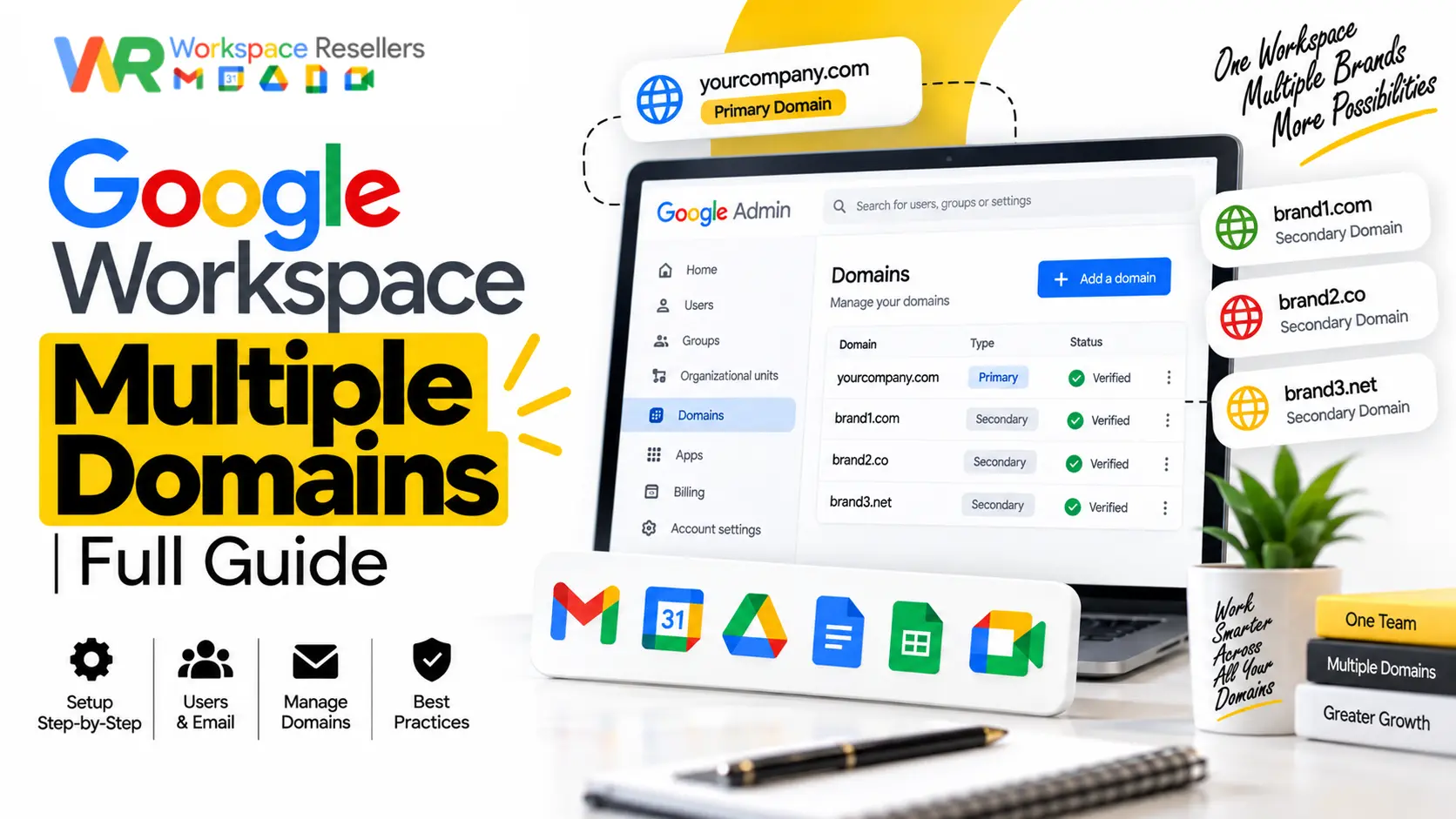
Yes, you can add multiple domains to a single Google Workspace account, and it doesn’t cost anything extra to add the domain itself. You can attach up to 600 total domains (1 primary plus 599 secondary or alias domains) to one account, and this limit is the same whether you’re on Business Starter or Enterprise Plus.
The part that actually costs money is users, not domains. You pay per licensed person, not per domain, so a 10-person company running three brand domains still pays for 10 licenses, not 30.
The Three Domain Types, Clearly Explained
Everything in this guide builds on understanding these three terms correctly, so let’s get them straight before anything else.
Primary domain. This is the domain you used when you first signed up for Google Workspace. Every account has exactly one, and it’s tied to your organization’s default email addresses, your logo, and your billing. If you ever need to change it, that’s a separate, more involved process we cover in our guide to changing your primary domain.
Secondary domain. A fully separate domain living inside the same Google Workspace account. Each user on a secondary domain gets their own complete account, their own email address, their own login, and yes, their own paid license. Think of a company that owns three distinct brands, each brand’s staff would live on its own secondary domain, all managed from one Admin console.
Domain alias (also called a user alias domain). This is different in an important way: it doesn’t create new users at all. Instead, it mirrors your existing users, giving everyone who already has an account a second email address at no extra cost. If jane@brandone.com is also jane@brandtwo.com through an alias, that’s one person, one license, two addresses.
User Alias vs. Domain Alias: The Confusion Point
This is where a lot of the searches in this space get tangled, so it’s worth a dedicated section.
A user alias is an alternate email address for one specific person on your existing domain, like giving Jane both jane@company.com and j.smith@company.com. This has nothing to do with a second domain at all.
A domain alias is an alternate domain that mirrors your entire primary domain’s users. Every existing user automatically gets a matching address on the new domain.
The practical difference: if you just want one person to have a second address, that’s a user alias, set up individually. If you want your whole team to be reachable at both yourcompany.com and yourcompany.co, that’s a domain alias, set up once at the domain level.
One real limitation worth knowing: users can’t sign in using their alias domain address. Login still has to happen through the primary email address; the alias only works for sending and receiving mail.
How Many Domains Can You Actually Add?
Google Workspace accounts can attach up to 600 domains total to a single account, that’s your 1 primary domain plus up to 599 additional secondary or alias domains combined. This ceiling is identical across every paid tier. A Business Starter account gets the same 600-domain limit as an Enterprise account, so you’re not paying more for a higher domain ceiling, the limit simply isn’t tier-dependent.
For most businesses, this ceiling is never something you’ll come close to. It mainly matters for very large holding companies managing dozens or hundreds of individual brand domains under one umbrella.
What Multiple Domains Actually Cost
This is the single most misunderstood part of this whole topic, so it deserves to be stated plainly: Google doesn’t charge anything to add a domain. The domain itself costs whatever you paid your registrar; Google’s fee structure is entirely about licensed users.
Here’s how the cost actually breaks down by domain type:
- Domain alias: Free. It mirrors existing licensed users, so there’s no additional cost per address.
- Secondary domain: Each user you create on that domain needs their own license, priced the same as any other user on your plan.
A concrete example: a 12-person marketing agency running three brand domains on Business Standard pays for 12 licenses total, regardless of how many domains those 12 people send email from. At the reseller rate of $13/user/month, that’s $156/month, not $468/month for three separate domain subscriptions.
If you’re pricing this out for your own setup, our Google Workspace pricing breakdown covers every tier and current reseller rates:
| Plan | Google Direct (flexible) | Reseller Price |
|---|---|---|
| Business Starter, below 300 users | $8.40/user/mo | $3/user/mo |
| Business Starter, 300+ users | $8.40/user/mo | $2.50/user/mo |
| Business Standard | $16.80/user/mo | $13/user/mo |
| Business Plus | $26.40/user/mo | $20/user/mo |
How to Add a Secondary Domain, Step by Step
- Sign in to your Google Admin console as a super admin; only this role can add domains.
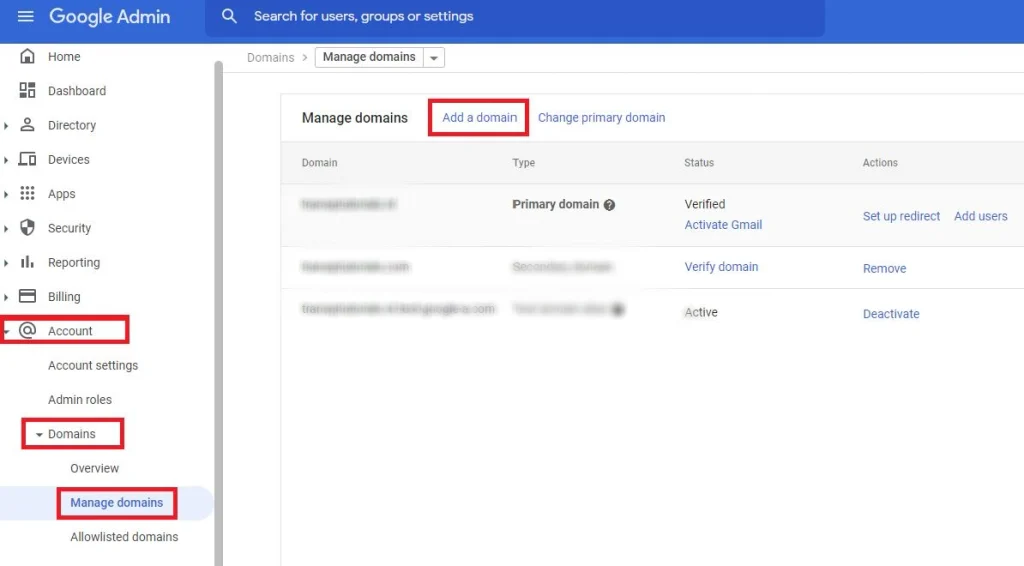
- Go to Account, then Domains, then Manage domains.
- Click Add a domain.
- Type the domain name exactly as it’s registered. A typo here creates a pending domain that will never verify, and you’ll need to wait through a cooldown period before trying again.
- Select Secondary domain as the type.
- Verify ownership by publishing the TXT record Google provides at your domain registrar. If you’re using Porkbun, our domain verification walkthrough covers this exact step in detail.
- Once verified, add users to the new domain the same way you’d add any user; just select the secondary domain from the dropdown during account creation.
How to Add a Domain Alias, Step by Step
The process starts identically, but the outcome is different:
- Go to Account, then Domains, then Manage domains in the Admin console.
- Click Add a domain.
- Enter the domain name.
- Select Domain alias instead of secondary domain.
- Verify ownership the same way, via a TXT record at your registrar.
Once verified, every existing user on your primary domain automatically gets a matching address on the alias domain. No new accounts, no new licenses, no manual per-user setup required.
One restriction worth knowing: in the Admin console, you can only add a domain alias to your primary domain. Adding an alias to a secondary domain instead requires using Google’s Directory API, not the standard console interface.
When Multiple Domains Make Sense
Your organization runs multiple brands or subsidiaries. Each brand gets a unique identity while you still manage everyone from one central Admin console.
You’re rebranding or going through a merger. Adding the new domain, either as a secondary domain or an alias depending on whether staff need distinct logins, lets you transition without disrupting the old domain immediately.
You need domain-specific addresses for campaigns or products. A product launch or event registration can get its own domain and addresses without spinning up an entirely separate account to manage.
When Separate Google Workspace Accounts Make More Sense Instead
Multiple domains under one account isn’t always the right call. Consider fully separate accounts when:
Your organizations are genuinely independent entities. If there’s no operational overlap, separate accounts keep data, billing, and administration cleanly divided.
You have different billing or compliance requirements per domain. One account means one bill and one set of account-wide policies. If you need distinct billing cycles or compliance frameworks per domain, separate accounts avoid forcing a one-size-fits-all setup.
Strict data separation is a requirement. Within a single multi-domain account, you can’t fully wall off Drive sharing by domain; sharing permissions are governed by organizational unit, not domain. If regulatory or contractual obligations require harder separation, distinct accounts are the safer structure.
Real Limitations You Should Know Before Committing
A few genuine constraints are worth knowing upfront, since they’re easy to miss until you’re already partway into a setup:
- You can’t set different account-wide policies per domain directly. The workaround is placing users from each domain into separate organizational units, then applying different policies to each OU, it works, but it’s an extra layer of setup, not a native per-domain setting.
- Drive sharing can’t be restricted by domain. Sharing options follow your organizational unit structure, not domain boundaries.
- Only one logo is allowed across your entire account. Every domain displays the same organization logo; there’s no per-domain branding option.
- Google Workspace account merging isn’t supported. If you already have separate accounts for separate domains and want to combine them into one multi-domain account later, that’s not something Google currently offers as a migration path. You’d need to manually recreate the setup, similar in spirit to migrating mail between accounts rather than a simple merge.
- Migrating from a domain alias to a full multi-domain setup isn’t supported either. If you started with an alias and later need that domain to have its own distinct users, you’ll need to remove the alias and re-add the domain as a secondary domain from scratch.
Multiple Domains and Single Sign-On or Education Accounts
If your organization uses single sign-on, SSO generally works across your primary and secondary domains within the same account, since authentication is tied to the account itself rather than the specific domain a user’s address happens to use. For Google Workspace for Education specifically, multiple domains follow largely the same rules as standard Business accounts, though education-specific licensing and approval layers can add extra steps, worth checking with your institution’s Google partner if you’re managing a school or district setup.
Managing Multiple Domains at Scale: Admin Tools and Best Practices
For a business managing more than a handful of domains, a few habits make ongoing administration noticeably easier:
- Rename your organization away from your primary domain’s name if it no longer represents the whole account, since Google uses that name in sharing dialogues users see.
- Use organizational units deliberately to segment users by domain, since this is your main lever for applying different settings across domains.
- Keep a simple internal record of which domains are secondary versus alias, since the Admin console doesn’t always make this distinction obvious at a glance, and the two behave very differently for troubleshooting purposes.
- Document who owns domain renewal for each domain, since Google doesn’t manage your domain registration itself, only the Workspace-side configuration. A lapsed registration on a secondary domain can quietly break email for an entire brand.
If this is starting to sound like more ongoing admin overhead than your team wants to own directly, that’s a reasonable thing to hand off rather than manage ad hoc.
Common Mistakes With Multiple Domains
Assuming a secondary domain shares users with the primary automatically. It doesn’t. Secondary domain users are entirely separate accounts you create and license individually.
Choosing alias when you actually needed secondary, or vice versa. This choice isn’t easily reversible. Think through whether you need distinct user accounts (secondary) or just mirrored addresses for existing people (alias) before you commit.
Forgetting that only the primary domain gets alias support in the console. If you’re trying to add an alias to a secondary domain through the standard Admin console interface, it won’t work; that specific combination requires the Directory API.
Overpaying by misunderstanding the licensing model. Some businesses assume more domains means more cost automatically and either avoid a useful multi-domain setup or, worse, sign up for separate paid accounts per brand when one account would have worked fine.
When to Get Help Instead of Doing This Yourself
Adding one domain to an existing account is genuinely simple. Where this gets more complex is planning the right structure from the start: secondary versus alias, organizational unit design, and licensing across multiple brands, especially since some of these choices are hard to undo later.
If you’re setting this up for the first time and want it structured correctly before you have dozens of users depending on it, Google Workspace Resellers handles multi-domain setup and planning as part of onboarding, so the secondary-versus-alias decision gets made deliberately rather than by trial and error.
Honest Limitation
This guide reflects Google’s current published domain limits and licensing rules, but every organization’s brand structure, compliance needs, and growth plans are different. A business with unusual data-separation requirements or complex cross-domain workflows should treat this as a starting framework, not a substitute for reviewing your specific setup against your organization’s actual policies.
FAQs
Can I add multiple domains to Google Workspace?
Yes. You can add up to 600 total domains, 1 primary plus 599 secondary or alias domains, to a single Google Workspace account, and this limit applies the same way across every paid plan tier.
How much does it cost to add multiple domains to Google Workspace?
Adding a domain itself is free. Domain aliases cost nothing extra since they mirror existing users. Secondary domains cost the price of a license for each new user you create on that domain, the same per-user rate as your existing plan.
What’s the difference between a secondary domain and a domain alias?
A secondary domain creates entirely separate, individually licensed user accounts. A domain alias mirrors your existing primary-domain users at no extra cost, giving them a second address without creating new accounts.
Can users log in using their alias domain email address?
No. Users must sign in with their primary domain email address. An alias domain address works for sending and receiving mail, but not for logging into the account.
Can I change a domain from alias to secondary later?
Not directly. Google doesn’t support converting a domain alias into a full multi-domain (secondary) setup. You’d need to remove the alias and add the domain again as a secondary domain from scratch.
Do multiple domains work with single sign-on?
Generally yes. SSO is tied to the Google Workspace account itself, so it typically works across your primary and secondary domains without needing separate configuration per domain.
Conclusion
Adding multiple domains to Google Workspace is more approachable than the terminology makes it sound, once you’re clear on the difference between a secondary domain (separate, licensed users) and a domain alias (free, mirrored addresses for existing users). The 600-domain ceiling is generous enough that almost no business will hit it, and the actual cost driver is always your user count, never the number of domains attached to your account.
Get the alias-versus-secondary decision right from the start, since reversing it later means removing and re-adding the domain rather than a simple setting change. And if you’re setting up a multi-brand structure for the first time, getting the organizational unit and licensing plan right upfront, ideally with help from an authorized reseller, saves considerably more time than untangling a wrong choice months in.