Quick Answer
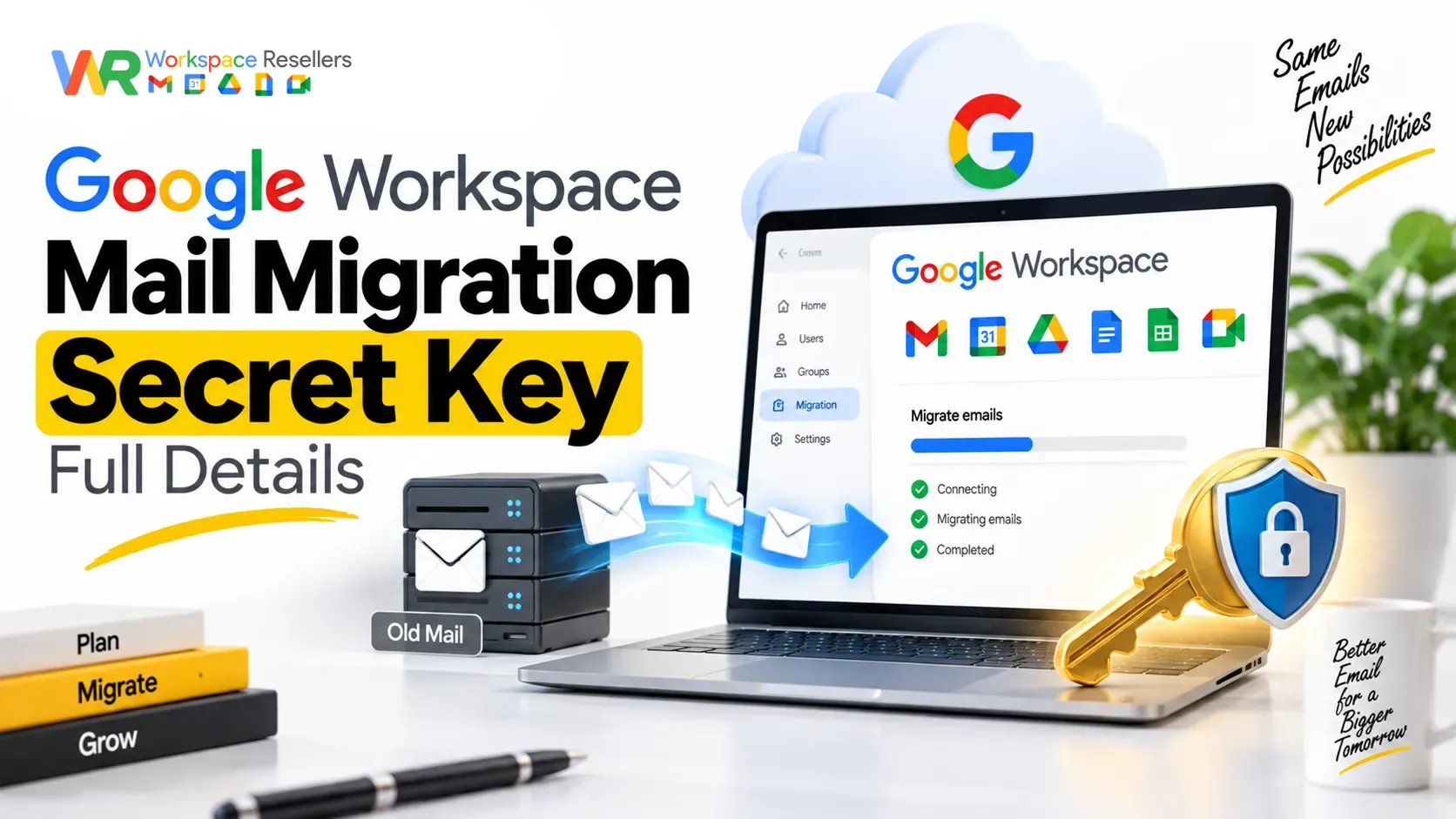
The “secret key” in Google Workspace mail migration is a JSON (or older P12) file generated from a Google Cloud service account. Third-party migration tools, like Zoho Mail’s import tool or Microsoft’s GWMME for Exchange, use this file to authenticate and pull your email data through domain-wide delegation.
Here’s the part most guides skip: you don’t need one for most migrations anymore. Google’s built-in Data Migration Service, the tool most admins should actually use, works through a simple email authorization request instead. No key file, no Cloud Console, no service account setup.
This guide covers both paths, when you need the secret key and when you don’t, plus the exact mistake that causes most failed migrations. If you’re migrating because you’re setting up Google Workspace for the first time, buying through an authorized reseller like GoogleWorkspace Resellers gets you the identical product at a meaningfully lower price than Google’s direct rate, plus setup and migration support if you’d rather not run this process alone.
What the “Secret Key” Actually Is
When you set up domain-wide delegation for a Google Cloud service account, Google generates a downloadable credentials file, either JSON (current standard) or the older P12 format. This file is what third-party tools call a “secret key” or “service account credentials file.”
It works like a master password for a specific, limited purpose: it authorizes whatever tool holds it to access mail, contacts, and calendar data across your entire domain, without needing each individual user to log in separately.
That’s powerful, and it’s exactly why it’s only needed for specific migration paths, not the default one Google now recommends.
Do You Actually Need a Secret Key? Two Different Paths
This is the single most important thing to understand before you start, because guides online mix these two paths together constantly.
Path 1: Google’s Data Migration Service (no secret key needed)
If you’re moving mail from Exchange Online, another Gmail account, another Google Workspace account, or an IMAP provider (Yahoo, iCloud, GoDaddy, Zoho, Titan), Google’s built-in Data Migration Service is the modern, recommended tool. It works like this:
- You request authorization from inside the Admin console.
- The source account’s super admin gets an email link.
- They click it, sign in, and approve.
- Migration starts. No JSON file, no Cloud Console, no manual key generation.
This replaced the older key-based process for most common migration scenarios. If this covers your situation, skip the rest of the secret-key setup entirely.
Path 2: Third-party tools and Microsoft’s GWMME (secret key required)
If you’re using Zoho Mail’s migration tool, Microsoft’s Google Workspace Migration for Microsoft Exchange (GWMME), or most other non-Google migration platforms, you’ll still need to generate the JSON secret key yourself. These tools weren’t built into Google’s own admin flow, so they authenticate a different way.
This is also the path for genuinely manual, API-based migrations, the kind where you’re configuring Google Cloud Console directly rather than clicking through a simple wizard.
How to Generate the Secret Key (Service Account JSON File)
If your situation calls for Path 2, here’s the process:
- Go to Google Cloud Console and create a new project (or select an existing one tied to your domain).
- Navigate to IAM & Admin, then Service Accounts.
- Click Create Service Account, give it a name, and assign the Owner role.
- Open the new service account, go to the Keys tab, and click Add Key.
- Select JSON as the key type and click Create. The file downloads automatically to your computer.
- Copy the service account’s Unique ID (Client ID) from the account details; you’ll need it in the next step.
Keep that downloaded file somewhere secure. Don’t email it around or drop it in a shared folder.
Delegating Domain-Wide Access
Generating the key alone doesn’t do anything yet. You still need to authorize it in your Google Admin console:
- Go to admin.google.com → Security → API Controls → Domain-wide Delegation.
- Click Add New.
- Paste in the Client ID from your service account.
- Add the required OAuth scopes for your migration tool. For most mail migrations, this typically includes scopes for Gmail, contacts, and calendar access; your migration tool’s documentation will list the exact ones it needs.
- Click Authorize.
Once this is done, your secret key file is fully active and ready to hand off to whatever migration tool you’re using.
Using the Secret Key With Common Migration Tools
Zoho Mail: In the Zoho migration setup, you’ll enter your Google Workspace super admin email and service account email, then click Upload Secret Key File to attach your JSON. Zoho authenticates against Google Workspace using that file before pulling any data.
Microsoft’s GWMME (for Exchange migrations): You’ll enter the path to your JSON credentials file directly in the tool’s setup screen, alongside your Google Workspace admin email and target domain.
Other third-party platforms: The exact wording varies (some call it a “credentials file,” others “service account key”), but the upload step works the same way across most tools.
The One Mistake That Causes Most Failed Migrations
This is worth its own section because it’s genuinely the most common issue reported by admins running migrations, and it has nothing to do with the secret key at all.
When setting up a migration inside Google’s own Data Migration Service, you’ll be asked to choose a migration source type. If you’re moving mail from a personal Gmail account or a Google Workspace account you don’t manage as an admin, the correct source type is Gmail, not Google Workspace.
Choosing “Google Workspace” when you should have chosen “Gmail” produces a specific, confusing error:
“Connection to Gmail via IMAP failed. Please log in via your web browser.”
This happens even when your IMAP settings are completely correct, and even when you’re already logged in through Chrome. It’s not an IMAP problem at all, it’s a source-type mismatch. Switching the dropdown to Gmail fixes it immediately.
If you hit this exact error, don’t spend days troubleshooting IMAP settings that are already fine. Check this one dropdown first.
Google Workspace Transfer Email to Another User
If you just need to move one employee’s mailbox to another user (someone left the company, or you’re consolidating accounts), that’s a much smaller task than a full domain migration, and it doesn’t need a secret key at all.
The Data Migration Service handles this too, just select the departing employee’s account as the source and the receiving employee’s account as the destination. No service account, no JSON file, no domain-wide delegation required for this simpler case.
Migrating From Microsoft Outlook or Exchange Into Google Workspace
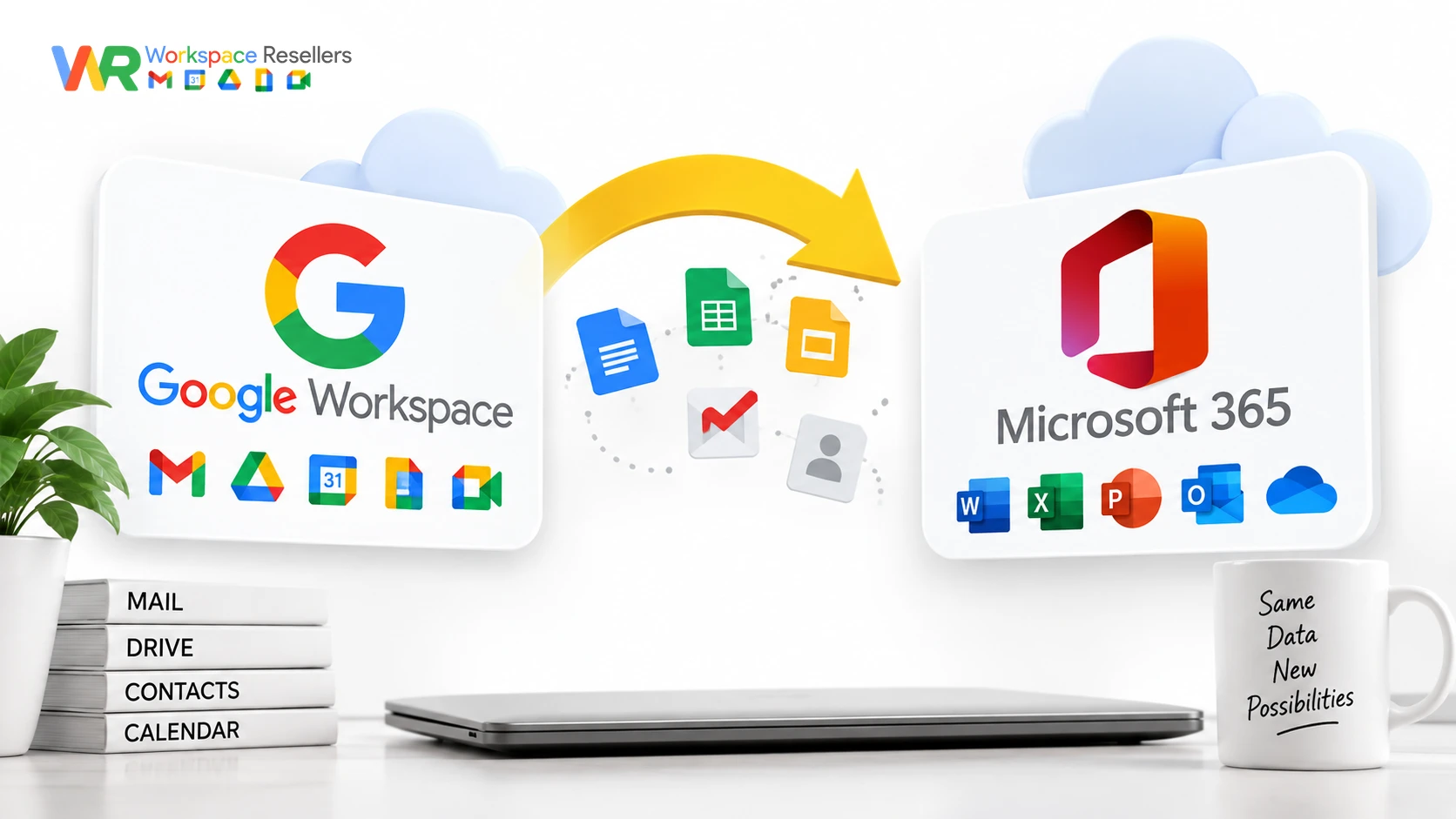
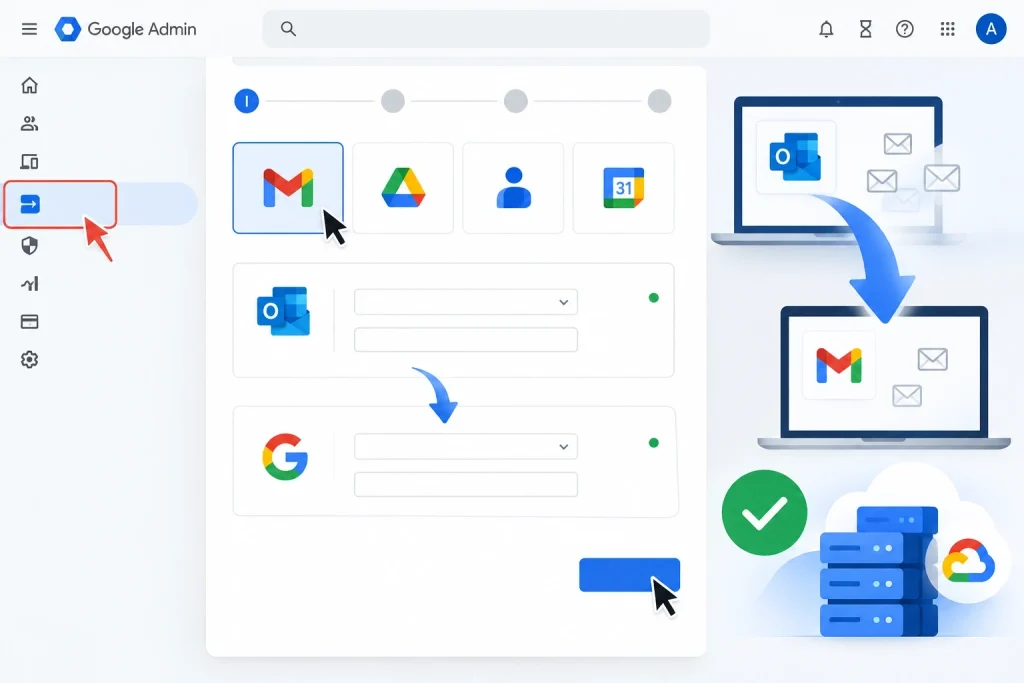
If you’re moving the other direction, from Exchange Online or Outlook into Google Workspace, use the Import from Exchange Online option inside the Data Migration Service. This also skips the secret key entirely:
- Connect to your Exchange Online account directly.
- Select which users to import.
- Configure what gets migrated (mail, and optionally contacts and calendar).
- Start the import and monitor progress from the same dashboard.
This is the modern replacement for older, more manual Exchange migration tools, and it’s the path most businesses moving from Microsoft 365 should use.
Does This Work on Android or Mobile?
Not really, and it’s worth clarifying why. Migration setup happens entirely in a browser, through either the Admin console or Google Cloud Console, neither of which is designed for mobile screens. Once a migration is running, though, it processes on Google’s servers, not your device. You can start a migration on a desktop, close your laptop, and it will keep running whether or not any device is turned on.
How Long Does a Mail Migration Actually Take?
It depends entirely on mailbox size. A small account might finish in under an hour. A mailbox with years of accumulated mail can reasonably run overnight or longer. The process shows a percentage-based progress bar once it starts estimating item counts, so you can check back periodically rather than waiting in front of the screen.
One important detail: only emails that existed at the moment you started the migration get pulled over. Anything that arrives in the old inbox after that point won’t transfer automatically. Check the old account for stray new messages once the migration finishes.
Common Mistakes During Mail Migration
Choosing “Google Workspace” instead of “Gmail” as the source type. Covered above, but worth repeating since it’s the single most reported issue.
Forgetting to enable IMAP on both accounts first. Both the source and destination need IMAP turned on in Gmail settings before migration will work at all.
Never revoking the secret key after migration finishes. A forgotten service account key sitting in Cloud Console is a lingering security risk. Delete it once you’re confident the migration succeeded.
Assuming new mail arriving mid-migration will transfer automatically. It won’t. Plan your cutover date around this.
When to Get Help Instead of Running This Yourself
Generating service account keys, configuring domain-wide delegation scopes, and troubleshooting IMAP source-type errors is genuinely technical work. Get a scope wrong, or leave a stale credential active, and you’ve created a real security gap, not just a failed migration.
If this feels like more than you want to handle solo, that’s a completely reasonable call. This is exactly the kind of setup work an authorized Google Workspace reseller handles as part of onboarding. Leads Monky manages email migrations directly, so you’re not the one debugging OAuth scopes at midnight. GoogleWorkspace Resellers offers the same kind of hands-on migration support, on top of pricing well below Google’s direct rate.
Either way, you get a working migration and a properly secured account, without becoming a Google Cloud Console expert overnight.
Google Workspace Pricing, If You’re Setting Up Fresh
If you’re migrating because you’re moving to Google Workspace for the first time, it’s worth checking pricing before you commit to Google’s direct rate:
| Plan | Google Direct (flexible) | Reseller Price | Monthly Savings |
|---|---|---|---|
| Business Starter, below 300 users | $8.40/user/mo | $3/user/mo | $5.40/user/mo |
| Business Starter, 300+ users | $8.40/user/mo | $2.50/user/mo | $5.90/user/mo |
| Business Standard | $16.80/user/mo | $13/user/mo | $3.80/user/mo |
| Business Plus | $26.40/user/mo | $20/user/mo | $6.40/user/mo |
Same Gmail, same Drive, same migration tools, at a meaningfully lower price. The 300+ user rate matters if you’re migrating a larger organization onto Google Workspace for the first time, since the per-user discount deepens further at that volume. See the full Google Workspace pricing breakdown for every tier.
Honest Limitation
This guide covers the standard migration paths and the most commonly reported error, but every organization’s mail history, folder structure, and third-party integrations are a little different. A migration with unusual mailbox sizes, custom Gmail filters, or non-standard IMAP configurations can behave differently than what’s described here. If your migration looks more complicated than a standard mailbox move, testing on one account first before migrating your whole domain is the safer approach.
FAQs
What is the secret key in Google Workspace mail migration?
It’s a JSON (or older P12) credentials file generated from a Google Cloud service account. Third-party migration tools use it, along with domain-wide delegation, to authenticate and access mail data across your domain.
Do I need a secret key to migrate email to Google Workspace?
Not always. Google’s own Data Migration Service, used for Exchange Online, IMAP providers, other Gmail or Workspace accounts, works through a simple admin email authorization instead. You only need the secret key for third-party tools like Zoho Mail or Microsoft’s GWMME.
Why does my Google Workspace migration fail with an IMAP login error?
The most common cause is selecting “Google Workspace” instead of “Gmail” as your migration source type. This produces a misleading IMAP login error even when your actual IMAP settings are correct. Switching to Gmail as the source usually fixes it immediately.
How do I generate a Google Workspace secret key for migration?
Create a service account in Google Cloud Console, generate a JSON key from its Keys tab, then authorize that key’s Client ID under Domain-wide Delegation in your Admin console’s Security settings.
How long does a Google Workspace mail migration take?
It depends on mailbox size, small accounts can finish in under an hour, while large, years-old mailboxes may take overnight or longer. The migration runs on Google’s servers, so it continues even if your computer is off.
Can I migrate just one employee’s email instead of the whole domain?
Yes. Use the Data Migration Service’s transfer option, select the departing employee’s account as the source and the receiving employee as the destination. This doesn’t require a secret key or service account setup.
Conclusion
Most people who search for a Google Workspace mail migration secret key don’t actually need one anymore; Google’s Data Migration Service handles the majority of common migrations through a simple authorization email instead. The secret key still matters for third-party tools like Zoho Mail or Microsoft’s GWMME, and when you do need it, generating and delegating it correctly is a genuinely technical process worth getting right the first time.
If you hit the classic IMAP login error, check your source type dropdown before anything else. And if the whole process feels like more than you want to manage alone, an authorized Google Workspace reseller can run the migration for you, correctly, securely, and without the 2am troubleshooting session.