Quick Answer
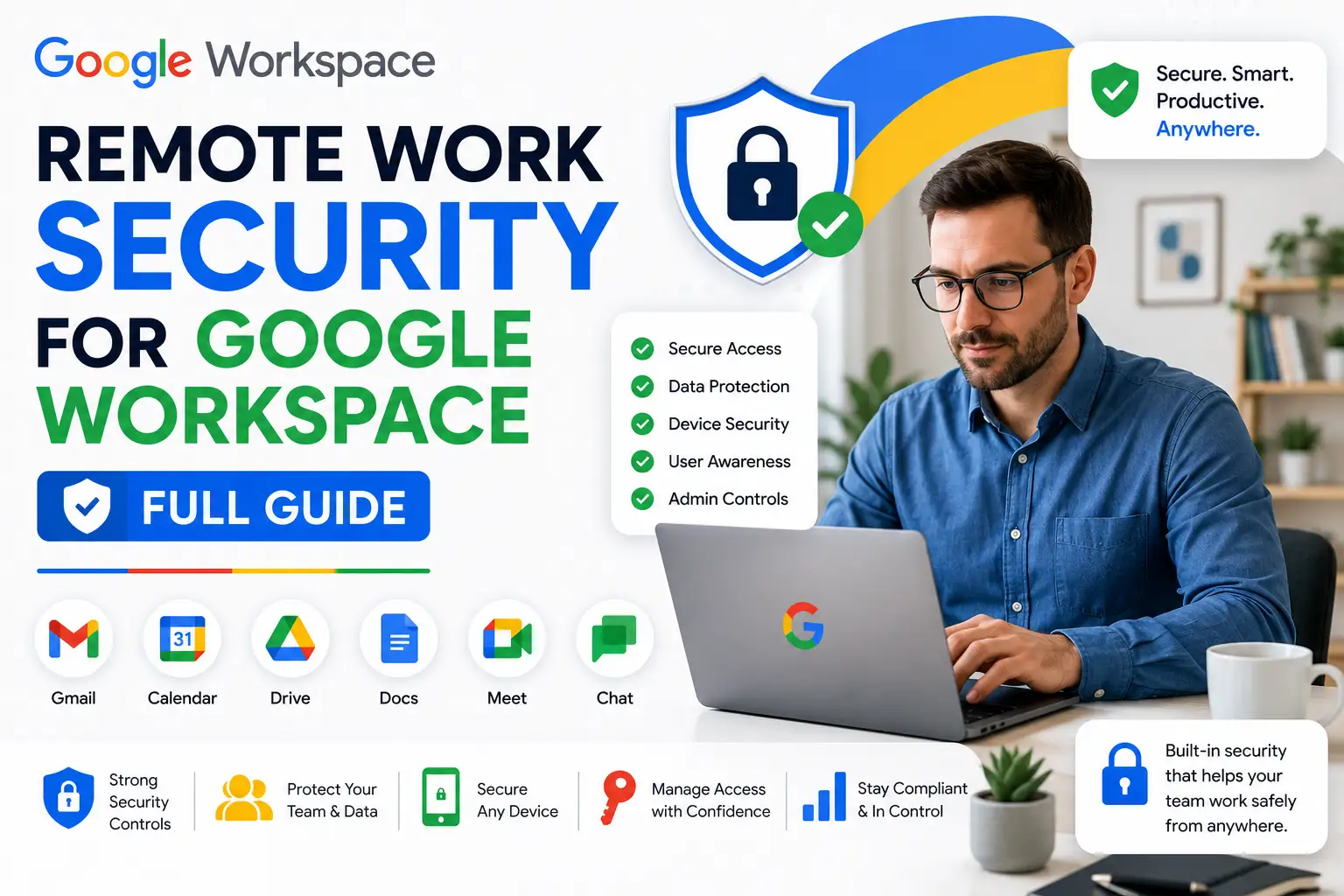
Google Workspace supports secure remote work through a layered set of tools: two-factor authentication and phishing protection on every plan, endpoint (device) management through the Admin console for company-owned and personal devices, Data Loss Prevention to stop sensitive data leaving your domain, and context-aware access controls that restrict app access based on device security status or location. The strongest remote security and management features, advanced DLP, endpoint management, and context-aware access, are concentrated on Business Standard and above, not included on the base Starter tier. There’s no dedicated “free” remote security product, but every plan includes baseline protections, and a free trial lets you test the fuller feature set before committing.
A distributed team introduces risks an office-based one doesn’t have to think about as much: employees connecting from home networks, personal devices mixing with work accounts, and no physical office to fall back on for control. Google Workspace has built out a real set of tools to manage exactly this, but they’re spread across several different features and plan tiers, which is where most of the confusion around this topic comes from. This guide covers what’s actually available, where it lives in the Admin console, and which plan you need for which piece.
Why Remote Work Security Matters More With Google Workspace
When a team works from one office, physical access control (badges, locked doors, a managed network) does a lot of the security work automatically. Remote work removes that layer entirely: an employee’s laptop might be on a home network alongside smart devices with weak security, a personal phone might have both work and personal apps side by side, and there’s no IT team physically present to notice something wrong. Google Workspace’s remote security tools exist specifically to replace what physical office security used to provide, centrally managed from the cloud instead of a server room.

Google Workspace Security Features for Remote Teams
Two-factor authentication (2FA). Available on every plan, requiring a second verification step beyond a password before granting account access, the single most effective baseline protection against compromised credentials.
Phishing and malware protection. Built into Gmail on every plan, automatically filtering the majority of phishing attempts before they reach an employee’s inbox.
Data Loss Prevention (DLP). Available from Business Standard up, DLP scans content in Gmail and Drive for sensitive data patterns (like credit card numbers or specific keywords) and can block or flag messages and files that would send that data outside your organization.
Endpoint (device) management. Lets admins enforce security policies, screen locks, encryption requirements, remote wipe capability, on both company-owned and employee-owned devices accessing Workspace data, critical for a remote team where devices aren’t physically inspectable.
Context-aware access. Available on higher tiers, this restricts access to specific apps based on conditions like device security status, location, or IP address, rather than treating every successful login as equally trustworthy regardless of where it’s coming from.
Vault for eDiscovery and retention. Available from Business Plus up, useful for remote teams that need to retain and search communication records for legal or compliance reasons.
Managing Remote Devices Through the Admin Console
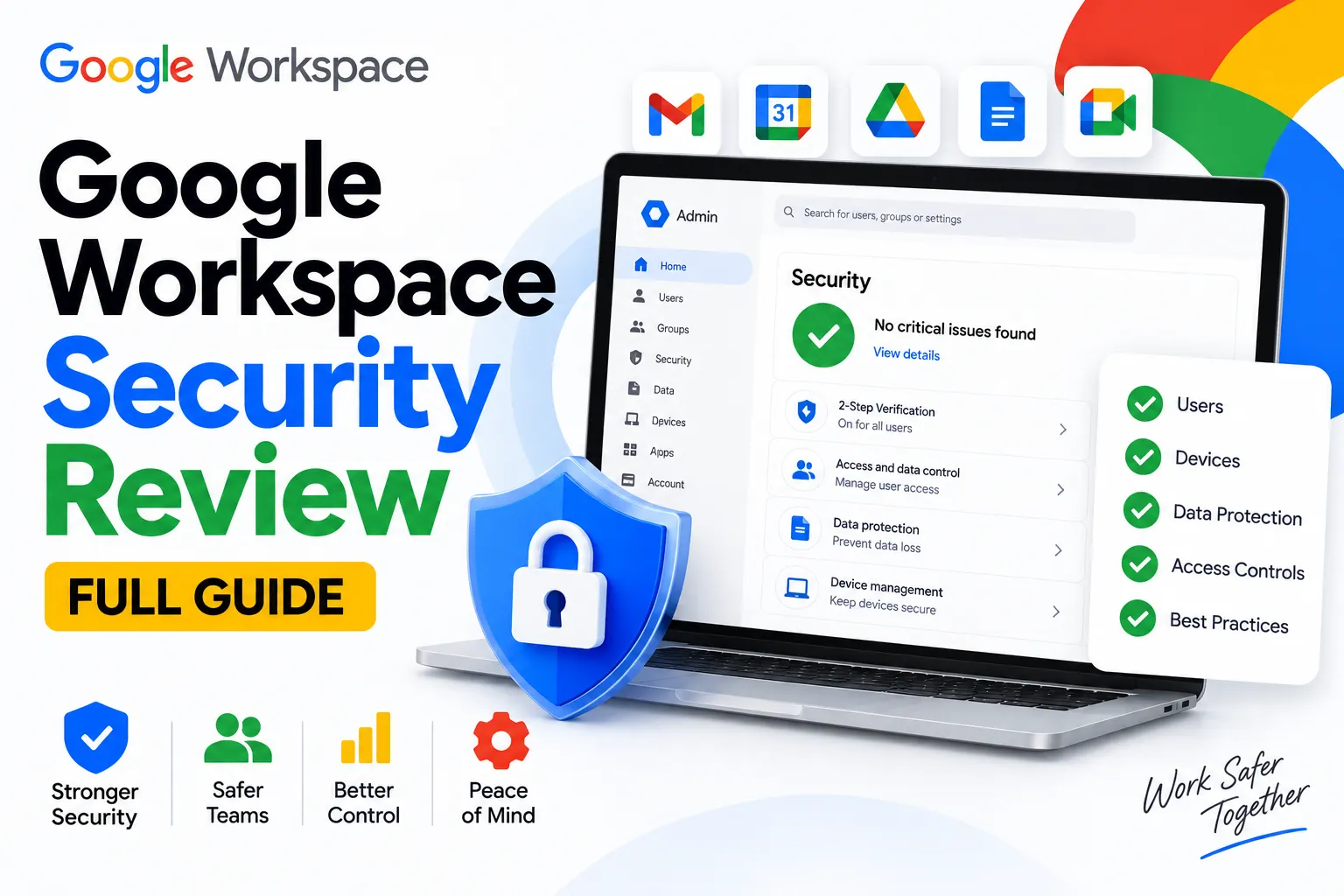
Device management for a remote team happens centrally through the Admin console rather than device by device in person. Admins can enroll company-owned devices, or allow employees to enroll their own personal devices under a bring-your-own-device (BYOD) policy, and then apply security policies uniformly: requiring a screen lock, enforcing device encryption, and retaining the ability to remotely wipe Workspace data from a lost or stolen device without touching the device itself. Google’s Chrome Enterprise tools extend this further for organizations standardized on Chromebooks, letting IT manage settings, apps, and security policies across a distributed fleet of devices from one central console regardless of where each device physically is.
Is There Free Remote Work Security for Google Workspace?
Not as a dedicated free product, but baseline protections exist on every paid plan at no additional cost: 2FA, standard phishing filtering, and basic admin account controls are all included starting on Business Starter. The features remote teams tend to need most, DLP, endpoint management, and context-aware access, are gated to Business Standard and above rather than available on any free tier. If you’re specifically looking to test these tools before committing, a free trial is the practical way to do that, rather than expecting an ongoing free plan with the deeper security features included.
Which Google Workspace Plan Do You Need for Remote Work Security?
Business Starter covers the baseline (2FA, phishing filtering) but lacks DLP, meaningful endpoint management, and context-aware access, features remote teams handling any sensitive data will likely want. Business Standard is generally the practical starting point for a remote team that wants real security and management capability, adding DLP and stronger device management on top of the Starter baseline. Business Plus adds Vault, more advanced endpoint management, and stronger compliance tools, worth it for a remote team with retention or regulatory requirements. For very large distributed organizations with complex security needs, Enterprise plans add the most granular context-aware access and security controls available.
Setting Up Remote Work Security as an Admin
- Enforce two-factor authentication organization-wide through the Admin console rather than leaving it optional per user.
- Enroll devices, both company-owned and, if applicable, personal devices under a BYOD policy, into endpoint management.
- Configure Data Loss Prevention rules for the specific sensitive data types relevant to your business (financial data, customer records, and so on).
- Set up context-aware access policies if your plan includes them, restricting sensitive app access based on device compliance status.
- Move team files into shared drives rather than individual My Drive folders, so departing employees don’t take organizational data with them.
- Review Google’s own Security Checklist for Admins periodically, since it’s updated to reflect current best practices beyond what any single guide can stay current on indefinitely.
Chrome Remote Desktop: What “Remote Google Desktop” Usually Means
If you’re searching for a way to remotely access another computer’s desktop through Google, you’re likely thinking of Chrome Remote Desktop, a free, separate Google tool that lets you remotely control another computer over the internet through the Chrome browser. It’s distinct from Google Workspace’s own security and management features covered above; Chrome Remote Desktop is a screen-sharing and remote-access utility, not a Workspace security product, though it’s commonly used alongside Workspace by remote IT teams needing to troubleshoot an employee’s machine without being physically present.
Common Mistakes in Remote Work Security Setup
Assuming Business Starter includes the same security depth as higher tiers. DLP, meaningful endpoint management, and context-aware access are Business Standard and above features; a remote team on Starter has real gaps in exactly the areas that matter most for distributed work.
Leaving files in personal My Drive folders instead of shared drives. A remote employee who leaves the company can take files stored in their personal Drive with them in a way that isn’t true for properly configured shared drives, a distinction that matters more for remote teams with less day-to-day oversight of file storage habits.
A Note on Job-Search Related Searches
If you landed here searching for Google remote jobs, work-from-home positions, or Google careers generally, this guide won’t help with that, it’s specifically about securing and managing a Google Workspace deployment for remote employees, not a jobs resource. For actual Google job openings, Google’s own careers site is the accurate source rather than a third-party guide like this one.
Buying Google Workspace Direct vs Through a Reseller for Remote Security Setup
The security and management features themselves don’t change based on how you bought your Google Workspace licenses, but the setup support does. Buying direct from Google means configuring DLP rules, endpoint policies, and context-aware access largely on your own using Google’s documentation. Buying through an authorized reseller often means setup guidance for exactly this kind of security configuration, particularly valuable for a remote-first business setting up device management and DLP for the first time without dedicated IT security staff. See our full Google Workspace pricing breakdown to compare which tier fits your remote team’s actual security needs.
Honest Limitation
This guide covers Google Workspace’s own built-in tools, but remote work security is a broader discipline than any single platform’s feature set. Endpoint management and DLP reduce risk meaningfully, but they don’t replace clear written security policies, staff training on phishing and safe device use, or a broader security posture that accounts for tools and networks outside Google Workspace entirely. For an organization with genuinely sensitive data or regulatory exposure, treating this guide as a starting checklist rather than a complete security program is the more accurate way to use it.
FAQs
What Google Workspace security features matter most for remote work?
Two-factor authentication and phishing protection form the baseline on every plan. For remote teams specifically, Data Loss Prevention and endpoint (device) management, both starting on Business Standard, matter most since they address the specific risks of employees working from varied, less controlled locations and devices.
Is Google Workspace remote work security free?
Not as a dedicated ongoing free plan. Baseline protections like 2FA are included on every paid tier, but deeper tools like DLP and endpoint management require Business Standard or above. A free trial is available to test the fuller feature set before committing.
How do I manage remote employee devices in Google Workspace?
Through the Admin console’s endpoint management section, where admins can enroll company-owned or personal devices, enforce security policies like screen locks and encryption, and remotely wipe Workspace data from a lost or stolen device.
What is Google Workspace admin console used for in remote work management?
The Admin console is the central place where an admin configures user accounts, security policies, device management, and access controls for the entire organization, essential for a remote team since there’s no physical office to fall back on for oversight.
Is Chrome Remote Desktop part of Google Workspace?
No. Chrome Remote Desktop is a separate, free Google tool for remotely accessing another computer’s desktop, distinct from Google Workspace’s own security and device management features, though the two are sometimes used together by remote IT teams.
Which Google Workspace plan is best for remote work security?
Business Standard is generally the practical starting point, since it adds Data Loss Prevention and stronger device management on top of Business Starter’s baseline. Business Plus or Enterprise tiers add further compliance and access-control depth for organizations with more demanding security requirements.
Conclusion
Securing and managing a remote Google Workspace deployment comes down to layering the right tools for your team’s actual risk: 2FA and phishing protection as a baseline on every plan, then DLP, endpoint management, and context-aware access from Business Standard up for the controls a distributed team genuinely needs. There’s no shortcut through a free tier for the deeper protections, but a free trial lets you test them, and buying through an authorized reseller can meaningfully ease the setup burden for a remote-first business without dedicated security staff.