Quick Answer
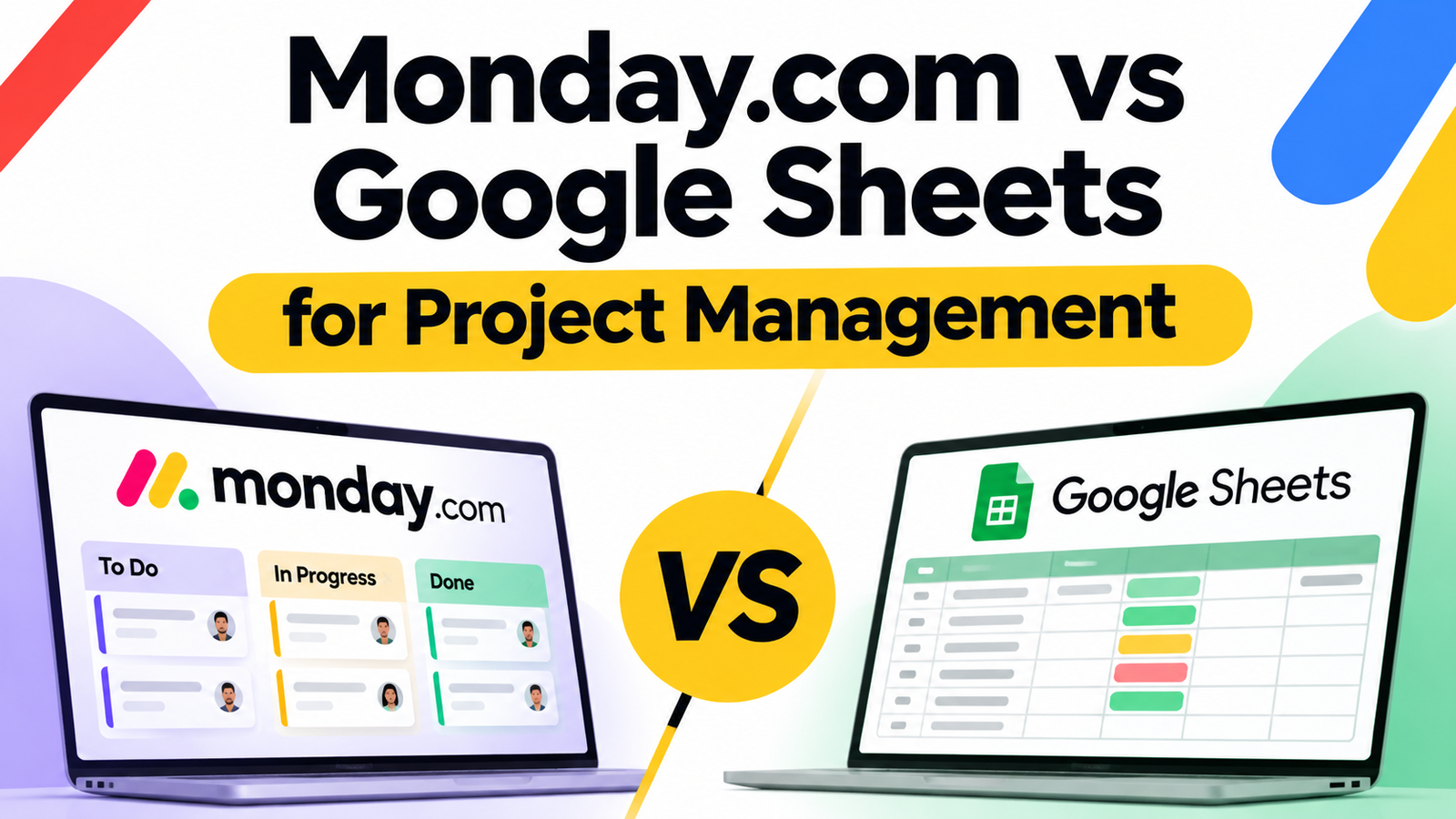
Monday.com vs Google Sheets for project management comes down to structure versus flexibility. Monday.com is a dedicated work management platform with boards, automations, and dashboards built in, starting free for up to 2 seats and moving to paid plans per seat per month. Google Sheets is a spreadsheet you turn into a tracker yourself, free with any Google account, with no seat limits and full control over the layout.
Deciding between monday.com vs Google Sheets project management template options usually comes down to one question: does your team need built-in structure, or would you rather build the structure yourself for free? Monday.com is a purpose-built work management platform with boards, timelines, and automations. Google Sheets is a general-purpose spreadsheet that plenty of small teams turn into a project tracker, task list, or roadmap because it’s already included with their Google account and costs nothing extra to scale across a team.
[Word count: 97 | Keyword: “monday.com vs Google Sheets for project management” appears in the first sentence | Semantic entities: work management platform, boards, automations, spreadsheet, Google account | Evergreen: yes]
What Is Monday.com?
Monday.com is a work management platform built around visual boards: rows of tasks, columns of custom fields (status, owner, due date, priority), and views like Kanban, timeline, calendar, and Gantt charts layered on top of the same data. It’s designed for teams that want structure without building it from scratch, and it includes automations (if a status changes to “Done,” notify the owner, for example) and dashboards that roll multiple boards into one view.
Pricing typically starts with a free plan capped at 2 seats, then paid plans that run roughly $9 to $12 per seat per month on the entry tiers when billed annually, stepping up to around $19 to $20 per seat for the Pro tier with time tracking and private boards, and a custom-quoted Enterprise tier above that. Monthly (non-annual) billing generally costs more per seat, and most paid tiers require a minimum of 3 seats, so pricing scales with headcount in a way a spreadsheet simply doesn’t.
Can You Really Run Project Management in Google Sheets?
Yes, and a large number of small teams and solo operators already do. Google Sheets doesn’t give you Kanban boards or automations natively, but it gives you a few things monday.com can’t: it’s free regardless of team size, it’s already inside whatever Google account your business uses, and you control the exact structure, formulas, and layout rather than working inside someone else’s board design.
The honest limitation here is real: Sheets won’t notify a teammate automatically when a task status changes, and building a genuinely useful dashboard (status counts, overdue flags, completion percentages) takes some formula work most people don’t want to do from scratch. That’s a fair trade for a lot of small teams, and it’s exactly the gap a ready-made template is meant to close, covered further down in this guide.
Monday.com vs Google Sheets: Feature-by-Feature Comparison
| Feature | monday.com | Google Sheets |
|---|---|---|
| Cost | Free for 2 seats; paid plans roughly $9 to $20+/seat/month | Free, no seat limit |
| Built-in views (Kanban, Gantt, timeline) | Yes, included on most paid tiers | No, built manually with formatting and formulas |
| Automations (status change alerts, etc.) | Yes, with monthly automation limits by tier | No, requires Apps Script or manual follow-up |
| Dashboards across multiple projects | Yes, built in on paid tiers | Manual, built with formulas or a separate summary tab |
| Guest or client access | Yes, on Standard tier and above | Yes, via standard Google Sheets sharing permissions |
| Learning curve | Low to moderate, some onboarding to learn board logic | Low if you already use Sheets, higher to build a good system from scratch |
| Offline access | Limited | Full offline editing via the Google Sheets app with sync |
| Data portability | Exportable, with import limits when moving data in | Fully portable, standard spreadsheet file |
How Monday.com’s Google Sheets Import Actually Works
One thing worth knowing before you commit to either tool: monday.com has a native importer for Google Sheets data, and it’s genuinely useful if you’re migrating an existing tracker rather than starting fresh. You connect your Google Drive, pick a sheet, and monday.com walks you through three mapping steps: which row becomes your header, which column becomes the first column on the new board, and what data type each column should be treated as (text, status, date, and so on).
The part that doesn’t get mentioned enough is the limitation on that import: it caps out at 3,000 rows and 20 columns per board, and anything past that limit is simply cut off rather than flagged with a warning. It also can’t import several tabs from one spreadsheet at once; if your Google Sheet has multiple tabs, each one needs to be imported separately into its own board. For a small team’s task list, 3,000 rows is plenty. For a sprawling multi-year project log with hundreds of rows per month, it’s a limit worth checking before you assume the migration will be a one-click job.
Free Google Sheets Project Management Template
To make the comparison concrete, we built a free, downloadable project management template that works directly in Google Sheets. It includes:
- A Project Tasks tab with Task Name, Owner, Status, Priority, Start Date, Due Date, Progress %, and Notes columns, with dropdown menus for Status (To Do, In Progress, Blocked, Done) and Priority (Low, Medium, High)
- A Dashboard tab that automatically counts tasks by status, flags overdue items, and calculates average progress percentage, all built with formulas that update as you fill in the Project Tasks tab
- Three example rows already filled in, clearly marked, so you can see exactly how it’s meant to be used before replacing them with your own tasks
To use it: download the file, open Google Sheets, go to File, then Import, then Upload, and select the file. Choose “Replace spreadsheet,” then go to File and Save as Google Sheets to make it fully editable and shareable with your team at no cost.
This covers most of what a small team actually uses monday.com’s Standard tier for: status tracking, ownership, due dates, and a simple dashboard, without a monthly per-seat charge.
Monday.com vs Google Sheets Project Management Template: A Side-by-Side Example
It helps to see the same project set up both ways rather than comparing feature lists in the abstract. Take a simple five-task website redesign: wireframes, content draft, design review, development, and launch, each with an owner and a due date.
In monday.com, that project becomes a board with five rows. Each column (Owner, Status, Due Date, Priority) is a field type you configure once, and the board automatically renders as a Kanban view by status or a timeline view by date, without rebuilding anything. Add an automation like “when Status changes to Done, notify the board owner,” and the handoff between tasks happens without anyone checking in manually. Setup time for a board like this is typically under 10 minutes for someone who already knows the platform.
Using the free Google Sheets project management template from this guide, the same five tasks go into the Project Tasks tab, with Status and Priority set through the built-in dropdowns rather than typed manually. The Dashboard tab immediately reflects how many tasks are in each status and flags anything overdue, the moment you fill in the rows. What you don’t get automatically is the notification step. If a teammate marks their task Done, nobody else gets pinged unless you check the sheet or send a message yourself.
For a project this size, both approaches take roughly the same amount of setup time, maybe 5 to 10 minutes either way. The real difference only shows up at scale: run 40 tasks across 6 people with dependencies between them, and monday.com’s automations start saving real coordination time that a spreadsheet, however well templated, still asks a human to do manually. Run 5 to 15 tasks for a small team, and the spreadsheet version holds up just as well, for no monthly cost.
When Google Sheets Is the Better Choice
Google Sheets tends to win for teams under about 10 people running relatively simple, linear workflows: a content calendar, a small client project list, a hiring pipeline, or a one-off event plan. If the team already lives inside Gmail, Drive, and Docs for everything else, keeping the tracker in the same ecosystem avoids adding another login, another subscription, and another place information can go stale. It’s also the better fit for budget-conscious teams and startups where a recurring per-seat software cost isn’t justified yet by the complexity of what’s being tracked.
When Monday.com Is the Better Choice
Monday.com starts earning its price once a team needs automations that actually fire (not just a tracker that looks organized), permission-based guest access for clients, or dashboards that roll up work across multiple projects without someone manually updating a summary tab. Teams coordinating across departments, agencies managing several client projects in parallel, or operations teams running recurring processes with handoffs between people tend to get real value out of the structure monday.com enforces by design.
Common Mistakes When Choosing Between Them
- Picking monday.com before outgrowing a spreadsheet. A lot of teams adopt a paid platform before they’ve actually hit the limits of what a well-built spreadsheet can do, and end up paying per seat for structure they could have built once for free.
- Sticking with a messy, ad-hoc spreadsheet instead of a real template. The problem usually isn’t Google Sheets itself, it’s an unstructured sheet with no dropdowns, no dashboard, and no consistent columns. A proper template fixes most of the complaint people have about “Sheets isn’t built for project management.”
- Assuming the Google Sheets importer moves everything. The 3,000-row, 20-column, one-tab-at-a-time limitation on monday.com’s import feature catches teams off guard mid-migration if they haven’t checked their data size first.
Which Should You Choose?
If your team is small, your workflow is straightforward, and you want to avoid adding a new monthly cost, start with Google Sheets and a proper template rather than assuming you need dedicated software. If you’re coordinating multiple people across departments or clients, need automations that actually notify people, or you’re already paying for monday.com and wondering whether to cancel, the honest answer is that it depends on whether your team is actually using the automation and dashboard features, not just the boards, since the boards alone are the part a good spreadsheet template replicates most easily.
Conclusion
Monday.com and Google Sheets solve project management differently rather than one being strictly better. Monday.com gives you structure, automations, and multi-project dashboards out of the box, at a per-seat monthly cost. Google Sheets gives you a free, flexible foundation that, with the right template, covers a surprising amount of what small teams actually need day to day. If your team already runs on Google Workspace for email, Docs, and Drive, keeping project tracking in the same ecosystem with a proper Sheets template is often the more cost-effective starting point, and comparing Google Workspace pricing across resellers is worth doing if you’re setting up that ecosystem for your business for the first time.
FAQs
Is Google Sheets good enough for project management?
For small teams with straightforward workflows, yes. A well-structured template with status tracking and a dashboard covers most day-to-day project management needs without a per-seat software cost.
What’s the monday.com free plan limit?
Monday.com’s free plan is typically capped at 2 seats, which makes it workable for a very small team or a solo user testing the platform, but it requires upgrading to a paid tier for most teams of 3 or more.
Can I import my Google Sheets project tracker into monday.com?
Yes. Monday.com has a built-in Google Sheets importer that walks you through mapping your header row, first column, and column types, but it’s limited to 3,000 rows and 20 columns per board, and only one tab at a time.
Is there a free Google Sheets project management template?
Yes, this guide includes a free downloadable template with a task tracker and an automatic dashboard built in, ready to import directly into Google Sheets.
How much does monday.com actually cost per month?
Paid plans typically start around $9 to $12 per seat per month on the entry tiers when billed annually, with most paid tiers requiring a minimum of 3 seats, rising to roughly $19 to $20 per seat for the Pro tier. Monthly billing without an annual commitment generally costs more per seat.
Does Google Sheets have Gantt charts like monday.com?
Not natively, but a Gantt-style timeline can be built in Google Sheets using conditional formatting across date columns. It takes more manual setup than monday.com’s built-in Gantt view, but it’s achievable in a template.
Which is better for a small business just getting started?
For a small business with a handful of projects and a tight budget, Google Sheets with a proper template is usually the more practical starting point. If the business is already using Google Workspace for business email, Docs, and Drive, Sheets slots in without adding another subscription.
Can multiple people edit a Google Sheets project tracker at the same time?
Yes. Google Sheets supports real-time multi-user editing with standard sharing permissions, the same way Google Docs does, which covers most of what small teams need from “collaboration” without monday.com’s guest-access features.
Do I need Google Workspace to use this template, or does a free Gmail account work?
A free personal Gmail account works fine for importing and using the template. Businesses that want a professional @yourdomain email alongside Sheets, Docs, and Drive typically move to Google Workspace Business Starter, which starts at a low per-user monthly cost through an authorized reseller.