Quick Answer
Google Workspace Sync for Microsoft Outlook (GWSMO), formerly called GSSMO, is Google’s free official tool that lets you use Outlook as your everyday email client. At the same time, your mail, calendar, and contacts stay synced with your Google Workspace account. It’s still actively supported and updated in 2026, not discontinued despite what some searches suggest, but it’s Windows-only; there’s no Mac version. If you’re on a Mac, the OAuth-based Outlook sign-in covered in our IMAP settings guide is the right path instead, not GWSMO.
If you’ve switched your business to Google Workspace but your team still wants to work inside Outlook rather than the Gmail interface, GWSMO is the tool Google built specifically for that. It’s a genuinely useful piece of software, but it’s also one that generates a fair amount of confusion about its Windows-only limitation, whether it’s still maintained, and why syncing sometimes breaks. This guide covers all of it.
What Is Google Workspace Sync for Microsoft Outlook (GWSMO)?
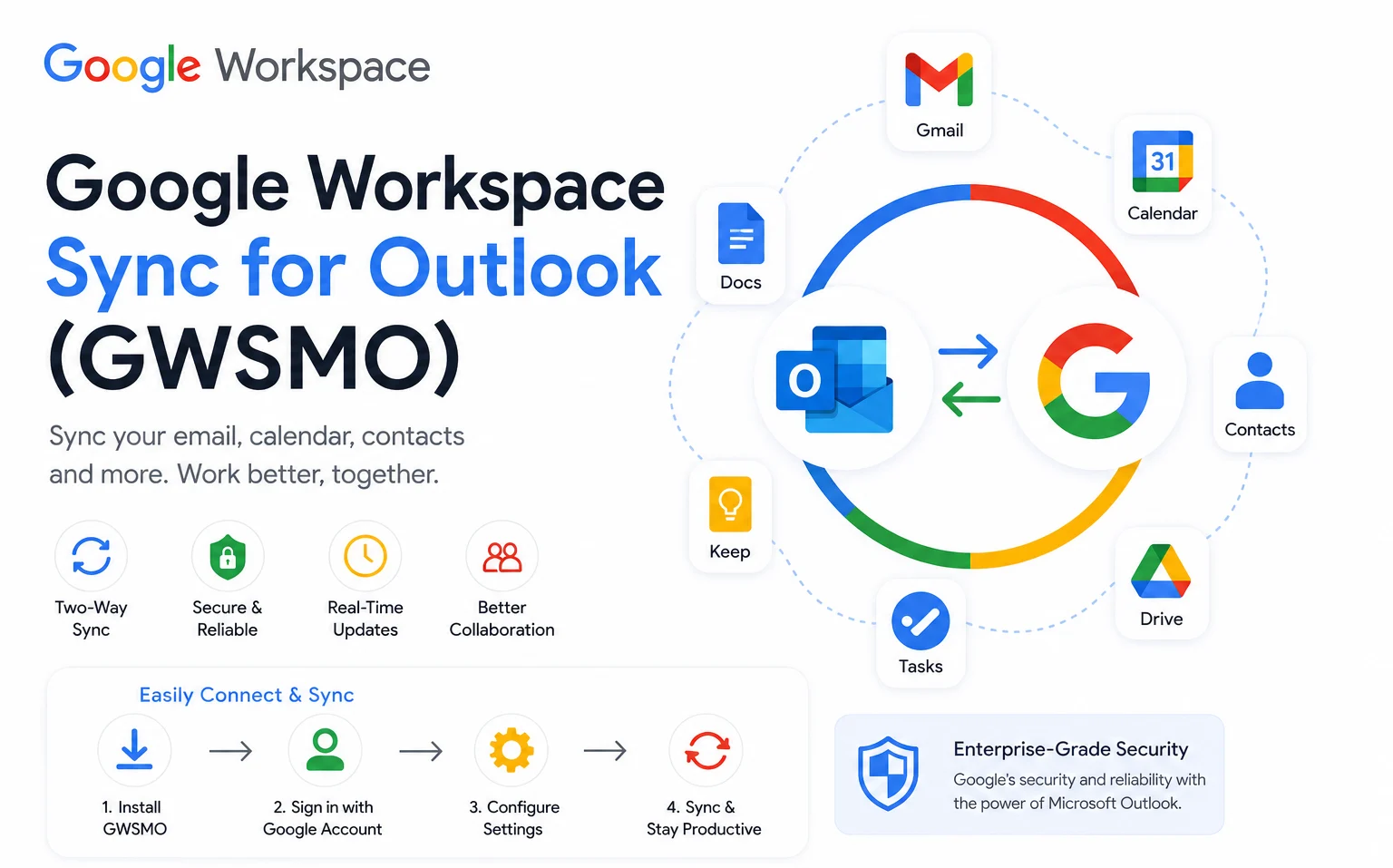
GWSMO is a free desktop tool from Google that synchronizes your Google Workspace email, calendar, contacts, tasks, and notes with Microsoft Outlook, letting you use Outlook as your day-to-day client while everything stays backed up and accessible through your Google account as well. It’s aimed specifically at businesses and users who’ve moved to Google Workspace but want to keep working in Outlook’s familiar interface rather than switching to Gmail’s web interface or the Outlook OAuth connection method. It was previously called GSSMO (G Suite Sync for Microsoft Outlook) before Google’s 2020 G Suite to Google Workspace rebrand; the tool itself is the same, just renamed.
Is GWSMO Still Supported in 2026?
Yes. Despite searches asking about “end of life” or “current status,” GWSMO remains an actively maintained, officially supported Google product as of 2026. Google has continued releasing updates, including a fix for a Windows 11 24H2 compatibility issue and ongoing bug fixes documented in the official GWSMO release notes. There’s no announced end-of-life date for the tool. The confusion likely stems from Google’s broader 2025 shift toward requiring OAuth for third-party email clients generally, a separate change that affects manual IMAP setup, not GWSMO’s continued availability specifically.
Does GWSMO Work on Mac?
No. GWSMO’s installer is Windows-only; Google’s own download page explicitly states the .exe and .msi installer files are for installation on Windows machines only, even though you can technically download the installer file itself from any operating system. If you’re on a Mac and want to connect Outlook to your Google Workspace account, GWSMO isn’t the tool for that. Instead, use Outlook for Mac’s built-in Google account option, which connects through OAuth sign-in directly, no separate sync tool needed. This is one of the most common points of confusion in GWSMO searches, and it’s worth knowing before spending time trying to find a Mac download that doesn’t exist.
System Requirements and Downloads
GWSMO’s installer is available in two forms: an .exe file (recommended for individual users installing it themselves) and an .msi file (recommended for admins deploying it across an organization), with the .msi available in separate 32-bit and 64-bit editions matching your installed version of Outlook. Installing the wrong bitness edition for your Outlook installation is a common setup mistake worth double-checking before you troubleshoot anything else. Before installing, it’s worth reviewing Google’s current system requirements and release notes directly, since supported Outlook and Windows versions are updated periodically as Microsoft and Google both release new versions.
How to Download and Install GWSMO
- Download the appropriate installer, the .exe for a single-user install, or the correct 32-bit or 64-bit .msi if you’re an admin deploying it more broadly, from Google’s official GWSMO download page.
- Close Outlook completely before running the installer.
- Run the installer and follow the setup prompts, signing in with your Google Workspace account when prompted.
- Choose whether to import existing Outlook data (from your current profile or a PST file) into your Google account, or start fresh.
- Let GWSMO create or configure your Outlook profile; on first launch after installation, Outlook will open using your newly synced Google Workspace profile.
Setting Up GWSMO for the First Time
After installation, GWSMO walks you through signing in and choosing what to sync. It’s worth turning on smart features during this step: Google’s optional but recommended settings that improve how GWSMO handles certain sync behaviours, unless you have a specific reason not to. If you’re importing existing Outlook data rather than starting fresh, GWSMO can pull from an existing Outlook profile or a PST file export, though large imports can take real time depending on how much mail and how many contacts are involved.
What Syncs With GWSMO, and What Doesn’t
GWSMO regularly syncs email, calendar events, and contacts between Google Workspace and Outlook, and this generally works reliably for standard use. Some other data types either don’t sync at all or sync in a modified form. Certain newer Gmail-specific features and some formatting nuances don’t translate perfectly between the two platforms, since Outlook and Gmail don’t structure every piece of data identically. If a specific Outlook feature seems to behave differently or isn’t available while GWSMO is active, that’s a known limitation of syncing two genuinely different email clients, not necessarily a bug.
Known Issue: GWSMO and Windows 11 24H2 Crashes
In mid-2025, GWSMO version 4.3.73.0 was found to cause Outlook to crash on Windows 10 and 11 machines specifically during contact synchronization. Google acknowledged the issue and initially recommended affected users roll back to version 4.3.68.0 while a fix was developed; the issue was subsequently resolved in version 4.3.77.0 and later releases. If you’re on an older GWSMO version and experiencing Outlook crashes tied to contact sync, updating to the latest version through Google’s official download page is the direct fix, rather than working around the crash indefinitely.
GWSMO Not Working: Common Fixes
Confirm you’re running the current version. Given the documented crash issue above, an outdated GWSMO version is a common and specific cause of instability; check the release notes and update if you’re not current.
Check that your Outlook and GWSMO bitness match. A 32-bit GWSMO installer paired with 64-bit Outlook (or vice versa) can cause profile creation failures or sync issues; confirm both match before troubleshooting further.
Restart the sync from a clean profile if problems persist. GWSMO includes options to re-sync or repair Outlook data through its settings, which resolves a meaningful share of ongoing sync problems without a full reinstall.
GWSMO Not Syncing All Emails: Why and How to Fix
If some emails visible in Gmail aren’t showing up in Outlook through GWSMO, this is typically a sync completeness issue rather than data loss; your mail still exists in your Google account regardless of what Outlook currently displays. Common causes include a sync that hasn’t fully completed yet (large mailboxes take time), a specific folder or label not configured to sync, or a temporary sync interruption that needs a manual re-sync to resolve. Checking your Gmail account directly confirms whether the mail exists (it almost certainly does) before assuming anything was lost.
How to Remove or Uninstall GWSMO
Uninstalling GWSMO is done through standard Windows program removal, Settings, Apps, then locating Google Workspace Sync for Microsoft Outlook and selecting uninstall, the same as removing any other Windows application. Before uninstalling, it’s worth confirming your email, calendar, and contacts are all safely accessible through your Google Workspace account directly (they should be, since GWSMO syncs rather than exclusively stores data), so you’re not relying on Outlook as the only copy of anything before removing the sync tool.
GWSMO vs Plain IMAP/OAuth: Which Should You Use?
This is worth deciding deliberately rather than defaulting to whichever option you find first. GWSMO gives you a deeper native Outlook experience, syncing calendar, contacts, and tasks alongside email in a way that feels like a true two-way integration, and it’s the better choice if your team wants Outlook to feel like a first-class Google Workspace client. Connecting Outlook through standard OAuth sign-in (covered in our Google Workspace IMAP settings guide) is simpler to set up and works on both Windows and Mac, but it’s primarily an email connection rather than the full calendar, contact, and task sync GWSMO provides. For a Windows-based team wanting the fullest Outlook integration, GWSMO is generally the better fit; for a mixed Windows and Mac team, or one that just needs email access in Outlook without the deeper sync, standard OAuth setup is simpler and more universally compatible.
Common Mistakes When Using GWSMO
Assuming GWSMO works on Mac and searching for a download that doesn’t exist. GWSMO is Windows-only; Mac users should use Outlook’s built-in Google OAuth sign-in instead.
Not checking for the known 4.3.73.0 crash issue before troubleshooting from scratch. If Outlook is crashing specifically during contact sync, checking your GWSMO version against the documented issue saves considerable troubleshooting time compared to starting an investigation from zero.
Conclusion
GWSMO remains a genuinely useful, actively supported tool for Windows-based teams who’ve moved to Google Workspace but want to keep working inside Outlook’s native interface, complete with calendar, contact, and task sync rather than just email access. Its two biggest sources of confusion, whether it’s still supported (it is) and whether it works on Mac (it doesn’t), are both worth clearing up before you spend time troubleshooting the wrong problem. For most sync issues, checking your GWSMO version against the known 2025 crash fix and confirming your installer’s bitness matches Outlook resolves most reported problems.
FAQs
Is Google Workspace Sync for Microsoft Outlook still supported?
Yes. GWSMO remains actively maintained in 2026, with ongoing updates including a fix for a Windows 11 24H2 compatibility issue. There is no announced end-of-life date for the tool.
Does Google Workspace Sync for Outlook work on Mac?
No. GWSMO’s installer is Windows-only. Mac users should connect Outlook to Google Workspace using Outlook’s built-in Google account sign-in (OAuth) instead, which doesn’t require GWSMO at all.
Why is GWSMO not working or crashing Outlook?
A documented issue in GWSMO version 4.3.73.0 caused Outlook to crash on Windows 10 and 11 during contact synchronization in 2025. This was fixed in version 4.3.77.0 and later; updating to the current version resolves this specific issue.
Why isn’t GWSMO syncing all my emails to Outlook?
This is typically a sync completeness issue rather than lost data, since your mail remains in your Google Workspace account regardless. Common causes include an incomplete initial sync on a large mailbox, a folder not configured to sync, or a temporary interruption that a manual re-sync resolves.
Should I use GWSMO or just connect Outlook through IMAP and OAuth?
It depends on what you need. GWSMO provides a deeper native sync of email, calendar, contacts, and tasks, and works only on Windows. Standard OAuth-based setup is simpler, works on both Windows and Mac, but provides primarily email access rather than the full GWSMO feature set.
How do I download the 64-bit version of GWSMO?
Google’s official GWSMO download page offers separate 32-bit and 64-bit MSI installer editions. Choose the edition matching your installed version of Outlook (not necessarily your Windows version), since installing the wrong bitness is a common cause of setup failures.