Quick Answer
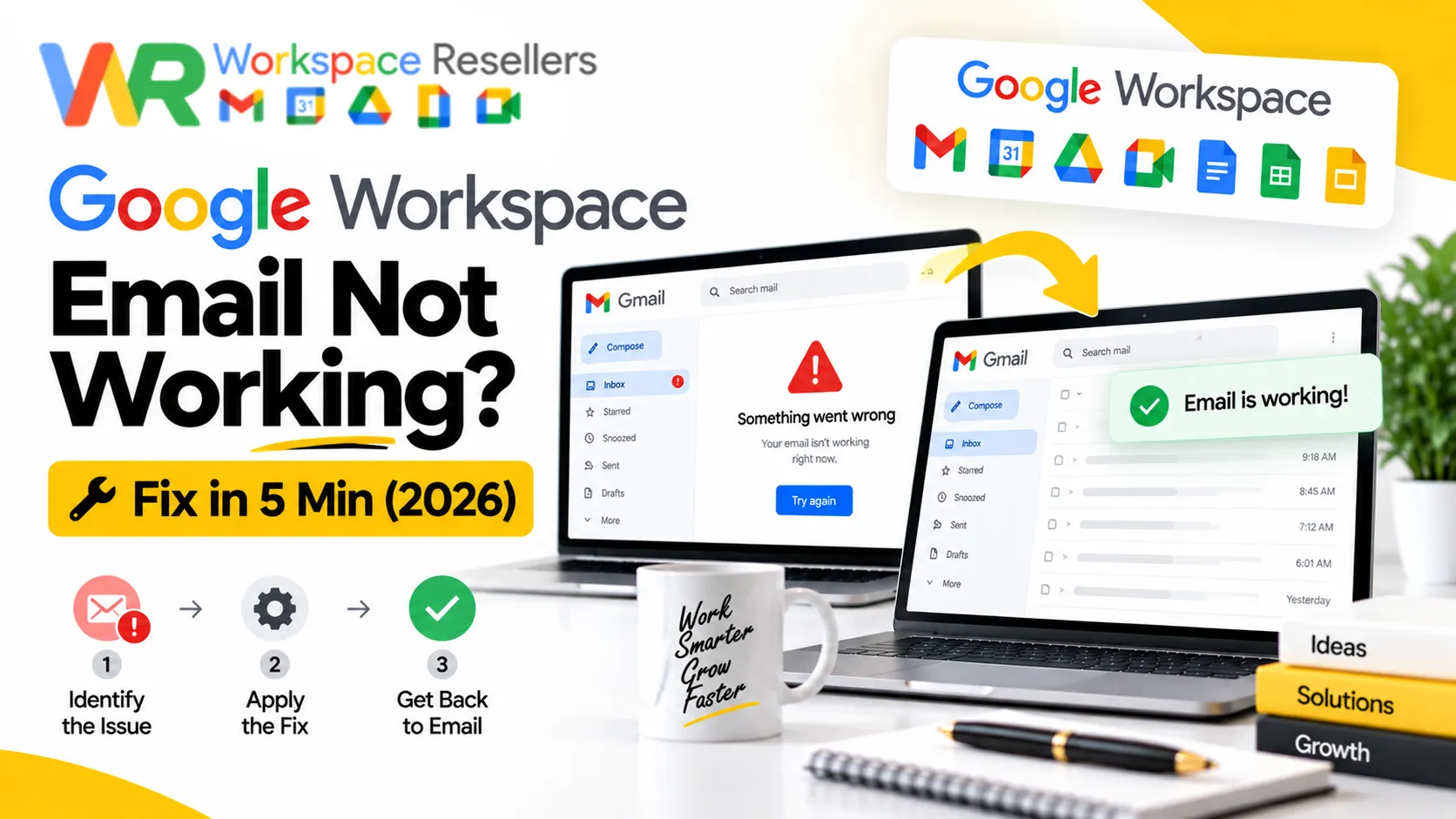
“Google Workspace email not working” almost always falls into one of four patterns: you can’t send or receive anything at all, you can send but not receive, you’re missing mail from specific senders only, or specific recipients aren’t getting your mail. Each pattern points to a different cause: an outage, a DNS misconfiguration, a spam or authentication issue, or a mailbox-level filter, so the fastest fix starts with figuring out which pattern you’re actually dealing with, not guessing at random settings.
This guide walks through all four, plus the platform-specific versions of this problem: iPhone, Outlook, Squarespace-managed domains, and group or alias addresses.
Step Zero: Check the Google Workspace Status Dashboard
Before touching any settings, rule out the simplest explanation. Google maintains a public Workspace Status Dashboard showing real-time service disruptions across Gmail and every other Workspace app. If Gmail shows a service issue there, the fix isn’t anything in your account, it’s waiting for Google to resolve it on their end. This single check resolves a meaningful share of “my email suddenly stopped working today” reports without any further troubleshooting needed.
Scenario 1: Can’t Send or Receive Anything
If your account is completely dead in both directions, work through these in order:
Check for a Google service outage using the status dashboard above, this is always the first move.
Confirm your domain hasn’t expired. Check your domain’s status directly through your registrar. A lapsed domain registration takes email down entirely, and it’s an easy thing to miss if renewal wasn’t automatic.
Verify your domain is actually verified in Google Workspace. In the Admin console, go to Account, then Domains, then Manage domains, and confirm your domain shows a status of Verified. If it doesn’t, complete verification using our domain verification guide.
Check your billing status. A lapsed subscription payment can disrupt email service entirely. Sign in as super admin, go to Billing, and confirm your payment is current, our Google Workspace billing guide covers how to check this in detail.
Check your DNS zone itself, not just individual records. If neither sending nor receiving works, the problem is often the entire DNS zone (particularly your name server records), not one misconfigured record within it. Log in to your DNS host and confirm your domain’s name servers are pointed correctly.
Scenario 2: Can Send Emails but Not Receive Them
This is the single most common version of this problem, and it’s almost always about mail routing rather than anything wrong with your account itself.
Check your MX records using Google’s own MX Checker tool in the Admin Toolbox. If you’re using Google Workspace exclusively, without a third-party email security layer in front of it, the correct current MX record value is SMTP.GOOGLE.COM, Google’s modern single-record standard. Older accounts may still show the legacy 5-record ASPMX.L.GOOGLE.COM set instead, which still works if it was never changed, but don’t mix both configurations on the same domain, having extra MX records pointing elsewhere is a common cause of exactly this symptom.
Check for interfering routing rules. If your MX records look correct but mail still isn’t arriving, go to Apps, then Google Workspace, then Gmail in the Admin console, then scroll to Default routing. A custom routing rule can silently redirect incoming mail somewhere other than the inbox, review anything configured here and remove or adjust rules that don’t look intentional.
Scenario 3: Not Receiving From Specific Senders
If the problem is limited to certain people or organizations rather than affecting all incoming mail, the cause usually isn’t your configuration at all.
Check your Safety and Spam settings under Apps, then Google Workspace, then Gmail. Review your Safety section for anti-spoofing rules, these sometimes block legitimate senders whose domain name closely resembles a known spoofed pattern. Also check Spam, phishing, and malware, then Blocked Senders to confirm the sender wasn’t accidentally added to your blocklist.
The sender may be blacklisted. Public blacklists track mail servers with poor sending reputations. If a sender’s messages are being rejected, ask them to check their own server logs for bounce-back errors (a code like 550 5.7.1 is a common one) and run their domain through a public blacklist checker like MXToolbox. If they’re listed, they’ll need to request delisting directly from that blacklist provider, not something fixable from your side.
The sender’s own authentication may be broken. If a sender’s SPF, DKIM, or DMARC records are misconfigured, Google may reject their mail as a precaution. This is genuinely their DNS issue to fix, not yours, point them to Google’s Admin Toolbox to check their own domain’s authentication setup.
Scenario 4: Not Receiving by Specific Recipients
If only certain people within your organization are missing mail, the issue usually lives in that individual’s mailbox settings.
Confirm the sender used the correct address. Before any deeper troubleshooting, verify the exact recipient address was typed correctly, a surprisingly common root cause.
Check the affected user’s Filters and Forwarding settings. Have the user open Gmail, go to Settings, then See all settings, then the Filters and Blocked Addresses tab to look for anything redirecting or deleting incoming mail unexpectedly. Then check the Forwarding and POP/IMAP tab for an unintended forwarding rule quietly sending their mail elsewhere.
Emails Stuck in “Queued” When Sending
This is a distinct problem from the four scenarios above, worth its own explanation. A message stuck in a queued state when sending is usually caused by one of two things: you’ve hit a sending limit (Google Workspace accounts have daily recipient caps to prevent abuse), or the recipient’s mail server is temporarily rejecting or delaying delivery on their end. Check your account’s current sending activity in the Admin console if you suspect a limit issue, and give a queued message some time before assuming it’s permanently stuck, temporary server-side delays on the recipient’s side often resolve without any action needed from you.
Google Workspace Email Not Working on iPhone
If email works fine on desktop but not on an iPhone specifically, this usually comes down to one of two things. First, confirm you’re signed in through the native Mail app’s “Add Account, then Google” flow, which uses OAuth authentication, rather than an older manual IMAP setup with a typed password, which Google no longer supports for sign-in as of a 2025 security change. Second, check that IMAP access is actually enabled for your account in the Admin console, since this needs to be turned on at the organization level before any mobile client can connect at all.
Google Workspace Email Not Working in Outlook
For Outlook specifically, the fix depends on which version and setup you’re using. Current versions of Outlook (365, 2019, 2016) should connect through Google’s OAuth sign-in, selecting Google as the account provider rather than entering manual server settings. If you’re using Google Workspace Sync for Microsoft Outlook (GWSMO) instead for a deeper calendar and contacts sync, and it’s suddenly stopped working, check whether you’re on an outdated version first, a documented crash issue affected a specific 2025 release on Windows. Our GWSMO guide and IMAP settings guide both cover the current correct setup process in detail.
Google Workspace Email Not Working Through Squarespace
If your domain is managed through Squarespace rather than a traditional registrar, DNS changes (including MX records) need to happen inside your Squarespace account’s domain settings specifically, not through a separate registrar dashboard. A common cause of email trouble here is a Squarespace domain subscription that’s lapsed or been canceled, since Workspace email stops working the moment the domain’s MX records are no longer active, even if your Workspace subscription itself is still current. Our Google Workspace billing guide covers the specific Squarespace billing quirks worth knowing about.
Group Email and Alias Email Not Working
These are different settings from a personal mailbox, and troubleshooting them the same way as an individual account misses the actual cause. For a group email (like support@ or sales@), check the group’s membership and settings in the Admin console under Groups, an empty or misconfigured membership list means mail arrives at the group address but has nowhere to actually deliver. For an alias, either a user alias (a second address for one person) or a domain alias (mirroring addresses across an entire secondary domain), confirm the alias is correctly configured and, importantly, remember that alias addresses generally can’t be used to sign in, only to send and receive, so “not working” sometimes just means someone’s trying to log in with an address that was never meant to authenticate.
Common Mistakes When Troubleshooting
Jumping straight to DNS changes without checking for a Google outage first. This wastes real time fixing something that isn’t actually broken on your end.
Deleting a spam message instead of reporting it when senders go missing. This doesn’t help retrain filtering and doesn’t address a genuine blocklist or authentication issue if that’s the real cause.
Mixing legacy and current MX records. Adding the new single MX record without removing an older 5-record legacy set creates conflicting records and unpredictable delivery.
Assuming a queued message means something is permanently broken. Many queued messages resolve on their own once a temporary server-side delay clears.
When to Get Help Instead of Troubleshooting Alone
Some of this, checking a status dashboard, reporting spam, is genuinely quick to do yourself. But DNS-level issues, routing rule conflicts, and authentication problems can eat hours if you’re not confident navigating the Admin console, and a wrong change made while troubleshooting can sometimes make things worse rather than better.
Google Workspace Resellers provides direct support for exactly these kinds of email delivery issues as part of its service, so a real person diagnoses the actual cause rather than leaving you to work through documentation alone.
Honest Limitation
This guide covers the most common causes of Google Workspace email problems, but every organization’s DNS setup, security configuration, and mailbox history is a little different. If you’ve worked through the relevant scenario above and the issue persists, checking Google’s own current Workspace Admin Help documentation, or contacting support directly, is the appropriate next step rather than continuing to guess at causes not covered here.
FAQs
Why is my Google Workspace email not working?
It depends on the pattern. Completely dead in both directions usually points to an outage, expired domain, unverified domain, or lapsed billing. Can send but not receive almost always means an MX record issue. Missing mail from specific senders is usually their authentication or reputation problem, not yours.
Google Workspace not receiving emails but can send, what’s wrong?
This is almost always an MX record misconfiguration. Check your MX records with Google’s MX Checker tool; the correct current value for a Google-only setup is SMTP.GOOGLE.COM. Also check for custom routing rules under Gmail settings in the Admin console that might be redirecting incoming mail.
Why is my Google Workspace email not working on iPhone specifically?
Usually either an outdated manual IMAP sign-in method (Google now requires OAuth for the native Mail app) or IMAP access not being enabled at the organization level in the Admin console. Confirm both before assuming it’s a deeper account issue.
Why am I not receiving emails from one specific sender?
This is rarely something wrong on your end. The sender’s mail server may be blacklisted, or their SPF, DKIM, or DMARC authentication records may be misconfigured; both are DNS issues for them to fix, not something you can resolve in your account settings.
My Google Workspace group email isn’t working; what should I check?
Check the group’s membership and configuration under Groups in the Admin console. An empty or misconfigured membership list means mail arrives at the group address but has no members to actually deliver it to.
How do I check if Google Workspace is down right now?
Visit Google’s public Workspace Status Dashboard, which shows real-time service disruptions across Gmail and other Workspace apps. This is the fastest way to rule out an outage before troubleshooting your own account settings.
Conclusion
“Google Workspace email not working” covers a lot of genuinely different problems, and the fastest path to a fix is identifying which pattern you actually have before changing anything. Check for a Google outage first, then work through the scenario that matches your symptoms: total failure points to domain or billing issues, one-directional failure points to MX records, and sender- or recipient-specific problems point to filtering, authentication, or mailbox settings rather than your core configuration.
If you’ve worked through the relevant steps and mail still isn’t flowing correctly, that’s a reasonable point to bring in help rather than keep guessing; an authorized Google Workspace reseller can usually diagnose and fix the actual cause faster than continued trial and error.