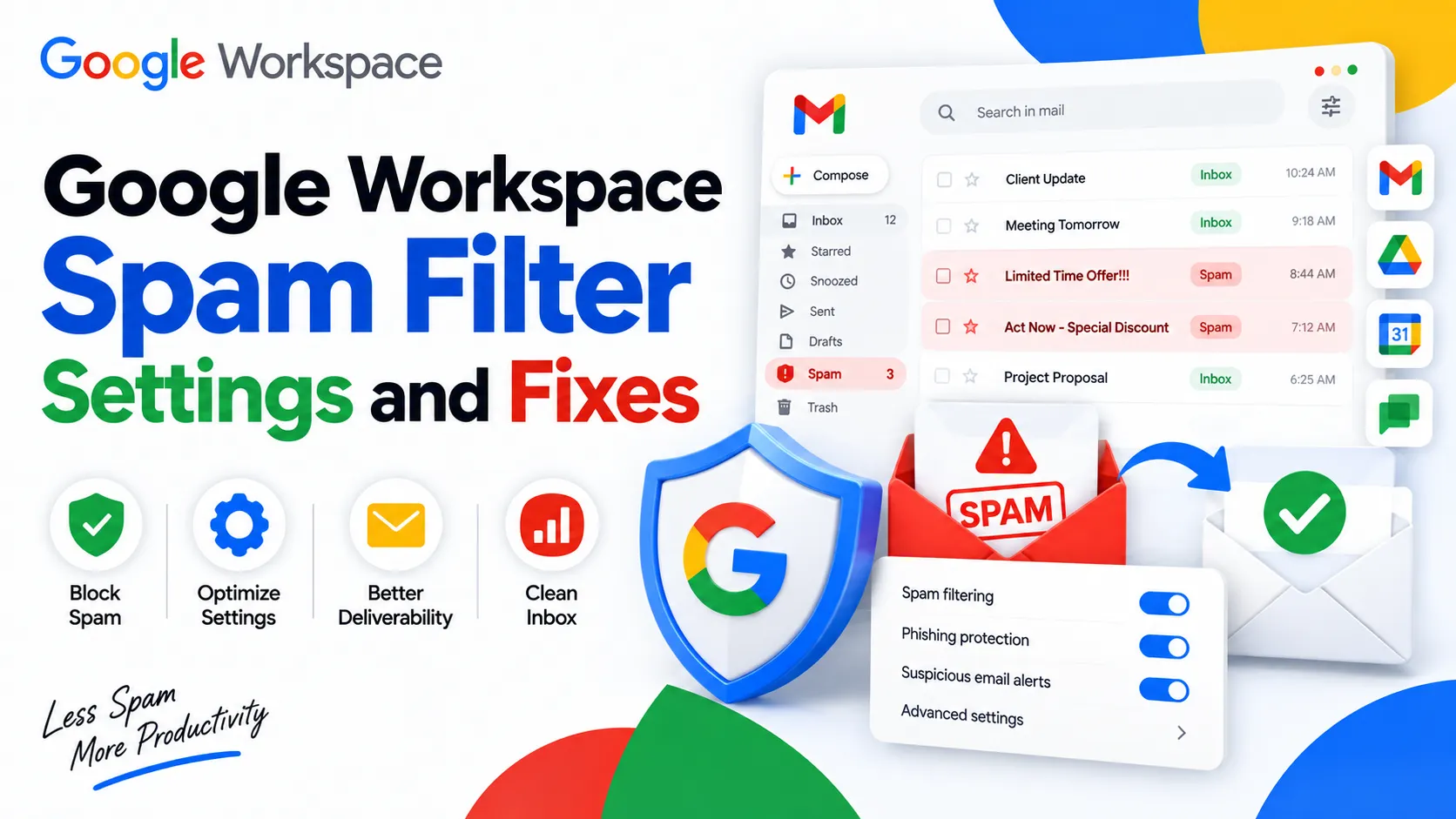
Gmail and Google Workspace use the same underlying spam filtering engine, automatically scanning incoming mail for phishing, malware, and unsolicited bulk email, with additional admin-level controls (allowlists, denylists, enhanced pre-delivery scanning) available in the Admin console for business accounts. You can’t fully disable Gmail’s spam filter, but you can adjust it: creating filters for specific senders, marking messages as not spam to retrain it, and, for admins, tuning organization-wide spam settings. If legitimate email is landing in spam, or spam is reaching the inbox, the fix usually involves a specific setting rather than the filter being broadly “broken.”
Spam filter questions tend to split into two very different problems: too much spam getting through, or legitimate email wrongly landing in spam. Both have real fixes, but they’re different fixes, and 2026 brought a genuine change to how Gmail handles bulk senders that affects both. This guide covers the settings, the troubleshooting, and what’s actually new this year.
How Does the Gmail and Google Workspace Spam Filter Work?
Gmail’s spam filter uses machine learning trained on patterns across a massive volume of email, evaluating sender reputation, authentication records (SPF, DKIM, DMARC), content patterns, and how other recipients have treated similar messages, to decide whether an incoming message is legitimate, spam, or outright malicious. Google Workspace business accounts use this same core filtering engine as personal Gmail, with additional administrative controls layered on top for organization-wide policy. This is worth stating plainly since “G Suite spam filter” and “Google Workspace spam filter” searches are asking about the identical technology; the 2020 rebrand didn’t change how filtering works.
Google Workspace Spam Filter Settings for Admins
Admins manage organization-wide spam behaviour through the Admin console, under Apps, Google Workspace, Gmail, Spam, phishing, and malware. Key settings here include:
- Allowlists: specific senders or domains that bypass spam filtering entirely, useful for a trusted partner whose email keeps getting misclassified.
- Denylists (blocklists), specific senders or domains blocked outright regardless of content.
- Enhanced pre-delivery message scanning, catching phishing attempts that standard scanning might miss, part of Google’s own recommended small-business security checklist.
- Attachment and link protection, additional screening for malicious files, links, and external images beyond baseline filtering.
These settings apply organization-wide, meaning an individual employee generally can’t override an admin-configured allowlist or denylist through their personal Gmail settings.
How to Create a Spam Filter in Gmail
For end users wanting to customize what gets filtered on their own account, Gmail’s filter system (distinct from the underlying spam detection) lets you create rules based on sender, subject, keywords, or other criteria. In Gmail, click the search options icon in the search bar, enter your criteria (like a specific sender’s address), then choose “Create filter” and select an action, such as “Delete it” or “Skip the Inbox” to route matching messages away automatically. This is useful for both blocking unwanted senders more aggressively and, in reverse, ensuring mail from a specific trusted sender never gets filtered.
How to Make Gmail’s Spam Filter More Aggressive
If spam is consistently reaching your inbox despite Gmail’s default filtering, a few options tighten things up. Report every spam message that slips through using the “Report spam” button rather than just deleting it, since this actively retrains the filter on what you consider spam. Create manual filters for repeat offenders (a specific sender or a recognizable subject pattern) with the “Delete it” or “Skip the Inbox, apply label ‘Spam'” action. For a Google Workspace organization dealing with a pattern of unwanted mail across multiple users, an admin can add specific senders or domains to the organization-wide denylist rather than relying on each employee to filter individually.
How to Disable or Turn Off Gmail’s Spam Filter
There’s no setting that fully disables spam filtering for either personal Gmail or Google Workspace accounts, and this is by design; unfiltered mail at Gmail’s scale would make the product unusable. What you can do instead: create a filter or allowlist entry for a specific sender that’s being incorrectly caught, which effectively “turns off” filtering for that one sender without disabling protection generally. If you’re trying to disable filtering because you want to see everything that’s been caught, checking the Spam folder directly (mail sits there for 30 days before automatic deletion) accomplishes that without changing any settings at all.
Why Is My Spam Filter Not Working?
This question usually means one of two opposite problems, worth diagnosing separately.
Spam is reaching your inbox that should be filtered: Report it as spam rather than just deleting it, since deleting without reporting doesn’t retrain the filter. Check whether the sender uses a slightly altered domain (a common tactic to evade filtering) and consider a manual filter or denylist entry if it’s a repeat sender.
Legitimate email is going to spam that shouldn’t be: Check the sender’s authentication, if you’re the one sending and your recipients report this, your domain likely lacks proper SPF, DKIM, or DMARC configuration, which increasingly matters given 2025’s stricter enforcement (more on this below). If you’re the recipient, mark the message “Not spam” and add the sender to your Contacts, both of which help retrain the filter for that sender going forward. Occasionally, the cause isn’t misconfiguration at all: Google has had brief service-level incidents affecting spam classification (a documented one in January 2026 lasted several hours), so a sudden, temporary shift in filtering accuracy isn’t always something in your control to fix.
The 2025-2026 Bulk Sender Requirements: A Real Change Worth Knowing
Starting in November 2025, Gmail tightened enforcement significantly for bulk senders. Non-compliant senders aren’t just routed to spam anymore; in many cases, their mail is rejected outright at the server level, meaning it never reaches Gmail’s servers at all, not even the spam folder. If you or your business sends any volume of email (newsletters, notifications, marketing), current requirements to stay compliant include: authenticating mail with SPF and DKIM (properly aligned), publishing a DMARC record, sending over TLS, maintaining valid forward and reverse DNS, following standard email formatting, and providing one-click unsubscribe for marketing email that’s honoured within 48 hours. Gmail’s guidance recommends keeping your spam complaint rate below 0.1%, with 0.3% or higher risking enforcement action. This is a meaningfully bigger deal than routine spam filtering, since a business without these fundamentals in place can find its email invisible to recipients entirely rather than just landing in spam.
How to Reset or Clear Your Spam Filter
There’s no single “reset” button that returns spam filtering to a factory default, since it’s continuously learning rather than running from a static rule set you can roll back. What you can do: manually empty your Spam folder (messages there for 30+ days delete automatically anyway), review and remove any overly broad filters you’ve created that might be misclassifying mail, and check your Admin console allowlist and denylist entries if you’re on a Google Workspace account, since a stale entry from months ago can cause ongoing, hard-to-diagnose issues.
Best Spam Filter Tools and Extensions Beyond Gmail’s Native Filter
For most users and small businesses, Gmail’s built-in filtering is sufficient without any add-on. Businesses with heightened email security needs sometimes layer a dedicated third-party email security tool on top, generally aimed at more advanced threat protection, continuity, or archiving rather than replacing Gmail’s spam detection outright. Browser extensions marketed specifically as “Gmail spam filters” are worth scrutinizing carefully before installing, since granting a third-party extension access to your email is itself a security consideration; verify the developer and permissions requested before adding one rather than assuming a popular listing is automatically safe.
Spam Filtering on the Gmail Android App
The Gmail Android app uses the same server-side spam filtering as the web version, so a message caught as spam appears in the Spam folder consistently across devices. The main mobile-specific limitation is that creating new filters isn’t available directly from the Android app; that has to be done from a desktop browser, though reporting a message as spam or marking one as not spam works fine from mobile and does contribute to filter training either way.
The “Controversial” Gmail Setting: Smart Features
If you’ve seen headlines about a controversial Gmail setting, they’re referring to Smart Features, which power Gmail’s AI-assisted tools like Smart Compose and inbox categorization. In January 2026, an engineer’s viral social media post claimed users had been automatically opted into allowing Gmail to process private messages and attachments to power these features, and it’s on by default for many users. Google’s stated position is that personal Gmail content isn’t used to train its foundational AI models and that processing for these features happens in an isolated environment. Regardless of where you land on the privacy debate, turning it off requires two separate steps: in Gmail’s Settings under the General tab, toggle off “Smart features and personalization,” and separately check the account-wide Google Workspace smart features setting, since disabling one location doesn’t automatically disable the other. Note that turning this off also disables some genuinely useful basic tools, like autocomplete and inbox sorting, since Google ties them to the same setting.
Filtering Spam in Google Voice
Google Voice has its own separate spam detection for calls and texts, distinct from Gmail’s email spam filter entirely. Suspected spam calls are automatically screened and can be sent to a spam folder within the Voice app, and users can report specific numbers as spam directly from the call or message log to improve future filtering for that number.
A Note on “EOP” Settings
If you’re searching for “EOP anti-spam policy settings,” that’s a Microsoft 365 term (Exchange Online Protection), not a Google Workspace feature. If your organization uses Google Workspace, the equivalent controls are the Admin console’s spam, phishing, and malware settings covered above, not EOP, which is specific to Microsoft’s email infrastructure.
Common Mistakes With Spam Filter Settings
Deleting spam instead of reporting it. Deleting a spam message removes it from your inbox but doesn’t teach the filter anything; reporting it as spam actively improves future filtering for similar messages.
Assuming a denylist entry is permanent and forgetting about it. An admin-added denylist entry from months or years ago can silently block a sender whose domain has since changed hands or been fixed, causing confusing, hard-to-diagnose delivery issues later.
Buying Google Workspace Direct vs Through a Reseller for Email Deliverability Setup
Getting SPF, DKIM, and DMARC configured correctly, now more consequential than ever given 2025’s stricter bulk-sender enforcement, works identically regardless of how you bought your Google Workspace licenses. Where an authorized reseller can help is in the setup itself, DNS configuration and authentication records are common stumbling blocks for a business without dedicated IT staff, and getting them wrong risks legitimate business email being rejected outright under current rules. See our full Google Workspace pricing breakdown, and our Google Workspace security review for the broader admin security checklist that spam and phishing settings are part of.
Honest Limitation
Spam filtering is inherently probabilistic, tuned to minimize both false positives (legitimate mail flagged as spam) and false negatives (spam reaching the inbox), but it will never be perfect in either direction. This guide covers the settings and troubleshooting steps available to you, but it can’t guarantee any specific message’s classification, since Gmail’s filtering decisions depend on signals (sender reputation, evolving threat patterns) that change continuously and aren’t fully visible from the outside.
FAQs
How do I stop Gmail from sending emails to spam?
If it’s your own outgoing email being misclassified, verify your domain has correct SPF, DKIM, and DMARC records, since authentication failures are a leading cause. If you’re the recipient, mark the message “Not spam” and add the sender to your Contacts to retrain the filter.
Can I turn off Gmail’s spam filter completely?
No, there’s no setting to disable spam filtering entirely for personal Gmail or Google Workspace accounts. You can allowlist specific senders or create filters to adjust behaviour for particular cases instead.
Why is Gmail’s spam filter too aggressive?
If legitimate mail is consistently landing in spam, check the sender’s email authentication (SPF, DKIM, DMARC) first, since Gmail’s filtering leans harder on unauthenticated mail, especially under stricter 2025-2026 bulk sender enforcement. Marking specific messages “Not spam” also helps retrain the filter over time.
What is the “controversial” Gmail setting everyone is talking about?
It’s Smart Features, the setting that allows Gmail to process email content to power AI tools like Smart Compose, which drew scrutiny in early 2026 for being on by default. It can be turned off in Gmail’s General settings and separately in account-wide Workspace smart features settings.
What changed with Gmail spam filtering in 2025 and 2026?
Starting November 2025, Gmail began outright rejecting non-compliant bulk email at the server level rather than routing it to spam, requiring senders to meet stricter authentication (SPF, DKIM, DMARC), formatting, and unsubscribe requirements, with spam complaint rates ideally kept under 0.1%.
How do I create a spam filter in Gmail?
Click the search options icon in Gmail’s search bar, enter criteria like a specific sender, click “Create filter,” and choose an action such as deleting matching messages or skipping the inbox.
Conclusion
Gmail and Google Workspace’s spam filter isn’t something you turn on or off; it’s a continuously learning system you adjust through reporting, filters, and, for admins, organization-wide allowlists and denylists. The bigger shift worth understanding in 2026 isn’t a filter setting at all; it’s Gmail’s stricter bulk-sender enforcement, which can reject non-compliant email outright rather than merely filtering it, making correct SPF, DKIM, and DMARC setup more consequential than ever for any business sending email at volume.