Quick Answer
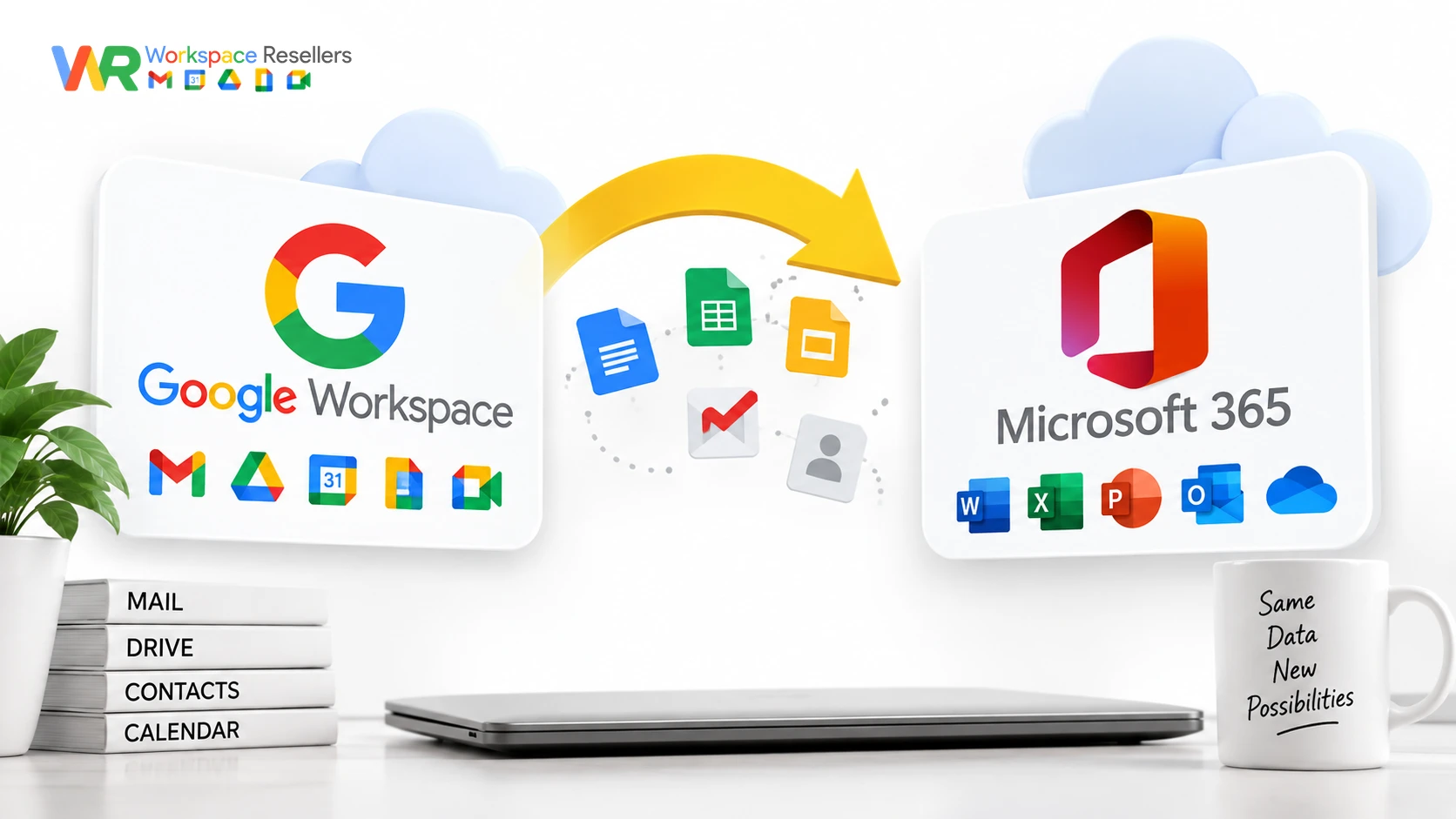
Migrating from Google Workspace to Office 365 moves your mail, calendar, and contacts using Microsoft’s Exchange admin center, through either an automated or manual process. Microsoft’s own automated option fails often enough that most experienced admins recommend going manual from the start. The manual method involves creating a Google Cloud service account, generating a JSON security key, enabling several Google APIs, and delegating domain-wide access, all before Exchange can actually pull your data.
This guide walks through the real process, including a Google Cloud restriction that trips up almost every account created in 2024 or later, and what to check before you commit to leaving Google Workspace at all.
What Actually Migrates From Google Workspace to Office 365
Microsoft’s tool moves three categories of data:
- Mail and rules (your rules migrate but stay switched off by default; verify them in Outlook before turning them on)
- Calendar
- Contacts
That’s it. Anything outside these three- Drive files, Sites, Chat history- doesn’t come across with this tool and needs a separate migration path if you need it.
Before You Migrate: Worth Double-Checking First
If price is any part of why you’re considering this switch, it’s worth a quick sanity check before you commit weeks to a migration project. A lot of businesses assume Google Workspace’s official rate is the only rate available, when authorized resellers often sell the identical product for meaningfully less:
| Plan | Google Direct (flexible) | Reseller Price |
|---|---|---|
| Business Starter, below 300 users | $8.40/user/mo | $3/user/mo |
| Business Starter, 300+ users | $8.40/user/mo | $2.50/user/mo |
| Business Standard | $16.80/user/mo | $13/user/mo |
| Business Plus | $26.40/user/mo | $20/user/mo |
If cost was the deciding factor, it’s worth checking Google Workspace pricing through an authorized reseller before starting a migration that, as you’ll see below, isn’t exactly simple. If your reasons are feature-based instead (a specific Microsoft 365 tool your team needs), the rest of this guide covers the process in full.
Prerequisites Before You Start
Get these in place before touching the Exchange admin center:
- Project creator credentials in Google Workspace; you’ll need this role to create the Google Cloud project the migration depends on.
- Verified domain in Microsoft 365, with your TXT records already set up.
- A subdomain for mail routing to Microsoft 365 (skip this if your source and target domains are the same; more on that below).
- All users must be provisioned as mail-enabled users in Microsoft 365 before the migration process starts; this isn’t something the migration tool does for you.
One more thing worth knowing upfront: this migration isn’t available for Office 365 US Government GCC High or DoD tenants.
Three Ways to Migrate
Microsoft gives you three options:
- Automated, through the Exchange admin center’s guided setup.
- Manual, also through the Exchange admin center, but with you handling each configuration step yourself.
- PowerShell, for admins comfortable scripting the whole process.
Here’s the honest advice worth knowing before you pick: the automated option fails often enough that experienced admins tend to skip it entirely and go straight to manual. It’s not that automation never works; it’s that when it fails partway through, you end up doing the manual steps anyway, just with less context about what already happened. If you want the migration done right the first time, start manual.
The Manual Migration Method, Step by Step
Step 1: Start the Migration Batch
In the Exchange admin center, go to Migration, then Add migration batch. Give it a clear name (something like “Google Workspace to M365 – Batch 1” if you’re staging multiple groups). Select Migrate to Exchange Online, then on the next screen, choose Google Workspace (Gmail) migration as your type.
You’ll be offered the automated-or-manual choice here. Choose manual.
Step 2: Create a Google Cloud Project
Head to the Google Cloud Console. If it’s your first visit, you’ll need to accept the terms of service. Create a new project (name it something recognizable, like “Migration from Google”), and select it once it’s created.
Step 3: Create a Service Account
Inside your new project, create a service account and give it a name. Once it’s created, open it and copy its Client ID, you’ll need this twice more before you’re done, so save it somewhere handy.
Step 4: Generate the JSON Secret Key
Inside the service account, go to Keys, then Add Key, then Create new key, and select JSON.
Here’s where most people hit a wall. If your Google account was created in 2024 or later, you’ll likely see an error saying service account key creation is disabled. This isn’t a bug, Google changed the default policy. Here’s the fix:
- Go to Manage Resources in the Cloud Console and select your project.
- Click Add Principal, enter your Google admin account, and assign it the Organization Policy Administrator role.
- Go to IAM & Admin, then Organization Policies.
- Search for “Disable service account key creation.”
- Click Manage Policy, select Google-managed default, and save.
- Wait a few minutes, then go back to your service account and try creating the JSON key again.
This time it should download successfully to your computer.
Step 5: Enable the Required Google APIs
Back in Cloud Console, go to the API Library and enable four APIs individually:
- Gmail API
- Google Calendar API
- Contacts API
- People API
Each one needs to be searched for and enabled separately, there’s no bulk toggle for this.
Step 6: Delegate Domain-Wide Access
In your Google Admin console, go to Security, then Access and data control, then API controls, and click Manage domain-wide delegation. Click Add new, paste in the Client ID you saved earlier, and enter the required OAuth scopes (Microsoft’s documentation lists the exact scope string to use). Click Authorize.
Step 7: Finish the Exchange Setup
Back in the Exchange admin center, name your migration endpoint, then set your concurrent migration limits (20 concurrent migrations and 10 concurrent incremental syncs are Microsoft’s defaults, and they work fine for most setups). Enter one email address to test with, then upload the JSON file you generated in Step 4.
Step 8: Upload Your CSV and Start the Batch
Create a CSV file with two columns: EmailAddress (the target Microsoft 365 address) and Username (the source Google Workspace address). If your source and target domains match, you can skip the second column entirely.
Upload the CSV, confirm your target domain, select what to migrate (mail, calendar, rules), choose who receives the completion report, and start the batch.
Why the Automated Option Often Fails
Worth explaining, since it saves time to know this going in. The automated flow tries to configure your Google Cloud project, service account, and API access on your behalf, which sounds convenient, but it depends on a lot of moving pieces succeeding in sequence inside a system (your Google Cloud environment) that Microsoft’s tool doesn’t fully control. Any one small mismatch, a permissions issue, a policy restriction like the one covered above, an API that doesn’t enable cleanly, and the whole automated flow can fail without a clear explanation of which step broke.
The manual method takes longer up front, but you can see and verify each piece as you go, which is exactly why experienced admins prefer it.
Migration Limitations You Should Know Before You Start
Microsoft is upfront about several things that won’t transfer:
| Data Type | What’s Lost |
|---|---|
| Vacation/auto-reply settings | |
| Meeting rooms | Room bookings entirely |
| Calendar | Shared calendars and event colors |
| Contacts | More than 3 email addresses per contact |
| Contacts | Gmail tags, custom tags, and contact URLs |
There’s also a default 35MB limit on the largest single email that can migrate, based on your Exchange Online transport configuration. And if your organization uses message records management or archival policies, Microsoft strongly recommends disabling them before migrating; otherwise, messages moved to archive get flagged as “missing” during the migration, which looks like data loss even when it isn’t.
How Long Does This Take, and When Should You Switch MX Records?
Migration time depends on mailbox size and count, small batches can finish in a few hours, larger ones can take considerably longer. The genuinely useful trick here: you don’t have to wait for the migration to finish before switching your MX records. Once the sync is running, you can update your MX records to point to Microsoft 365, and new mail keeps flowing in without an email outage while historical data continues syncing in the background.
Migrating in the Other Direction: Office 365 to Google Workspace
If you’re actually looking to go the other way, moving from Microsoft 365 into Google Workspace, that process is different and, for most admins, considerably simpler. Google’s own Data Migration Service has a built-in Import from Exchange Online option that doesn’t require any of the service account or JSON key setup covered above. If that’s your actual direction, see our guide on Google Workspace mail migration for the simpler path.
Common Mistakes During This Migration
Trying the automated option first and losing hours to an unclear failure. Save yourself the time and start manually, especially if you’re not deeply familiar with troubleshooting Google Cloud permissions.
Not realizing service account key creation is disabled. If your Google account is newer, this will block you at Step 4 until you fix the organization policy. Don’t assume something’s broken with your setup; it’s a default Google policy change.
Forgetting to disable MRM or archival policies first. Skipping this turns real archived messages into false “missing item” flags during migration, making it much harder to tell genuine data loss from expected exclusions.
Not testing with one mailbox before migrating everyone. The process above walks through a single test account for a reason. Confirm data consistency looks right before committing your whole organization to the same batch.
When to Get Help Instead of Running This Yourself
This migration touches two separate cloud admin panels, generates security credentials, and requires editing organization-level policies you may never have touched before. That’s a lot of surface area for something to go wrong, and a botched service account permission is the kind of mistake that’s hard to notice until data goes missing.
If you’re moving in the other direction instead, into Google Workspace rather than away from it, this is exactly the kind of setup an authorized reseller handles routinely. GoogleWorkspace Resellers manages Google Workspace onboarding and migrations directly, so you’re not the one learning Google Cloud IAM policies under deadline pressure.
Honest Limitation
This guide reflects Microsoft’s current documented process and a real, detailed walkthrough of the manual method, but every organization’s Google Cloud environment, existing policies, and mailbox complexity differ. If your organization has custom IAM policies, unusual data retention rules, or a large number of users, testing thoroughly with a small batch before committing everyone is the safer path, exactly as the process above is designed to allow.
FAQs
How do I migrate from Google Workspace to Office 365?
Using Microsoft’s Exchange admin center, either through an automated setup (which fails often) or a manual process involving a Google Cloud service account, a generated JSON security key, and domain-wide delegation. Mail, calendar, and contacts transfer; Drive files and other Workspace apps don’t.
Why is my Google Workspace migration to Office 365 failing at the JSON key step?
If your Google account was created in 2024 or later, Google now disables service account key creation by default. You’ll need to assign yourself the Organization Policy Administrator role and change the “Disable service account key creation” policy before the key will generate.
What data doesn’t migrate from Google Workspace to Office 365?
Shared calendars, event colors, meeting room bookings, vacation and auto-reply settings, Gmail tags, custom tags, and contact URLs. Contacts are also limited to a maximum of three email addresses each.
Should I use the automated or manual migration method?
Manual, in most cases. The automated option frequently fails partway through without a clear explanation, and experienced admins generally recommend going manual from the start to avoid wasted troubleshooting time.
Can I migrate without an email outage?
Yes. Start the data sync first, then switch your MX records to Microsoft 365 once the migration is underway. New mail keeps arriving without interruption while historical data continues transferring.
How long does a Google Workspace to Office 365 migration take?
It depends on mailbox size and how many users you’re migrating. Small batches can finish in a few hours; larger organizations should expect the process to take considerably longer and may want to migrate in stages.
Conclusion
Migrating from Google Workspace to Office 365 is a genuinely technical process, not a one-click switch, and the manual method through Exchange’s admin center, while more involved upfront, is the more reliable path most admins land on after the automated option lets them down. Know the specific 2024-and-later service account key restriction before you start, disable any archival policies first, and test with one mailbox before committing your whole organization.
And if cost was any part of what pushed you toward this switch, it’s worth a five-minute check on Google Workspace’s reseller pricing first; sometimes the cheaper option is staying put, just paying less for it.